
Guides · Getting started
What to type as your Audiobookshelf server address in SoundLeaf
At home, type http:// plus your server's local IP and port, usually :13378, like http://192.168.1.50:13378. Away, use your Tailscale or domain address.
At home, type http://, then your server computer’s local IP address, then the port, which is :13378 on a standard install. For example: http://192.168.1.50:13378.
Away from home, use the address your remote setup gives you. With Tailscale, that’s your server’s Tailscale address and port. With your own domain, it’s usually https:// and no port. The sign-in screen says it best: use the same address you use in your browser.
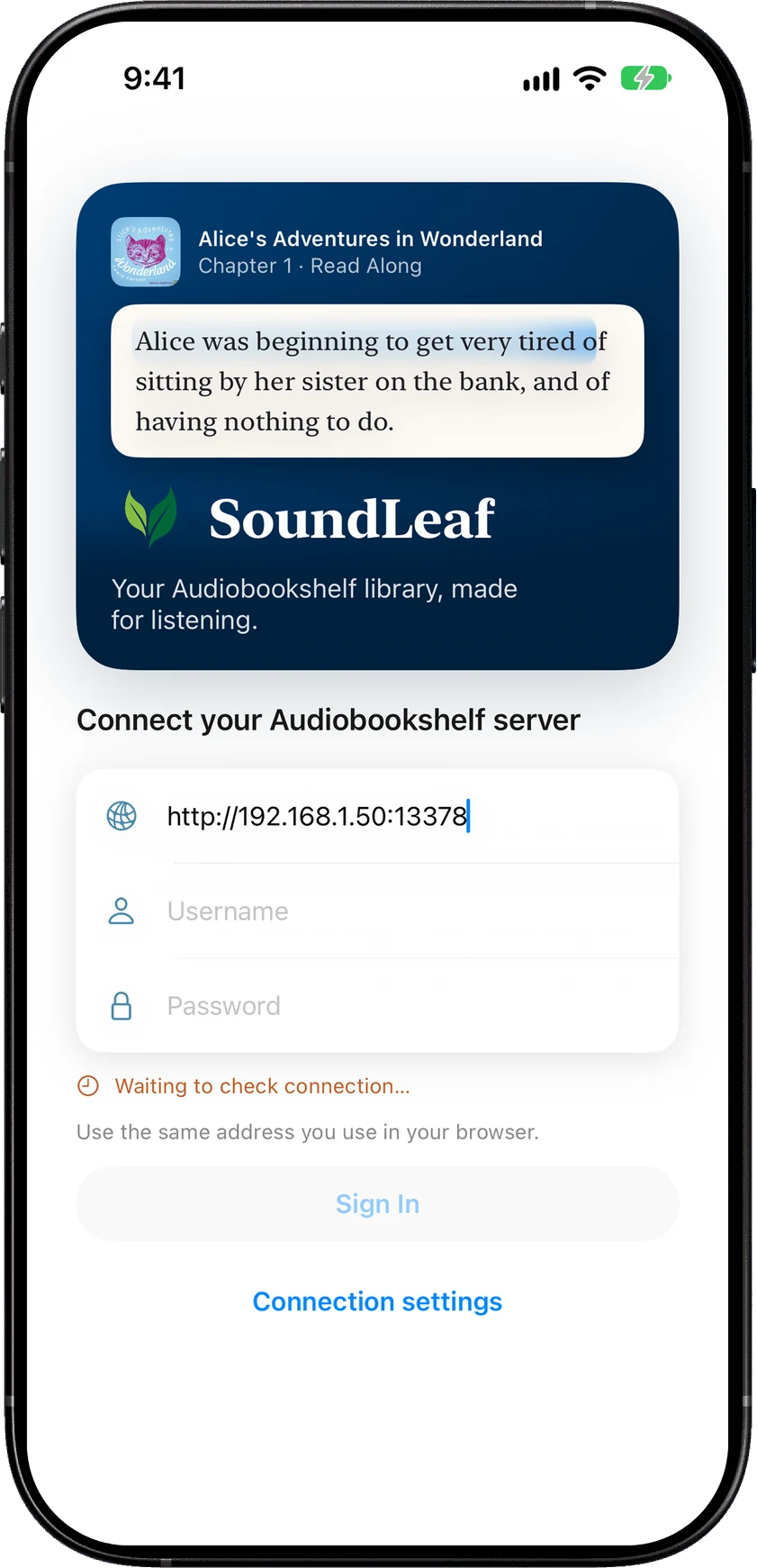
The address in this picture is an example. Type your own server’s address.
Which address do I use for my setup?
Swap the example numbers and names for your own. If you changed the port from 13378, use yours.
| Your setup | What to type |
|---|---|
| Server on the same Wi-Fi as your phone | http://192.168.1.50:13378 |
| Audiobookshelf in Docker | http://192.168.1.50:13378, using the IP of the computer running Docker |
| Tailscale | http://100.101.102.103:13378 or http://myserver.tail1234.ts.net:13378 |
| Your own domain behind a reverse proxy (a web server that passes requests on to Audiobookshelf) | https://books.example.com |
| Audiobookshelf in a subfolder of your domain | https://example.com/audiobookshelf |
| Cloudflare tunnel | https://books.example.com |
A few notes on the table:
- Docker: use the IP of the computer that runs Docker. In the usual Docker setup, the container also gets its own address, often starting with
172.. That address only works inside the computer, so your phone can’t reach it. - Tailscale: your server’s
100.xaddress is on the Tailscale admin page and in the Tailscale app. The longer name ending ints.netis its MagicDNS name, if MagicDNS is on in Tailscale. Both use plainhttp://and the port. If you set up HTTPS with Tailscale Serve, use thehttps://address it gave you instead. See Tailscale setup. - Domain or tunnel: the proxy or tunnel takes care of the port, so you can usually leave it off. Use
https://. If the address that works in your browser has a port, keep it. - Subfolder: include the subfolder your server uses. It is
/audiobookshelfunless the server admin changed it.
If you want a home address and an away address on one server, SoundLeaf can switch between them for you. See Home and away server addresses.
What are the common mistakes?
Typing localhost
localhost always means “this device”. On your iPhone, it points at the phone, not at the computer running Audiobookshelf. Use the computer’s local IP address instead.
Leaving off the port
Audiobookshelf usually listens on port 13378. Without the right port, SoundLeaf can’t reach your server. Add the port, unless you connect through a domain with a reverse proxy or tunnel. Not sure about your port? See What port does Audiobookshelf use?
Using https:// with a bare IP address
https://192.168.1.50:13378 fails, because a plain Audiobookshelf install does not speak HTTPS. Use http:// when you connect straight to Audiobookshelf on a local IP or Tailscale address. Save https:// for a domain with a proper certificate.
A typo in http:// or https://
htp://, http// or https:/ will not work. If SoundLeaf can’t read the start of the address, it says so (see the messages below).
How do I find my server’s IP address?
Look on the computer or NAS that runs Audiobookshelf. A home address usually starts with 192.168. or 10..
- Windows: open Settings > Network & internet, pick Wi-Fi or Ethernet, then your network. Look for IPv4 address. Or type
ipconfigin Command Prompt. - Mac: open System Settings > Network, pick Wi-Fi or Ethernet, then Details. The address is under TCP/IP.
- Linux: run
hostname -Iin a terminal. It can list more than one address. Pick the one on your home network, usually starting with192.168.or10.. - Synology: in DSM, open Control Panel > Network > Network Interface.
- Unraid: open Settings > Network Settings.
Your router’s admin page also lists the devices on your network with their addresses.
Stop the address from changing
Your router hands out home addresses, and it can give your server a new one after a restart. Then SoundLeaf stops connecting, and it looks like the app broke.
To fix this for good, set a DHCP reservation (some routers call it a “static lease” or “fixed IP”) for the server in your router’s settings. The server then keeps the same address.
What does SoundLeaf do with the address I type?
- It checks the address as you type. When you stop typing for a moment, SoundLeaf asks the server for its status. When that works, you see Connected · Version and the server’s version, and you can sign in.
- It adds http:// or https:// if you leave them off. It tries HTTPS first and shows Trying HTTPS connection…. If that fails, it tries HTTP and shows Trying HTTP connection…. Including
http://orhttps://yourself tells SoundLeaf which one to use. - It checks that the server really is Audiobookshelf, and that its setup is finished.
Then you sign in with your Audiobookshelf username and password, or with OpenID (single sign-on through a login service such as Authentik or Pocket ID) if your server has it turned on. SoundLeaf has no API key login.
What do the error messages mean?
These are the messages the sign-in screen shows when the address is wrong. When you leave off http:// or https://, SoundLeaf tried both, so you see one combined message that starts with Could not connect with HTTPS or HTTP and gives the reason for each.
”Enter a full server address, starting with https:// or http://.”
The start of the address isn’t http:// or https://, or there’s no server name after it. Check for typos.
”Network error: Cannot connect to server. Please check your internet connection.”
Nothing answered at that address and port. Check the IP and the port, check that the server is running, and try the address in Safari on the phone. If you typed localhost, use the server’s IP instead.
”Request timed out. Please check your connection and try again.”
The phone waited and got no reply. This is common with a Docker 172. address, a home IP when you’re away from home, or a firewall on the server computer.
”Secure connection failed. Check your server’s SSL certificate.”
You see this inside a longer Network error message. HTTPS didn’t work. On a bare IP address, use http://. On a domain, check the certificate.
”No Audiobookshelf server was found at this address. Check the address, including any path after the host name.”
Something answered, but not Audiobookshelf. The path after the server name is often the problem, such as a missing or extra /audiobookshelf.
”The address did not return an Audiobookshelf status response. Check the address and any proxy sign-in requirements.”
SoundLeaf couldn’t read the server’s reply as Audiobookshelf. A sign-in page in front of the server, like Cloudflare Access, often causes this. See Cloudflare Access setup.
”This address does not lead to an Audiobookshelf server.”
The server answered, but it is a different app. Check the address and port.
”Finish setting up the server, then try again.”
The server is new and nobody has created the first account. Open the server in a browser and finish the setup.
For every other message, see SoundLeaf error messages.