
Guides · Features
How SoundLeaf syncs your listening progress with Audiobookshelf
SoundLeaf sends your place to Audiobookshelf as you listen, keeps offline listening until the server has it, and starts from the newest position on any device.
SoundLeaf saves your place on the phone as you listen and sends it to your Audiobookshelf server every few seconds. If the server can’t be reached, your listening stays saved on the phone and is sent once the server is back.
When two devices disagree about where you are, the newest position wins, whichever device saved it.
When does SoundLeaf send my progress?
- About every 10 seconds while a book plays
- When you leave SoundLeaf or come back to it
- As soon as the connection returns, while SoundLeaf is open
The top of Settings shows your server, and All synced when no listening is waiting to be sent. If All synced isn’t there, some listening hasn’t reached the server yet.
What happens to progress when I listen offline?
A downloaded book plays with no connection at all. While you listen, SoundLeaf keeps a record of each listening session on the phone: where you started, where you stopped and how long you listened.
SoundLeaf saves offline listening and sends it when it can reach your server again. You don’t need to open the book or tap anything.
Offline listening keeps the time you actually listened, so it lands on the right day in Audiobookshelf.
To get ready for a trip, see Listen offline.
What if another device has a newer position?
Every saved position carries the time it was saved. When you press play, SoundLeaf asks your server where you are. If the web player, another phone or another app saved a position after this phone did, SoundLeaf starts from that newer one. If this phone’s position is newer, it keeps its own.
There’s no question to answer first. If the book was already paused in the player, SoundLeaf moves only when the two positions are more than a minute apart, and tells you it moved:
- A small move shows a message like Picked up at 1:42:10 from another device.
- A jump of five minutes or more, when your previous spot was more than two minutes from both the start and the end, shows Before sync with the time you were at, and a Go back button. Tap Go back to return to where this phone was. It stays for 30 seconds of playback, and the countdown waits while you’re paused.
Listening that reaches the server late never drags the book back. If you listened offline on this phone and then went further on another device, the offline listening still counts toward your listening time, but your place stays at the newer spot.
A seek or chapter jump you make on this phone also wins over a server answer that arrives after it.
How do I switch between devices?
Pause on one device before you start on the other, and give the first one a moment with a connection so its position reaches the server. Then press play on the second. SoundLeaf picks up the newer position by itself.
Do CarPlay and Apple Watch share the same progress?
Yes. CarPlay is SoundLeaf on your phone, shown on the car’s screen, so it’s the same player and the same progress.
The Apple Watch works two ways. When it controls the phone, the phone does the listening. When it plays on its own, its listening goes to your server through your iPhone. If the phone is out of reach, the listening stays saved on the watch and is sent the next time they’re in touch.
Why is my listening time or streak missing in Audiobookshelf?
Audiobookshelf works out its stats (time listened, days listened and days in a row) from listening sessions. SoundLeaf sends a session for each stretch of listening and counts only the time audio was actually playing.
Listening done offline, on the watch or on another device counts once it reaches your server. Open SoundLeaf with a connection and give it a minute.
To check what the server received, open the Audiobookshelf web app. Any user can see recent sessions under Your Stats. An admin can see every session under Settings > Listening Sessions. SoundLeaf’s own numbers on Home come from the same server; see Listening stats and goals.
My place jumped. How do I find it again?
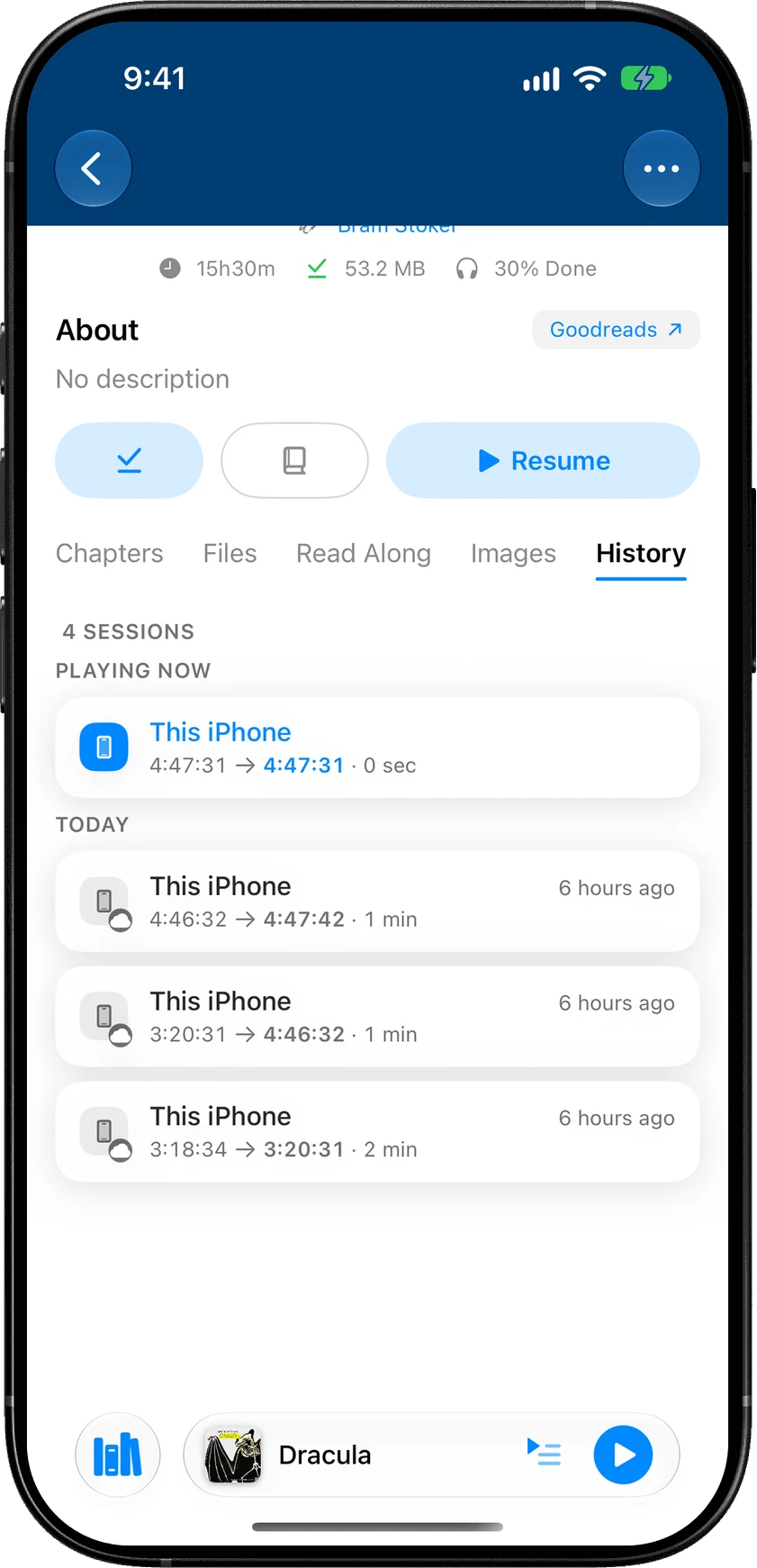
Every book has a listening history in SoundLeaf:
- On the book’s screen, choose the History tab, next to Chapters and Files.
- In the player, tap Up Next and choose History.
History lists recent listening sessions for that book, newest first and grouped by day. Each row shows the device, when it was, and the stretch it covered, like 1:46:42 → 1:57:42 · 11 min. Sessions your server holds from other devices and apps have a small cloud on their icon. Tap a row to play from where that session stopped.
For an accidental tap on the wrong chapter, use the Go back button that appears after a big jump.
If the position on the server itself looks wrong, see Audiobookshelf progress jumped back or got lost.
Should I add my server once or for each address?
Once. If you reach your server at home by one address and from outside by another, put both on that one server with home and away addresses. SoundLeaf switches between them by itself, and switching doesn’t sign you out or touch your downloads.
Adding the same server a second time makes a separate account in SoundLeaf, with its own downloads.
How do I mark a book finished, reset it or hide it from Continue?
Press and hold a book in a list, or tap the … button on the book’s screen.
- Mark as Finished records the book as done without listening to the rest. Mark as Not Finished undoes it.
- Reset Progress clears your listening and reading position for the book, on the phone and on the server. It asks first, and your download stays on the phone. Your listening time in Audiobookshelf’s stats isn’t removed. If the book is playing, pause it first.
- Hide from Continue takes the book off Continue Listening without changing your place. Audiobookshelf puts it back once you listen to it again.
Reset Progress shows when the book has progress, and Hide from Continue shows when the book is on Continue Listening.
All three work offline. For Reset Progress and Hide from Continue, SoundLeaf says Saved on this device. Will sync when connected. and sends the change once it can reach the server.