
Guides · Features
NFC Tags and QR Codes
Put a playback action on an NFC tag or a QR code: resume a book, start a podcast episode, pause, set a sleep timer or save a bookmark with one scan
SoundLeaf can put a playback action on an NFC tag or a QR code. Scan it with your iPhone and SoundLeaf does that one thing: resume a particular book, start the latest episode of a show, pause, set a sleep timer or save a bookmark.
A tag on the nightstand that starts your book with a 30-minute timer is the classic use. A QR code works the same way and needs no tag at all.
Where to find it
- Settings > NFC & QR makes a general action, like resume or pause, that works on whatever you’re listening to.
- A book’s menu (the … button on the book screen) makes an action for that book. It only appears on books that have audio.
- A podcast’s settings, under Playback, makes an action for that show.
Making an action
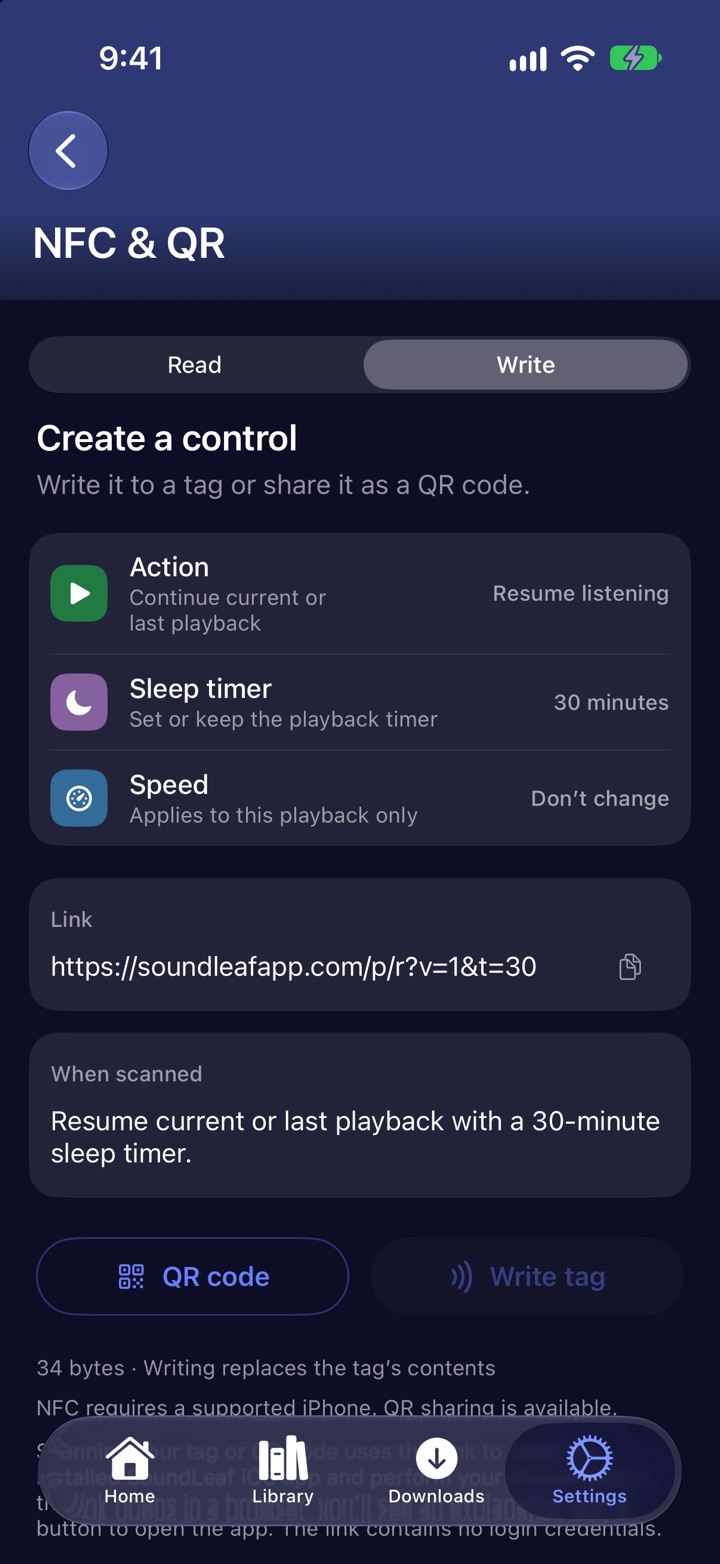
The Write tab builds the action. From Settings you choose an Action:
- Resume listening - continue current or last playback
- Pause - pause without changing your position
- Sleep timer - 15, 30, 45 or 60 minutes, the end of the chapter or episode, or cancel the timer
- Playback speed - from 0.75× to 2×, for this playback only, not your default
- Bookmark - save your position while playback continues, with an optional name
Resume listening can also set a sleep timer and a speed at the same time. Leave them on Don’t change to keep what you have.
For a book or a podcast
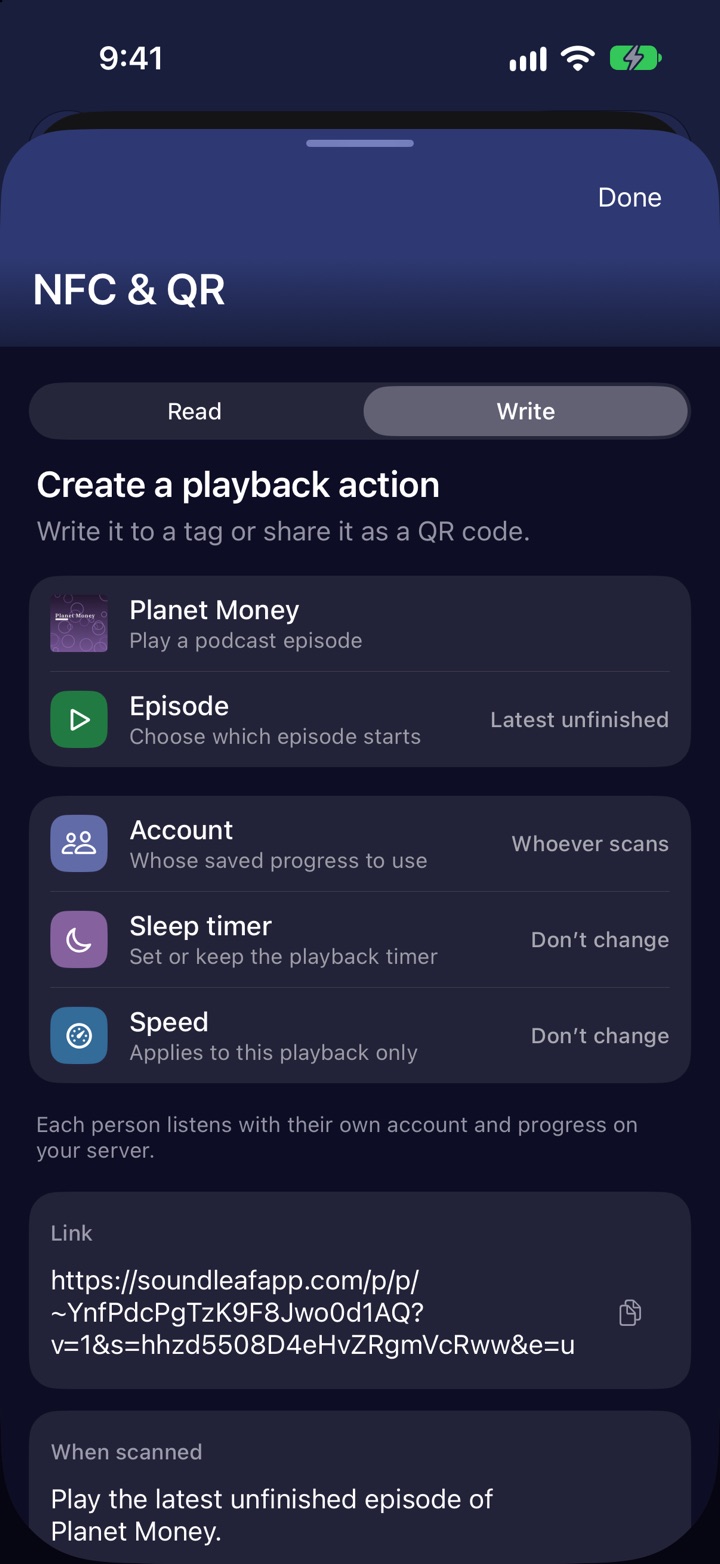
Opened from a book or a show, the screen shows its cover and title. A podcast adds Episode, which chooses what starts:
- Latest episode
- Latest unfinished
- Random
- Random Unplayed - skips episodes you’ve finished or started. If none are left, playback stays as it is and SoundLeaf tells you.
Account decides whose progress is used:
- Whoever scans - each person listens with their own account and progress on your server. Good for a tag the whole house uses.
- My account - only a phone signed in to your account can use it.
Writing a tag
Tap Write tag and hold the top of your iPhone near the tag. SoundLeaf writes the action, reads it back and checks it, then says Tag written and verified.
- Any writable NFC tag that holds an NDEF message works. The screen shows how many bytes the action needs; a bookmark name makes it longer.
- Writing replaces whatever the tag held before.
- NFC needs a supported iPhone. On an iPad, or an iPhone without NFC, the button is off and QR codes still work.
Making a QR code
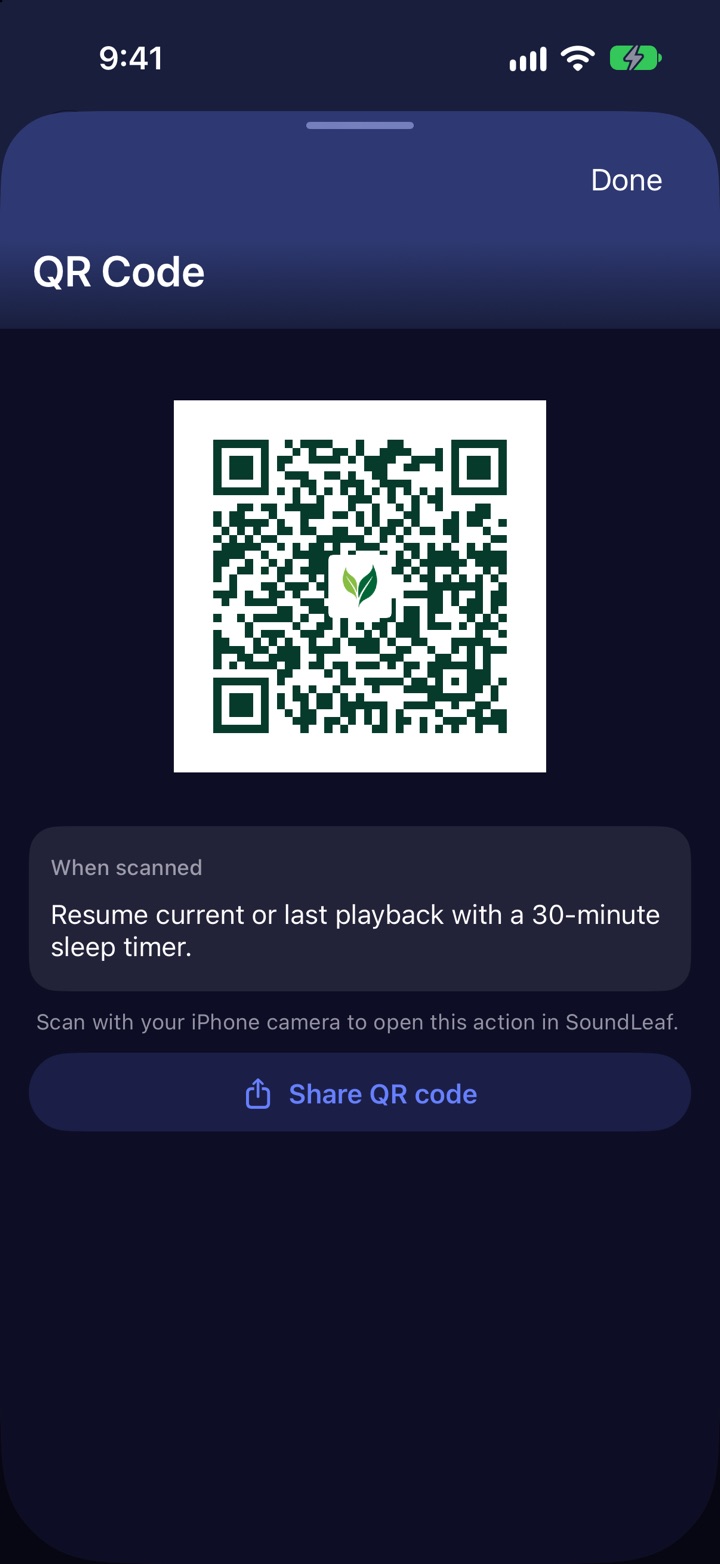
Tap QR code. SoundLeaf draws the code with your app icon in the middle, and Share QR code sends the image anywhere: print it, message it, stick it on a book spine. Scan it with the iPhone Camera app.
Reading a tag
The Read tab tells you what a tag does without doing it. Tap Read tag, hold the tag near the top of your iPhone, and SoundLeaf shows what the tag will do and how full it is. Reading never starts playback or changes the tag. Try this action is the separate step that runs it.
What’s in the link
The tag or code holds a link on soundleafapp.com. It carries IDs and playback options, never a password or a login token, so it can’t sign anyone into your server. Someone who scans it still needs SoundLeaf and an account on your server.
- A general action from Settings has no server in it. It acts on whatever the scanning phone is playing.
- A book or podcast action names your server (as a fingerprint, not the address), so it only works on phones that have that server saved.
- A bookmark name is readable by anyone who has the link.
If you have several saved accounts on the same server, SoundLeaf asks which one should handle the scan.
If the link opens in a browser instead of the app, the page explains what the link would do and has an Open in SoundLeaf button. Nothing plays in the browser.
Troubleshooting
Write tag is greyed out
This iPhone or iPad can’t write NFC tags. Use QR code instead.
”This link needs N bytes, but the tag holds M”
The tag is too small for this action. Use a larger tag, or drop the sleep timer or the bookmark name.
”This tag is read-only”
The tag was locked when it was written. Use a new tag.
Scanning opens Safari instead of SoundLeaf
Tap Open in SoundLeaf on the page. If Safari keeps you there, tap Open in the SoundLeaf banner at the top of the page.
”Add the linked server in Settings and sign in”
The action is for a server this phone doesn’t have saved. Add it under Settings, sign in, then scan again. A My account action also needs the account that made it.
”No matching playable episode is saved for this podcast”
With Random Unplayed or Latest unfinished, there was nothing left to play. Pick another episode choice or add episodes to the show.