
Guides · Features
Browse your Audiobookshelf library in SoundLeaf
Browse Audiobookshelf books, series, authors, narrators, genres, collections and playlists in SoundLeaf, with filters, sorts, grid views and Home shelves.
The Library tab in SoundLeaf has Books, Series, Authors, Genres, Collections and Playlists. Tap a name along the top, or swipe sideways, to move between them. Home shows the shelves your Audiobookshelf server makes for you, like Continue and Continue Series.
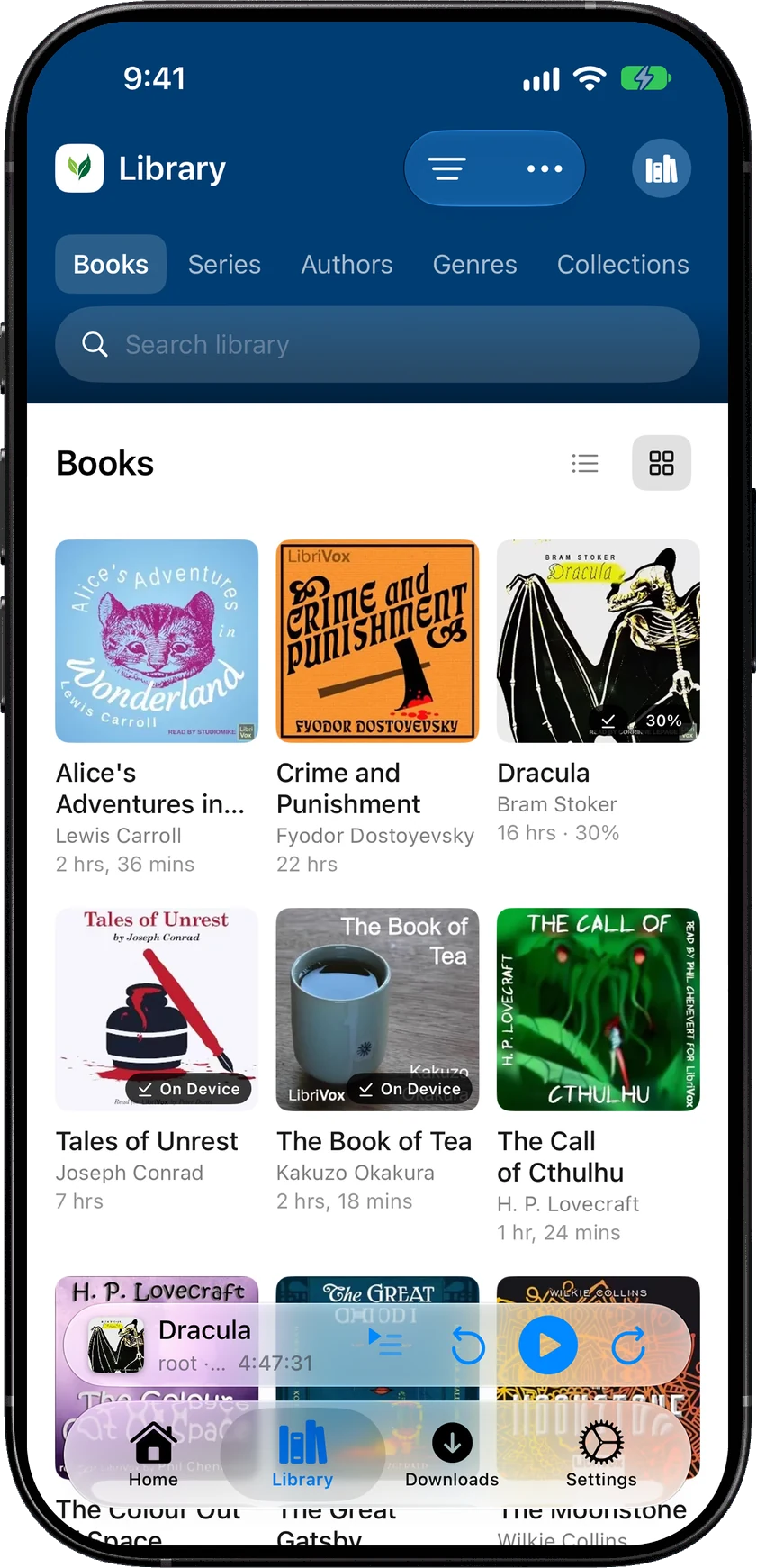
What’s in the Library tab?
| Section | What it shows | Views |
|---|---|---|
| Books | Every book in the library | List or grid |
| Series | Your series, with the books in order | List, grid or shelves |
| Authors | Authors, with a switch to Narrators | List, grid or shelves |
| Genres | Books grouped by genre | List, grid or shelves |
| Collections | Audiobookshelf collections | List, grid or shelves |
| Playlists | Your Audiobookshelf playlists | List, grid or shelves |
The layout buttons are in each section’s heading. In grid view, the … menu has Grid Size (2, 3 or 4 across). On Books, Titles under covers turns the titles under each cover on or off.
Narrators are inside Authors: use the Authors / Narrators switch at the top of that section.
The tabs along the bottom are fixed. A book library has Home, Library, Downloads and Settings. A podcast library has Podcasts, Discover, Downloads and Settings. There’s no setting to hide or add tabs.
How do I filter books?
On Books, tap the filter button. Under Show only you can pick:
- Not Started, In Progress or Finished. Tap it again to clear it.
- Genre, when the library has genres.
- Abridged and Explicit.
Show all clears every filter. When nothing matches, SoundLeaf says Nothing matches.
Filters are for Books only, and they reset when you switch library. There’s no filter by author, narrator, series or tag. Open an author, narrator or series to see their books instead, or search for them.
How do I sort the library?
Tap … and choose under Sort by. Tap the same choice again to flip the order.
| Section | Sort choices | Starts with |
|---|---|---|
| Books | Title, Author, Narrator, Duration, Date Added, Recently Listened | Title, A to Z |
| Series | Title, Added Date, Number of Books, Duration | Number of Books |
| Authors and Narrators | Name, Number of Books | Name |
| Genres | Name, Number of Books | Name |
Recently Listened puts what you played last at the top. Date Added sorts by when books were added, and tapping it again switches between newest and oldest first. Each section remembers its own sort.
How do I search my library?
Every Library section has a search field at the top. Pull down a little if you’ve scrolled past it.
On Books, search looks at the title, subtitle, author, narrator and series name. Words can be in any order, and accents and capitals don’t matter. On Series, Authors and Narrators, it matches the name. Search works on your device, including offline.
The search field on Home looks across books, authors, series, narrators and genres at once, with results grouped under each.
How do I show authors as “Last, First”?
Settings > Library > Author Names has First Last (Brandon Sanderson) and Last, First (Sanderson, Brandon). It changes how names are shown and how they sort, for every account on this device.
When your server has a “Last, First” form of a name, SoundLeaf uses it. Otherwise SoundLeaf flips the name itself, keeping parts like “van” or “Jr.” in place.
What order are books in a series?
Inside a series, SoundLeaf lists books by their sequence number from Audiobookshelf: 1, 2, 2.5, 3 and so on. Books with a number come before books without one. Books with the same number, or no number, go by year published and then by title. Each row shows the number as Book 1, Book 2.
If a series is out of order, check the sequence numbers on the books in Audiobookshelf. SoundLeaf uses what the server has.
The series … menu also has Mark All as Finished, Add to Playlist, and options to add the books to your queue. See Up Next, playlists and bookmarks.
What do the Home shelves mean?
The shelves come from your Audiobookshelf server, which makes them for each user. SoundLeaf saves a copy, so Home still shows them offline. SoundLeaf gives some of them shorter names:
| In SoundLeaf | In Audiobookshelf | What’s on it |
|---|---|---|
| Continue | Continue Listening | Books you’ve started and not finished |
| Continue Series | Continue Series | The next book in a series you’re reading |
| Fresh | Recently Added | Books added to the server most recently |
| Past | Listen Again | Books you’ve finished |
| New in Series | Recent Series | Series with books added recently |
| Discover | Discover | Books you haven’t started, picked at random |
| New Authors | Newest Authors | Authors added recently |
SoundLeaf adds two of its own: Every day, your listening stats, and Bookmarks, your latest bookmarks.
Why is my book first on Continue?
On Continue, up to three books you played most recently on this device go first. The rest follow the server’s order. That way the book you just stopped is at the front, even if the server hasn’t caught up yet.
To take a book off Continue without losing your place, touch and hold it and choose Hide from Continue. Finished books leave it by themselves.
What does Continue Series show?
Audiobookshelf shows a series here when you’ve finished at least one book in it, and you have no book in that series in progress. It suggests the first book you haven’t started. So the book you’re halfway through is on Continue. Once you finish it, its series appears on Continue Series if it still has unfinished books and none of them is in progress.
If it keeps offering an earlier book you skipped, Audiobookshelf has a library setting, Skip earlier books in Continue Series, that continues from the furthest book you finished instead.
How do I change or hide Home sections?
Tap Customize Home at the bottom of Home, or go to Settings > Appearance > Customize Home. Drag to reorder, and turn off a section to hide it. Reset to default brings back the starting layout.
The same layout applies to every audiobook library on this device. An empty section comes back in its place once it has something to show.
Why don’t I see new books?
SoundLeaf checks your library for changes when it starts, and again when you come back to the app if 30 minutes have passed. To check now, pull down on Home or on Library > Books. New books then show up on Fresh and in Books.
If a book still isn’t there, check that Audiobookshelf has scanned it in the web page first. See library scan not adding books.
How do I switch library?
Tap the round library button at the top right of Home, Library or Downloads, and pick a library. You can also touch and hold anywhere on the tab bar, or use Settings > Library > Current Library.
That menu also lists libraries from your other saved accounts. See multiple accounts.
What’s on a book page?
A book page has tabs for Chapters, Files, Read Along, Images and History. The Read Along tab shows what the book needs and can help you find a matching ebook. Images shows pictures from the ebook. See the ebook reader.
Book links to Goodreads and other sites
The About row has a link to the book on another site. Choose which site in Settings > Library > Book Site: Goodreads (the starting choice), StoryGraph, Hardcover, Open Library, LibraryThing, or None to hide it.
Goodreads and Open Library open the book directly when it has an ISBN (the book’s identifying number). Otherwise the link opens a search. Touch and hold the link to open a different site just this once.
How do I check a book’s files?
Files lists the files Audiobookshelf has for the book, grouped as ebooks, images, metadata, text and audio. Each audio file shows its size, length, format, bit rate and sample rate. Above the list you’ll see the book’s folder on the server and when Audiobookshelf last scanned it.
If the server reports the book’s folder as missing, or its files as invalid, the Files tab says so. That’s a good first place to look when a book won’t play.
See the cover full size
Touch and hold the big cover on a book page and choose Open cover image. Pinch or double-tap to zoom.