
Guides · Features
Listen to Audiobookshelf offline on iPhone (no signal, no server)
Download the book before you go. SoundLeaf plays it with no signal and no server, and your progress goes up to Audiobookshelf once you're connected again.
Download the book before you go. A downloaded book plays in SoundLeaf with no signal and no connection to your Audiobookshelf server. Your progress is sent to the server once you’re connected again.
Downloads are free. How to download, Smart Downloads and removing books are all on the Downloads page.
Before a trip: checklist
- Download the books you’ll want. On a book’s screen, tap the download button. In a list, press and hold a book and choose Download.
- Check they finished. Open the Downloads tab. Each book should be under Downloaded, not Downloading, Waiting for Wi-Fi or Failed.
- Check the files, if you want to be sure. On the book’s screen, open the Files tab. Every audio file should say On this device.
- Decide about mobile data. Settings > Downloads > Download over mobile data is off to start with. On mobile data, tapping Download asks whether to Download now or Wait for Wi-Fi, and Smart Downloads waits for Wi-Fi. Turn the setting on if you want everything to download on the road.
- Start from your latest spot. If you last listened on another device, open the book in SoundLeaf once while you’re still connected, so it starts from the newest position.
- Leaving the phone behind? Tap Send to Watch on the book’s screen while the phone and watch are together, and wait for it to finish arriving on the watch. See Apple Watch.
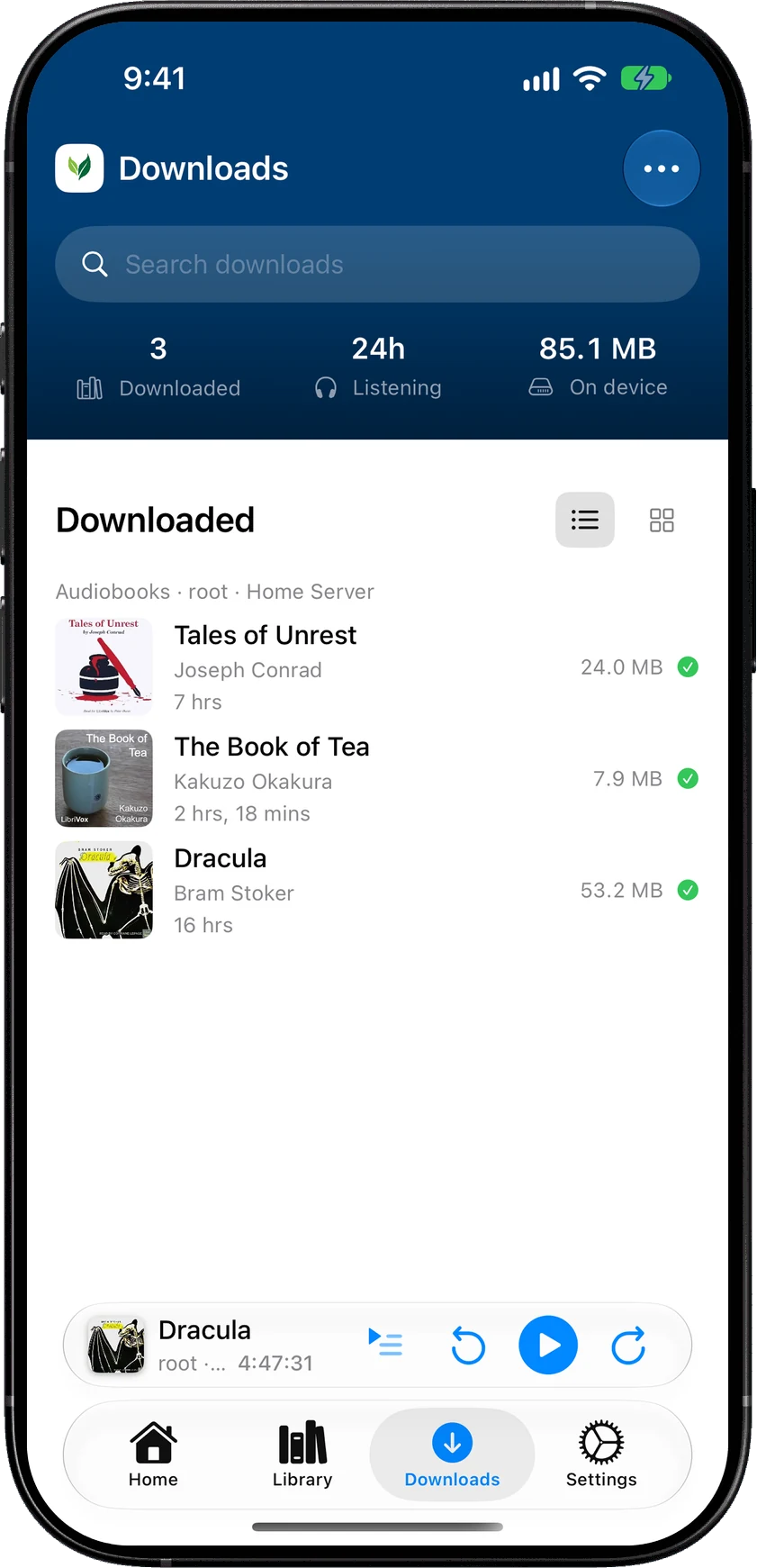
To download books automatically as you listen, turn on Smart Downloads in Settings > Downloads. It downloads a book once you’ve listened to it for a few minutes (10 to start with).
If you read along, open the book’s ebook once while connected. After that it opens offline too.
What works with no signal?
- Playing downloaded books and podcast episodes, from the start or where you left off
- CarPlay. The button at the top right switches between All and Downloads, and Downloads shows only what plays with no network.
- Books and episodes downloaded to your Apple Watch, with the phone left at home
- The sleep timer, playback speed and chapters
- Bookmarks. Book bookmarks are saved on the phone and sent to your server later. Podcast episode bookmarks stay on the phone.
- Browsing your library, Home and the Downloads tab. SoundLeaf keeps what it last loaded from your server, covers included.
- Mark as Finished, Reset Progress and Hide from Continue. They’re saved on the phone and sent later.
What needs the server?
- Playing a book you haven’t downloaded
- Starting a new download
- Sending a new book to the watch
- Seeing books added or changed on the server since SoundLeaf last loaded them
- Signing in
- Sending your progress and listening time to the server
How does my progress get back to the server?
On its own. SoundLeaf keeps a record of each listening session on the phone until your server confirms it has it. When SoundLeaf is open and can reach the server again, it sends them. You don’t need to tap anything.
The top of Settings says All synced once no listening is waiting to be sent. If another device saved a newer position in the meantime, SoundLeaf starts from the newer one, and your offline listening still counts toward your listening time. The full story is in Progress sync.
Do I even need remote access?
Not always. If you download at home on Wi-Fi before you leave, you can listen anywhere without your server being reachable from outside your home.
What you give up while you’re away:
- Streaming books you didn’t download
- Downloading anything new
- Your progress reaching the server while you’re out. Open SoundLeaf when you’re back home to send it. Another device won’t see your new spot until then.
If you want those, set up a way to reach your server from outside. See Audiobookshelf remote access.