
Server guides · Setup
What port does Audiobookshelf use?
Audiobookshelf uses port 13378. In Docker the container listens on port 80, and the usual mapping 13378:80 puts it on 13378 on your computer.
Audiobookshelf uses port 13378. In Docker, the container listens on port 80 inside, and the usual mapping 13378:80 makes it reachable on port 13378 of your computer.
So the address to open is http://<your server's IP>:13378, for example http://192.168.1.50:13378.
What port does each install use?
| How you installed it | Port you connect to |
|---|---|
| Docker or Docker Compose (official example) | 13378, from the mapping 13378:80 |
| Unraid (the Audiobookshelf template) | 13378, mapped to port 80 in the container |
| Synology or other NAS with Container Manager | The local port you set, for example 13378 mapped to container port 80 |
| Debian or Ubuntu package | 13378 |
| Windows installer | 13378 |
| NixOS service | 8000, and only on the server itself until you change host and port (setup steps) |
If you run Audiobookshelf straight from its source code and don’t set a port, it uses 3333.
Why does Docker say port 80?
A Docker port mapping has two sides: 13378:80 means “port 13378 on my computer goes to port 80 in the container”.
The Audiobookshelf image sets its own port to 80, so the right side stays 80. The left side is the port you type in your browser and in your apps. When you connect through your server’s IP address, use the number on the left.
How do I change the Audiobookshelf port?
Docker or Docker Compose
Change only the left number. To use port 8080:
ports:
  - 8080:80
With Docker Compose, run docker compose up -d after saving the file, and it recreates the container with the new port.
With docker run, the port is part of the command. Stop and remove the old container. Then run your original command again with -p 8080:80, keeping the same folder mappings (the -v options) so your library and settings carry over.
The official compose file says the same: change the outside port, not the inside one.
Debian or Ubuntu package
The port lives in /etc/default/audiobookshelf as PORT=13378. Change the number, then restart the service:
sudo systemctl restart audiobookshelf.service
Windows
Click the Audiobookshelf icon in the system tray. The tray app has a setting to change the server port.
Unraid and Synology
Edit the container and change the host (local) port. Leave the container port at 80.
How do I check which port Audiobookshelf is on?
- Docker: run
docker ps. The PORTS column shows something like0.0.0.0:13378->80/tcp. Use the port after the colon and before->, here13378. - Debian or Ubuntu: look at
PORT=in/etc/default/audiobookshelf. - Server log: when Audiobookshelf starts, it logs a line that starts with
Listening on. In Docker that line shows the inside port (80), so usedocker psfor the outside one. - Browser: if
http://<server IP>:13378opens the Audiobookshelf login page, that’s your port.
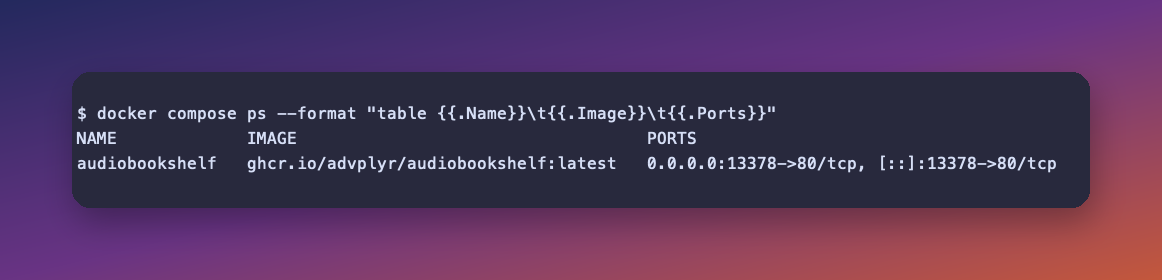
With Docker Compose, docker compose ps shows the same PORTS column, as above.
What do I type in the app?
On your home network, the server’s IP address plus the port, with http:// in front: http://192.168.1.50:13378.
Through a domain with a reverse proxy or a Cloudflare tunnel, you can usually leave the port off: https://books.example.com. The proxy or tunnel is set up to pass requests on to Audiobookshelf’s real address and port.
What to type as your server address has an example for every setup, and Audiobookshelf works in the browser but the app can’t connect helps when the port is right and the app still won’t connect.