
Guides · Features
Ebook Reader
Read the epubs in your Audiobookshelf library, follow the narrator with Read Along, and start the audio from the page you're reading
Plenty of Audiobookshelf libraries hold the epub next to the audio. SoundLeaf reads it, and reading costs nothing: this sits outside Pro entirely.
Opening a book
If a library item has an epub alongside its audio, a Read button appears on the item screen and in the player. Tap it and the reader opens.
Audiobookshelf serves the epub from the same library item, so nothing needs setting up on the server as long as the file is there. In Audiobookshelf a book can carry both an audio file and an ebook file in the same folder, and that’s what SoundLeaf looks for.
Turning pages
- Tap the right side of the page, or swipe, to turn the page.
- Tap the left side to go back a page.
- Tap the middle to show or hide the controls.
Reading settings
With the controls showing, the text size button at the top right opens font, text size, line spacing, page margins and theme.
These are the reader’s own settings, separate from the app-wide theme, so you can read on a dark page while the rest of the app stays light.
Offline
After the first open, the reader works with no connection. The epub is on your device.
When you download a book’s audio, its epub comes along with it. A downloaded book with no epub yet is checked again at launch, so a book you downloaded before the reader existed, or one whose epub reached your server later, picks it up on its own. Downloaded ebooks also save their page index, so moving around a book is quick when you reopen it. Epubs count toward the numbers on the Storage screen.
Position sync
Your place in the book syncs with the Audiobookshelf web reader in both directions. Read on your laptop at lunch, pick up your phone on the train, and you’re on the right page.
This is separate from your audio progress. A book can have you at chapter 12 in the audio and page 40 in the text, and neither one disturbs the other. Read Along and Play from this page are how you line them up.
Search inside a book
Tap search in the reader to search the open book. Results show:
- The chapter name each hit is in
- How far into that chapter it sits
There’s a button to get you back to where you were reading, so a search never loses your place. Read Along stops while you search.
Read Along
Read Along highlights the words in the ebook as the narrator says them, and turns the pages for you.
Tap the Read Along pill at the bottom of the reader to turn it on. SoundLeaf remembers the choice for that book, so it starts by itself the next time you open the book in the reader.
Turn a page yourself and following pauses. The pill counts down from five seconds, and when you stop turning pages it goes back to where the narrator is.
What it needs
- The book’s audio and its epub, both downloaded to your phone. SoundLeaf matches the audio to the text on the device, and doing that over the network would spend your data on audio you already have.
- A listening position: play the audiobook first so there’s somewhere to start.
- Speech Recognition. iOS asks for permission the first time. Recognition runs on your phone; no audio is uploaded.
The first time, SoundLeaf has to process the book, and the pill says Reading the book or Finding your place while it does. Settings > Reader > Read Along can do this in the background ahead of time, and Processed Books there shows and removes what’s been processed.
Play from this page
Read Along goes from the audio to the page. Play from this page goes the other way: you’ve read ahead, and now you want to put the phone down and listen from there.
Tap the … button next to the Read Along pill and choose Play from this page. SoundLeaf finds the passage you’re on in the audio and starts playing from it.
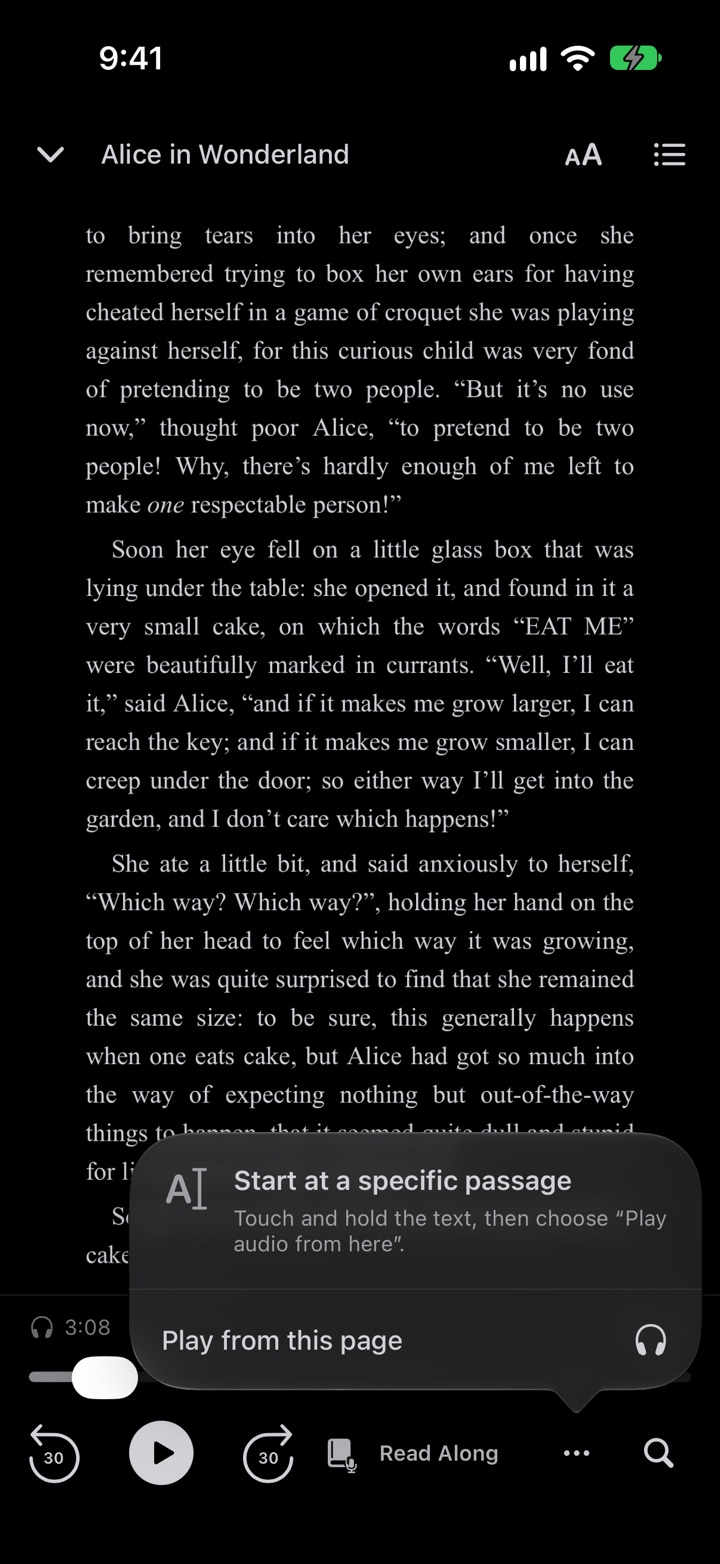
To start from a particular spot, touch and hold the text, select a passage of at least three words, and choose Play audio from here.
While it searches, a message shows how long it has been and where it’s looking, with Cancel to stop. When it finds the passage it says where the audio moved to. It gives up after 40 seconds without a confident match. If the jump was a big one, a Go back banner lets you return to where you were.
It needs the same things as Read Along: the audio and epub downloaded, and Speech Recognition.
Match strictness
Settings > Reader > Audio Position Matching > Match strictness sets how closely the audio has to match the text: Low, Medium (the default) or High. Higher strictness finds fewer matches but is less likely to land in the wrong place. Try Low if searches keep failing on a book whose edition differs from the narration.
When matching fails
Matching can miss when the audiobook and the ebook are different editions, or when the same phrase appears in several places. Select a longer, more distinctive passage and try again.
Troubleshooting
No Read button on a book I know has an epub
Check the item in the Audiobookshelf web UI and confirm the epub is attached to that library item. If the epub arrived on your server after you downloaded the book, reopen SoundLeaf: the missing epub is fetched at launch, not the moment the server gains it.
No Read Along pill
Read Along needs a book with both audio and an epub, and a device that can recognise speech.
”Download the audio to find this passage”
Read Along and Play from this page work on downloaded audio. Tap Download the book, then try again.
”Allow Speech Recognition in Settings to find audio”
Speech Recognition is turned off for SoundLeaf. Turn it on in the iPhone Settings app, under SoundLeaf.
”No confident match in 40s”
Try a longer passage, or lower Match strictness in Settings > Reader.
Position isn’t syncing with the web reader
Reading position syncs through your Audiobookshelf server, so the app needs to have reached the server at least once since you read. Open the app with a connection and it catches up.