
Guides · Features
Downloads
Download audiobooks and episodes for offline listening, let Smart Downloads fetch the books you're listening to, wait for Wi-Fi, and remove finished books automatically
Downloads are free, and a downloaded book plays with no connection to your server. Your progress syncs back when the connection returns.
Downloading a book
On a book’s screen, tap the round download button to the left of Read and Send to Watch. The button shows the progress, and tapping it again while it downloads stops it. In library lists, press and hold a book and choose Download.
Podcast episodes have a Download button in their action row.
The Downloads tab lists everything on the phone, grouped as Downloading, Waiting for Wi-Fi, Downloaded, Failed and Canceled. Swipe a row to stop or delete it, or tap Try again on a failed one.
Removing a download
- On the book’s screen, tap the download button and choose Delete Download.
- In the Downloads tab, swipe the row and tap Delete.
- The … menu in the Downloads tab has Remove All, which asks first.
Mobile data
Settings > Downloads > Download over mobile data is off to start with, so downloads wait for Wi-Fi.
- Tap Download on mobile data and SoundLeaf asks: Download now, or Wait for Wi-Fi.
- Automatic downloads (Smart Downloads, podcast auto-download) wait quietly. They show under Waiting for Wi-Fi in the Downloads tab.
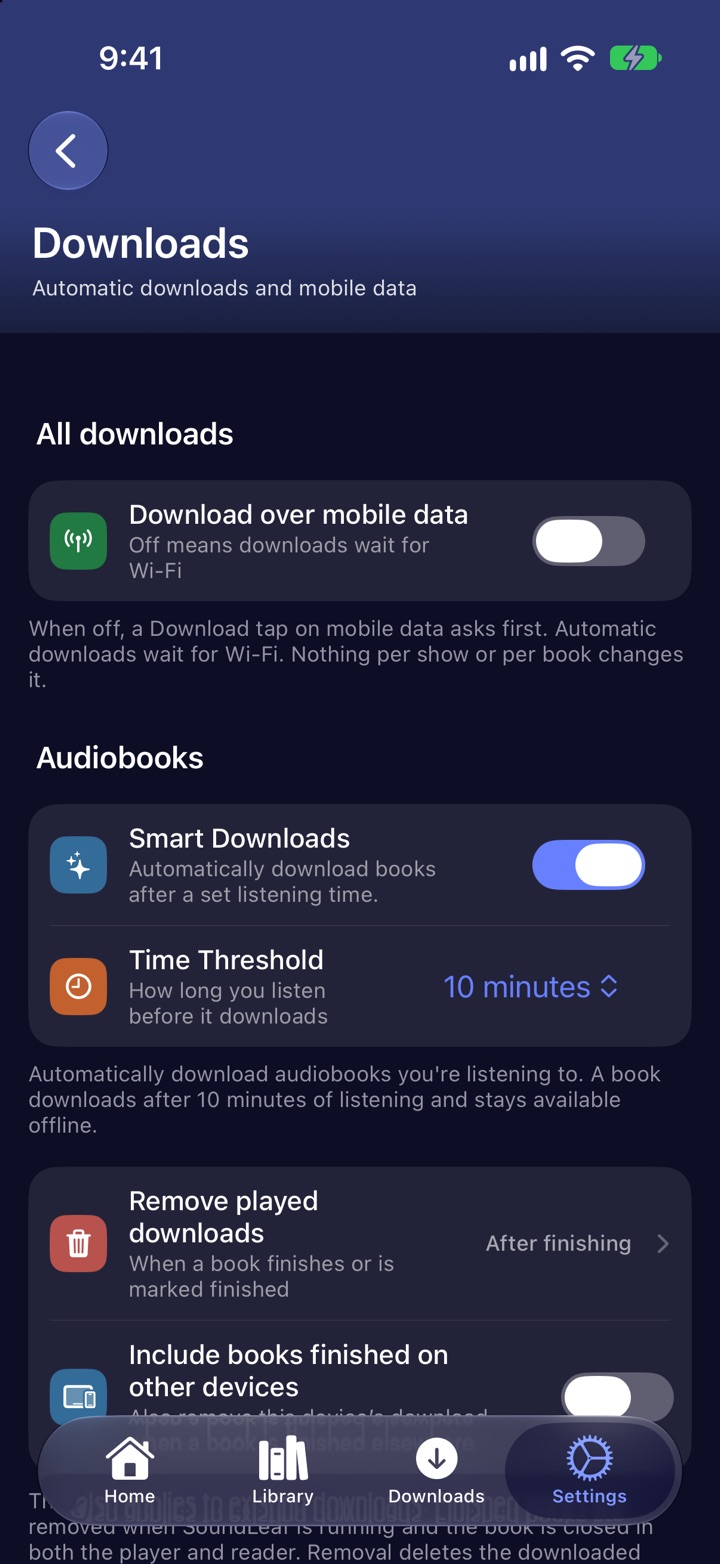
Smart Downloads
Smart Downloads downloads a book once you’ve actually been listening to it, so the book you’re into is ready for the train without you thinking about it. It’s free, and off until you turn it on in Settings > Downloads.
- Time Threshold - how long you listen before it downloads: 1, 5, 10 (the default), 15 or 30 minutes
- Also send to watch - puts those books in the queue for your Apple Watch too. It shows when you have a watch paired.
It counts listening on this phone and skips books that are already downloaded. It covers audiobooks; podcasts have their own auto-download rules.
Removing finished books
Settings > Downloads > Remove played downloads removes a book’s download once you’ve finished it. Choose After finishing, After 24 hours, After 2 days or After 1 week. It’s Never to start with.
- The book’s downloaded ebook is removed with the audio.
- It applies to books you’ve already downloaded, not only new ones.
- A book is only removed while it’s closed in both the player and the reader.
- If you download a finished book again, it’s kept.
- Include books finished on other devices also removes the download here when you finish the book somewhere else.
Podcast downloads
The Podcasts section of Settings > Downloads sets the defaults for new shows: auto-download new episodes, how many to keep, and when to remove played ones. Each show can override these in its own settings; see Podcasts.
Download queued episodes downloads episodes as soon as you add them to Up Next.
Storage
Settings > Storage & Cache (also in the Downloads tab’s … menu) shows what’s on the phone: downloaded books, podcast episodes, saved ebooks, processed Read Along books and the cache, each with a button to clear it.
Downloads and the Apple Watch
Downloads on the phone and on the watch are separate. Send to Watch on a book’s screen copies it to the watch; see Apple Watch.
Troubleshooting
A download is stuck on Waiting for Wi-Fi
You’re on mobile data and Download over mobile data is off. Connect to Wi-Fi, or turn the setting on.
”Changed on the server. Delete it and download it again.”
The book’s files changed on your Audiobookshelf server after you downloaded it. Delete the download and download it again to get the new files.
Smart Downloads didn’t download a book
It counts listening on this phone only, and turning Smart Downloads off resets the count. Check it’s on and that the book has passed the time threshold. On mobile data it waits for Wi-Fi unless Download over mobile data is on.