
Guides · Features
Widgets and Siri
Home screen widgets, the sleep timer on your lock screen, and Siri Shortcuts for resuming a book hands-free
Your listening does not have to start by opening the app. Widgets put it on the home screen, the sleep timer counts down on the lock screen, and Siri can resume a book without you touching anything. None of it costs extra.
Home screen widgets
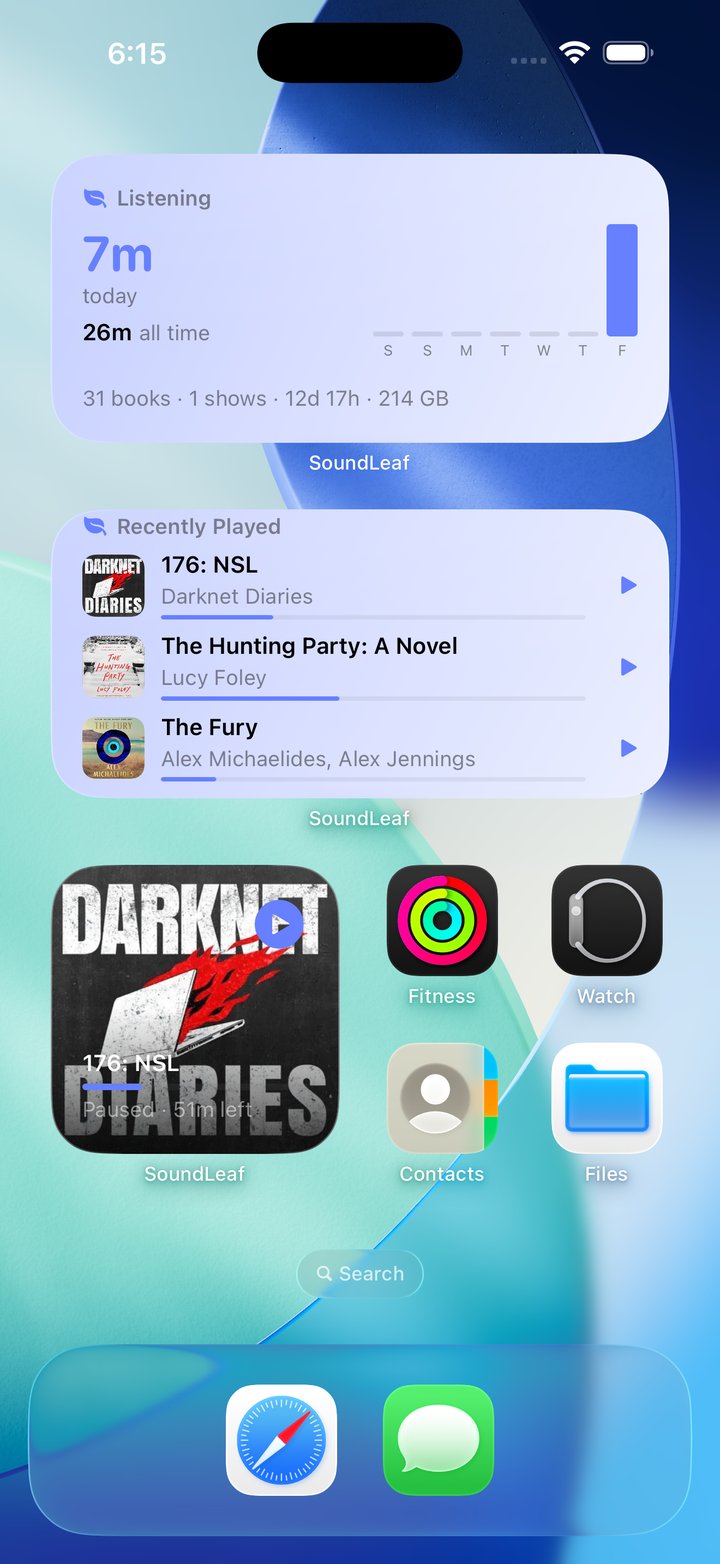
Long press an empty spot on your home screen, tap the + in the corner, search for SoundLeaf, and pick a widget. Five are available. These three are the ones most people want:
Now Playing
What’s playing, with cover art and a working play/pause button. Tapping the button controls playback without opening the app.
Available in small and medium. The medium size shows a title row alongside the artwork.
Recently Played
A short list of what you’ve been listening to. Tap any row to jump straight back in.
Listening
Your numbers at a glance:
- Time listened today
- Your current streak
- The week
- Your library totals
Large totals read as days, months and years rather than a five-digit hour count, so 2y 4mo instead of something you have to do arithmetic on.
Library and By Library
What’s on your server: totals for the selected library, or a line per library.
The sleep timer on your lock screen
Start the sleep timer and it counts down on your lock screen as a Live Activity, and in the Dynamic Island on the iPhones that have one.
Which is the point. You set a sleep timer precisely because you are not planning to look at the phone again.
The lock screen card carries a cancel button. Hold the Dynamic Island open and you get +15 min as well. Everything the timer can do is on the sleep timer page.
Siri Shortcuts
Siri, the Shortcuts app and the Action Button can all reach these:
| Say | What it does |
|---|---|
| ”Resume my book in SoundLeaf” | Picks up your most recent book where you left it |
| ”Pause SoundLeaf” / “Play or pause SoundLeaf” | Toggles playback |
| ”Play a book in SoundLeaf” | Asks which book, then plays it |
“Resume SoundLeaf”, “Continue my book in SoundLeaf” and “Continue listening in SoundLeaf” all reach the first one too.
They all run in the background, so nothing takes over your screen while you’re driving or your hands are full. If something fails, Siri says so rather than going quiet.
Set Sleep Timer
The Shortcuts app has one more SoundLeaf action: Set Sleep Timer, with the number of minutes as a parameter. It answers “Sleep timer set for 30 minutes”, or “Nothing is playing right now” when there’s nothing to stop.
It has no spoken phrase of its own. Build a shortcut around it, name the shortcut what you’d like to say, and Siri runs it by that name.
Using the Action button
On an iPhone with an Action Button:
- Settings → Action Button
- Swipe to Shortcut
- Tap Choose a Shortcut
- Pick the SoundLeaf action you want
“Resume my book” is the useful one here. Press and your book starts.
Building your own shortcut
The actions hand back the title, author and progress, so you can chain them in the Shortcuts app. A common one: an automation that resumes your book when CarPlay connects.
Troubleshooting
The play/pause button looks out of date
iOS decides when a widget redraws, so there can be a moment’s lag after you play or pause somewhere else. The button itself always acts on what’s actually happening, not on what the widget last drew.
The Listening widget’s numbers look stale
Widget data refreshes on a schedule iOS controls, so a few minutes of lag is normal. Opening the app refreshes it.
Siri asks which book, or picks the wrong one
Say the title as it appears in your library. Long subtitles and series numbers in the title make matching harder.
The Live Activity doesn’t appear
Check Settings → SoundLeaf → Live Activities is on.