
Guides · Features
Use several Audiobookshelf accounts and servers in SoundLeaf
Keep several Audiobookshelf users and servers in SoundLeaf on iPhone and switch between them. Each account keeps its own progress, stats and downloads.
SoundLeaf can keep several Audiobookshelf accounts at once: different users on one server, different servers, or both. Tap the round library button at the top right to switch accounts. Each account keeps its own listening progress, stats and downloads.
How do I add another account or server?
From any library screen:
- Tap the round library button at the top right of Home, Library or Downloads.
- Choose Add server or account.
- Pick Add a server for a new Audiobookshelf server, or Add an account on your server to sign in as another user there.
- Sign in with that user’s username and password, or with OpenID (your server’s single sign-on button, which opens a browser) if the server uses it.
The same choices are in Settings > Servers: Add server connects another Audiobookshelf server, and under a server, Accounts > Add account signs in as another user.
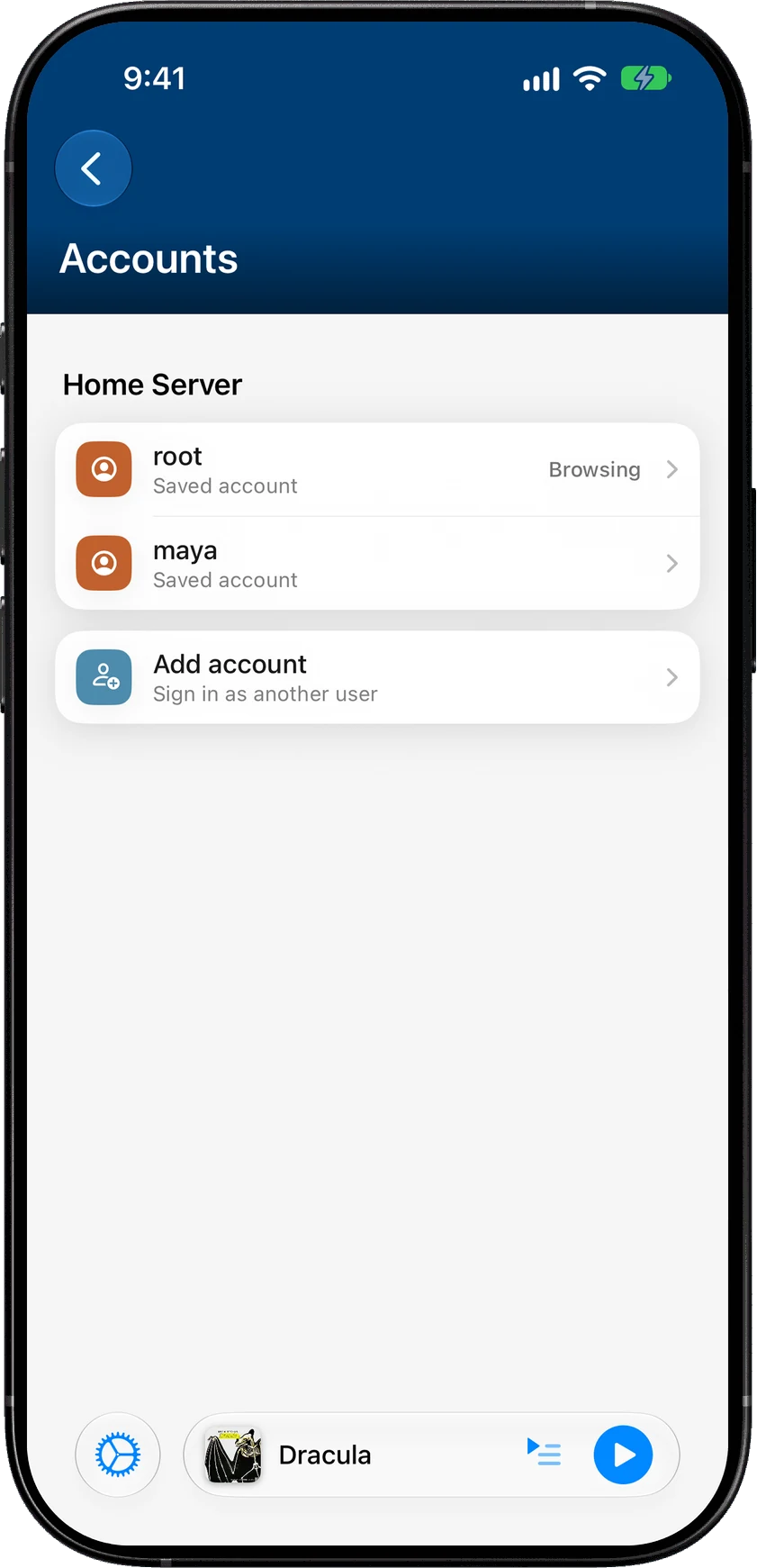
If you type the address of a server you already saved, SoundLeaf adds the new user to that server rather than making a second copy of it.
SoundLeaf signs in with a username and password, or with OpenID. It has no API key login. Not sure what address to type? See what to type as the server address.
How do I switch between accounts?
Tap the round library button at the top right. The menu lists every library from every saved account, grouped under the server name and username. Pick a library from another account and SoundLeaf switches to that account.
You can also touch and hold anywhere on the tab bar at the bottom. It opens the same list.
Switching doesn’t stop what’s playing. A book keeps playing from the account that started it. Each account keeps its own place in the same title.
What is kept separate for each account?
| Kept for each account | Shared by every account on this device |
|---|---|
| Listening progress | Playback settings, like default speed and skip lengths |
| Downloads | Download settings |
| Listening stats and history | Author Names order |
| Library icon and Home stats style | Customize Home layout |
| Daily or weekly listening goal (counts every account) |
Progress is saved on each account’s Audiobookshelf server, the same as always. Adding a second account doesn’t mix anyone’s progress.
A server’s addresses and headers, under Server Details, are shared by every user you saved on that server. Set them once.
Can I see downloads from all accounts?
Yes. The Downloads tab shows downloads from every saved account in one list. Items are grouped by library, with the library name, username and server above each group. Books and podcast episodes are kept apart: a book library’s Downloads tab shows books, and a podcast library’s shows episodes.
The … menu has Storage, to manage the space one account uses, and Remove All. More in downloads.
Can my Apple Watch use a different account?
Yes. The watch picks its own account, separate from what the phone is browsing.
- On the watch, open SoundLeaf and scroll down the main list.
- Tap the account row, just above Status.
- In Accounts, pick the one you want.
Accounts are added on the iPhone. If an account shows Sign in on iPhone, sign in to it again on the phone first. More on the Apple Watch page.
How do I switch accounts in CarPlay?
Tap Libraries in CarPlay to switch. The list groups libraries by username and server, with a tick on the current library. Pick a library from any saved account.
CarPlay remembers the account and library you last used there and opens it again next time. It has no sign-in screen, so add accounts on the phone first. See CarPlay.
Why does SoundLeaf ask me to sign in again?
The message reads “Sign in again to reconnect this account. Your saved content is still available.”
It appears when SoundLeaf needs you to sign in to a saved account again. It happens when the server no longer accepts the saved login, for example after a password change, or after you chose Just Sign Out.
Your downloads and saved content stay on the phone while the account waits. To fix it:
- Open Settings > Servers, then tap Accounts under your server.
- Open the account that says Sign in required.
- Tap Sign in again and enter the password, or use OpenID.
The library button menu also shows Sign in again under that account. The username is filled in for you.
How do I sign out or remove an account?
Open Settings > Servers, tap Accounts under your server, then open the account.
- Sign out asks how far to go. Just Sign Out keeps this account’s downloads on the phone, so you can sign in again later. Remove Data and Sign Out removes the account and everything it stored here, including downloads and any progress not yet sent to the server.
- Remove User deletes this account and its downloads from the phone.
Neither one changes anything on your server, or for other users.
What carries over to a new iPhone?
Saved logins are kept in the iPhone’s Keychain, Apple’s secure password store. They move to a new iPhone when you restore from an encrypted backup, or with Apple’s iPhone to iPhone transfer. They don’t sync through iCloud Keychain.
| Moves to the new iPhone | Doesn’t move |
|---|---|
| Your saved servers and accounts | Downloaded books and ebooks |
| Saved logins, with an encrypted backup or iPhone to iPhone transfer | |
| Your settings | |
| Progress, because it lives on your server |
If a login doesn’t come over, the account still shows up with Sign in required. Use Sign in again as above.
Before you switch phones, open SoundLeaf on the old one while it can reach your server. Progress from offline listening is sent when it connects. Then download what you want again on the new phone.