
Guides · Features
Podcasts
Follow the shows on your Audiobookshelf server, work through the episode list, queue what's next, and read the transcript while it plays
A podcast library gets its own four tabs: Podcasts, Queue, Downloaded and Settings. Everything on this page is free.
Shows come from your server
SoundLeaf plays the shows your Audiobookshelf server already holds. Adding a new show by feed URL is done on the server, in the Audiobookshelf web UI, and SoundLeaf picks it up on its next sync.
What the app can ask for is a fresh look at a feed. Open a show, tap the gear in its header, and Check for new episodes at the bottom of the sheet asks your server to read the feed now. It answers with how many it found.
The Podcasts tab
Top to bottom:
- A search field over the whole library, plus a row of counts: shows and episodes, what’s unplayed and how long that is, what’s new, and what’s on the phone. Tap a count to flip it over, and tap On device to jump to the Downloaded tab.
- In Progress and Finished rows, which you can turn off in Settings → Appearance.
- Continue, the episodes you have started.
- Latest episodes, the recent arrivals across every show.
- All podcasts, the grid.
The search field searches shows and episodes together, from two letters up.
The episode list
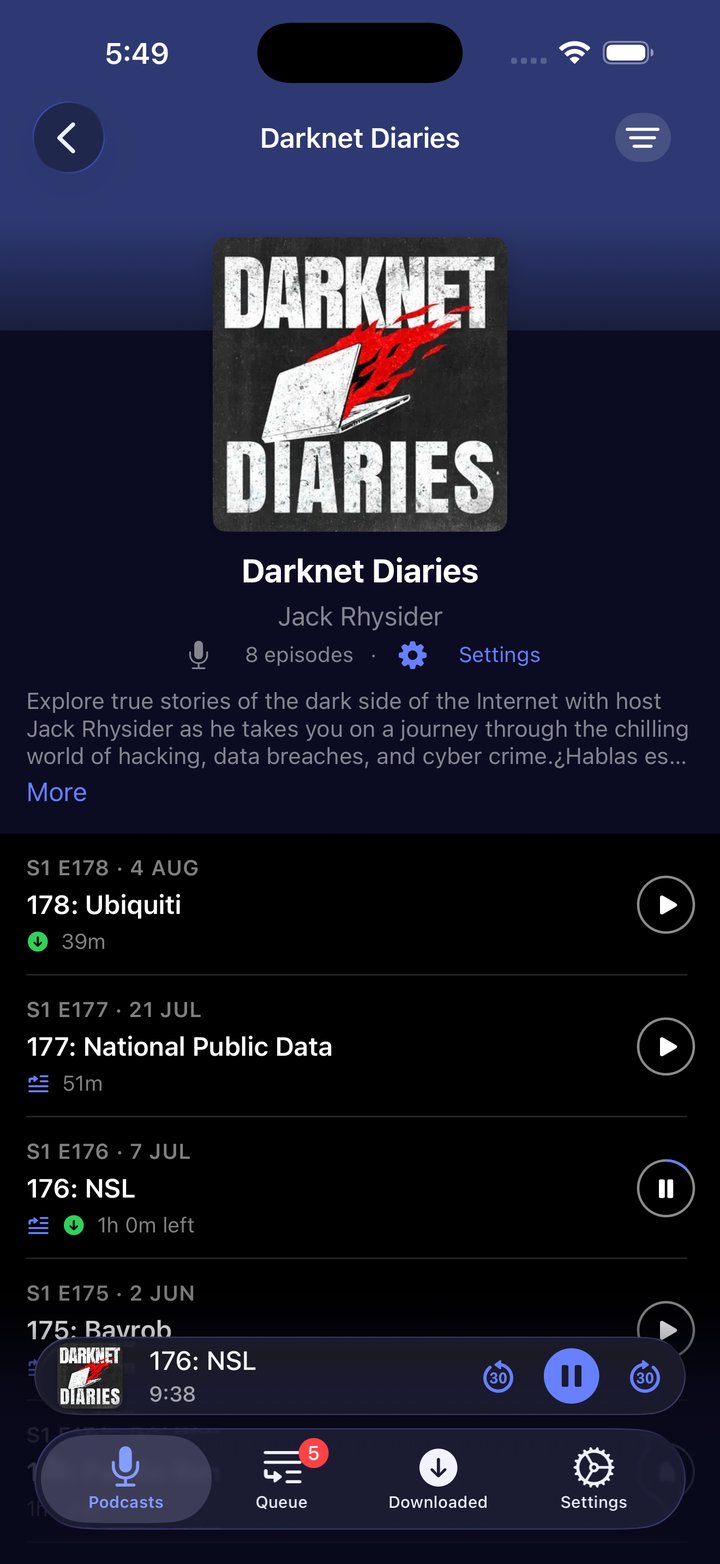
Open a show for its episodes. The filter menu in the bar has All Episodes, Unplayed, In Progress, Played and Downloaded. Newest or oldest first is a per-show choice, on the show’s settings sheet.
Each row says what it is and where it stands: season and episode number, when it was published, the title, and then whatever applies, queued, on the watch, downloaded, played, a download percentage, or how much is left to listen to. The circle on the right plays it, with your progress drawn around the ring.
Swipe a row
- Right, to queue: Play Next, Play Last, or Remove from Queue when it’s already in there.
- Left, for everything else: Download, Stop while one is running, or Delete Download; Send to Watch when a watch is paired; Mark Played or Mark Unplayed.
Select several episodes
Press and hold any row to start selecting. Tap the rest, or press and hold again for Select all above and Select all below. Select All is in the bar.
The bar along the bottom downloads them, marks them played or unplayed, and holds the rest under More actions: queue them, send them to the watch, remove their downloads.
Downloads are capped at a hundred episodes a press, and the app tells you when some of what you picked was already here.
The queue
The Queue tab is what plays next, and it is podcast only. Episodes reach it from a swipe, from multi-select, or from the episode screen. Playing an episode moves it to the top, so the queue always reads as what’s playing followed by what’s next.
- Drag to reorder. The handles are always there, so there’s no edit mode to find.
- Press and hold a row for Play Now, Move to Top, Move to Bottom and Remove from Queue.
- Clear empties what’s waiting and leaves the playing episode alone.
- Anything you remove leaves an undo behind.
When an episode ends, the next one starts on its own. With nothing waiting, playback stops.
Settings for each show
The gear in a show’s header opens its own settings. They apply to that show only, and they save as you touch them.
Downloads
- Auto-download new episodes. Turning it on starts from now, so it never drags the back catalogue onto your phone.
- Limit auto-downloads to, unlimited or 3, 5, 10 or 20 at a time.
- Keep last downloaded, the same choices. Past the count, the oldest download goes.
- Auto-delete after played.
- Download on Wi-Fi only, on to start with. It can make the app-wide rule stricter, never looser.
Playback
- Playback speed for this show, or the app default.
- Sort episodes, newest or oldest first.
Watch, when a watch is paired
- Keep on the watch: off, or the newest 5, 10, 20, 50 or 100 episodes. See Apple Watch.
Auto-download costs nothing. Downloads stopped being a Pro feature in v2.2.
Listening away from your server
Every show’s episode list is kept on the phone, not just the shows you have opened, so the library reads and plays with no connection. Downloads run in the background and finish with the app closed. Played marks and positions you set offline are written down and reach your server on the next sync, in both directions, so a change made in the web player is not silently overwritten.
Transcripts
When a show publishes a transcript, SoundLeaf runs it along with the audio.
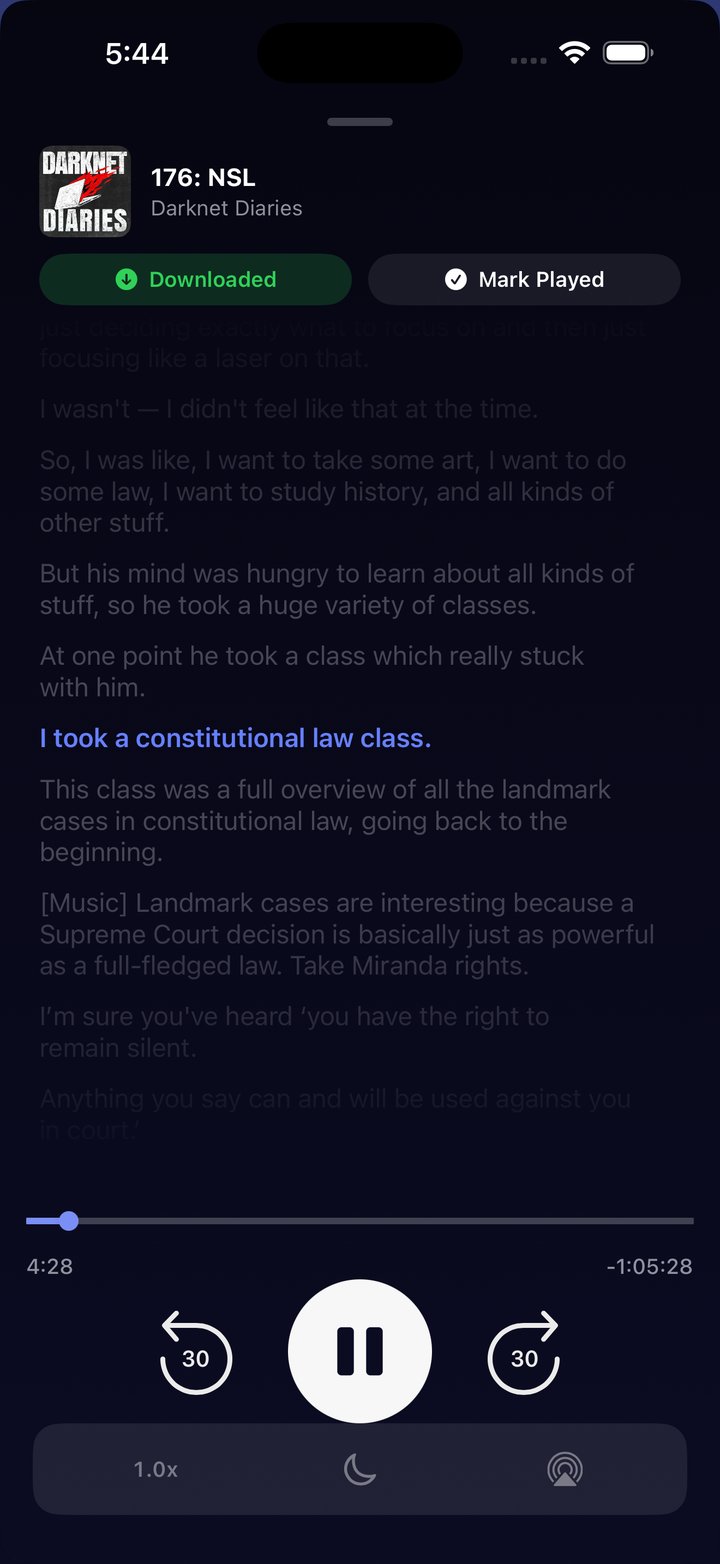
The player gives the transcript the space the cover had. The line being spoken sits in the middle in your accent colour and the rest scrolls past it. Tap the strip and the full reader opens.
In the reader:
- Tap a line to jump the audio there.
- Scroll and it stops following, then picks the current line back up five seconds after you stop.
- Speaker names and times sit in the gutter, when the file has them.
- Paper colour and text size are the reader’s own, separate from the rest of the app.
Transcripts are free, and a downloaded episode keeps its transcript beside the audio, so it reads with no connection.
Where transcripts come from
Audiobookshelf does not read the podcast:transcript tag out of a feed, so there is no server endpoint to ask. SoundLeaf reads the show’s feed itself, once a day at most, and fetches the file when you download or play an episode.
That means the phone talks to the podcast’s own host, which is the one thing in SoundLeaf that does not go through your server. It is a switch you own: Settings → Downloads → Fetch Transcripts, on by default. The file is removed with the episode.
Timed formats (WebVTT, SubRip, and the Podcast Index JSON format) can follow the audio. A transcript published as plain HTML or plain text carries no times, so there is nothing to follow along with.
Troubleshooting
A show I added on the server isn’t here
Pull to refresh on the Podcasts tab. The app reads shows and episodes from your server on a sweep, and pull to refresh runs one now.
An episode is missing from a show
Open the show’s settings and tap Check for new episodes. That asks your server to read the feed again. If the server finds nothing, the episode is not in the feed yet.
No transcript on an episode
Most shows publish none. SoundLeaf can only show what the feed offers, so if the show does not carry a podcast:transcript tag, there is nothing to fetch. Also check Settings → Downloads → Fetch Transcripts is on.
The transcript is there but doesn’t follow the audio
It’s an HTML or plain-text transcript. Those carry no times, so no player can line them up with the sound.
Auto-download isn’t fetching old episodes
That’s on purpose. Turning Auto-download new episodes on starts from that moment, so a show with eight hundred episodes does not fill your phone. Download the older ones by hand, or select a run of them and download the lot.
Downloads stop when I lock the phone
They shouldn’t. Downloads continue with the app closed and land at the next launch. If nothing arrives, check Download on Wi-Fi only on the show and the mobile data rules in Settings → Downloads.