
Guides · Features
SoundLeaf player settings for Audiobookshelf: speed, skip, auto rewind and headphone buttons
Set playback speed per book, series or podcast, choose skip lengths and auto rewind, and pick what headphone and car buttons do in SoundLeaf for Audiobookshelf.
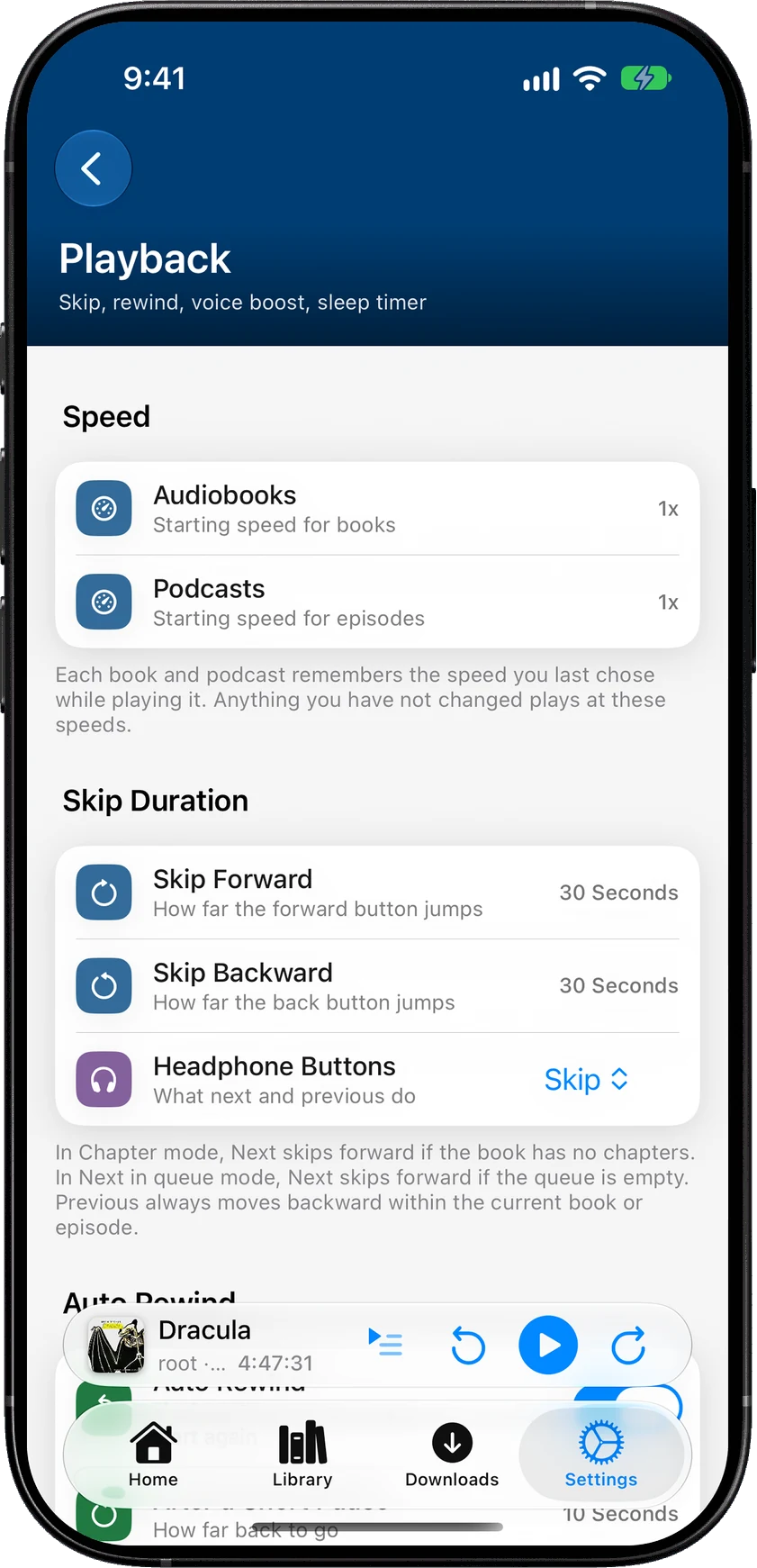
Most player settings are in Settings > Playback. Playback speed is set in the player itself, and each book and podcast remembers the speed you last chose for it.
How do I change the playback speed?
Tap the speed button in the player (it shows the current speed, like 1.0x). The Playback Speed sheet has:
- Presets: 0.9x, 1.2x, 1.5x, 2x, 2.5x, 3x, 3.5x, 4x and 5x. Tapping one closes the sheet.
- The - and + buttons, which change the speed by 0.05x at a time, from 0.5x to 5x, for speeds like 1.35x.
Below the speed controls, a line says where the speed comes from: App default, This book, This show or Series speed.
The time left in the player always counts at your speed. With 10 hours left at 1x, 2x shows 5 hours left.
The phone presets can’t be changed. The CarPlay speed list can, see speed in CarPlay below.
Does SoundLeaf remember speed per book?
Yes. Any speed you choose in the player is saved for that book only. During SharePlay, speed changes apply to everyone listening together, and your saved speed stays the same. Other books keep playing at their own speed, or at the app default if you never changed it.
For podcasts, the speed is saved for the whole show. Every episode of that show then plays at that speed.
The sheet’s bottom button depends on where the speed comes from:
- Reset to default clears this book’s or show’s own speed. If the book is in a series with its own speed, the button says Reset to series speed instead.
- Make 1.3x the app default (with your current speed) makes it the starting speed for every book, or every podcast, that has no speed of its own. It shows only when no series speed applies and your speed is different from the default.
- Reset to 1x shows when this book or show has no speed of its own, for example when it plays at the app default or its series speed.
How do I set playback speed for a whole series?
Open a series, tap its … menu and choose Playback Speed. Every book in that series then starts at that speed, unless you’ve set a book’s own speed.
You can also set one book’s speed without playing it: the … menu on the book page has the same Playback Speed menu. Choose App default to clear it.
For a podcast, open the show, tap the gear for its settings, and use Playback speed under Playback.
How do I set different default speeds for books and podcasts?
Settings > Playback > Speed has two starting speeds:
- Audiobooks: the starting speed for books. 1x to start with.
- Podcasts: the starting speed for episodes. 1x to start with.
When a book starts, SoundLeaf uses the book’s own speed first, then its series speed, then the Audiobooks default.
How do I change how far skip forward and back jump?
Settings > Playback > Skip Duration has Skip Forward and Skip Backward. Each can be 15, 30 or 60 seconds. Both are 30 seconds to start with.
The skip buttons on the lock screen and in Control Center use the same lengths.
What is auto rewind?
When you press play after a pause, SoundLeaf goes back a few seconds so you can pick up the thread. The setting is Settings > Playback > Auto Rewind, and it is on to start with.
| Setting | What it does | Starts at |
|---|---|---|
| After a Short Pause | How far back to go after a short pause. Off, or 3 to 30 seconds. | 10 seconds |
| Long Pause Threshold | How long a pause has to be before it counts as long. 1 to 30 minutes. | 5 minutes |
| After a Long Pause | How far back to go after a long pause. 5 seconds to 5 minutes. | 20 seconds |
A pause under 10 seconds never rewinds. That keeps a quick pause and play from going back each time. Auto rewind never goes back past the start of the book or episode.
It works for books and podcast episodes, streamed or downloaded.
Can I change speed in CarPlay?
Yes. The speed button in CarPlay’s Now Playing screen shows a list you choose. Set it on your iPhone in Settings > Connections > CarPlay > Speed Controls:
- Speed List: the speeds the CarPlay button shows, top to bottom. Drag to change the order, swipe to delete. It holds up to 12 speeds.
- Add a Speed: choose a speed with the - and + buttons, then tap Add.
- Reset to default brings back the starting list: 1, 1.1, 1.2, 1.5, 1.8, 2, 2.2 and 2.5x.
A speed you pick in the car is saved for that book or show, the same as in the player.
Rewind after a speed change in CarPlay
Changing speed while audio plays can cause a short gap. Under While Playing on the same screen, Rewind After Speed Change goes back a little after a speed change in CarPlay so you don’t miss anything. Choose Off, 1, 2, 3 or 5 seconds. It starts at 2 seconds. It only applies to speed changes made in CarPlay.
More about the car on the CarPlay page.
What does Voice Boost do?
Voice Boost makes speech louder and clearer. It lifts the voice, cuts low rumble, and evens out quiet and loud parts. That helps in a car, with traffic noise, or with a quiet narrator.
Turn it on in Settings > Playback > Sound > Voice Boost. It’s off to start with, has nothing else to adjust, and works for books and podcasts, streamed or downloaded.
How do I undo an accidental jump?
If your place moves by five minutes or more, SoundLeaf offers to take you back. This only happens when the spot you left was more than two minutes from the start and the end. A card in the player shows the old time with Previous spot and a Go back button. On other screens, like the ebook reader, it shows as a short message with Go back and Dismiss.
It shows up after:
- dragging the progress bar, here or on the lock screen
- tapping a chapter
- a big change that came from another device or your Apple Watch. Then the card says Before sync instead.
The offer lasts until 30 seconds of audio have played, so about 15 seconds at 2x. The countdown waits while playback is paused. Normal skips and auto rewind never trigger it.
Where are the chapter buttons?
In the player, under the cover, the chapter title has a previous chapter arrow on one side and a next chapter arrow on the other. They show on any book with chapters. There’s no setting for them.
To make your headphone or car buttons move by chapter instead, see the next section.
What do headphone, AirPods and car buttons do?
Headphones, AirPods and car steering wheels send “next track” and “previous track”. Settings > Playback > Skip Duration > Headphone Buttons decides what SoundLeaf does with them:
| Choice | Next | Previous |
|---|---|---|
| Skip (the starting choice) | Skips forward by your Skip Forward length | Skips back by your Skip Backward length |
| Chapter | Goes to the next chapter | Goes to the start of this chapter. Within the first 3 seconds of a chapter, goes to the one before. |
| Next in queue | Plays the next podcast episode in Up Next | Skips back |
If a book has no chapters, Chapter uses your normal skip lengths. If Up Next is empty, or a book is playing, Next in queue skips forward. One setting covers books and podcasts.
Play and pause work the same from any of these buttons. Which press or tap sends next or previous depends on your headphones and iOS.
How do I stop the lock screen moving my place?
SoundLeaf has no setting to turn off the progress bar on the iPhone lock screen. These steps make an accidental drag less likely, or easier to undo:
- Turn off Raise to Wake in the iPhone’s Settings > Display & Brightness. Lifting the phone then no longer wakes the screen.
- Switch the progress bar to Chapter. In the player, choose Chapter above the progress bar. The lock screen bar then covers only the current chapter, so a stray swipe can only move you within that chapter.
- Use Go back. A jump of five minutes or more from the lock screen gets the same Go back offer as one in the app, with the same rules. Open SoundLeaf soon, because the offer ends after 30 seconds of audio.
If the offer has gone, a book’s History tab lists your recent listening sessions. Tap one to go back to that moment. Bookmarks help too, see Up Next, playlists and bookmarks.
How do I lock the progress bar inside SoundLeaf?
Inside SoundLeaf, the audiobook player can lock its own progress bar. Settings > Playback > Progress Navigator (Audiobooks) > Autolock Progress Bar locks the bar when you haven’t touched it for a while, so a stray thumb can’t drag it. Lock After sets how long: 5 seconds to 2 minutes, 15 seconds to start with. It’s off to start with.
The lock button above the progress bar locks or unlocks it by hand at any time. This only applies to the bar inside the app. The lock screen bar stays as it is.
What plays after a book ends?
Books in your queue play first. If the queue is empty and Settings > Playback > After a Book Ends > Continue with the next in series is on, SoundLeaf starts the next unfinished book in the same series. It’s off to start with.
The sleep timer settings live on the same screen. See Sleep timer.