
Guides · Advanced
Sign in to SoundLeaf with Audiobookshelf OpenID (Authentik, Authelia, Pocket ID, Keycloak)
SoundLeaf signs in to Audiobookshelf with OpenID. Your server admin adds soundleaf://oauth to Allowed Mobile Redirect URIs, then you tap the sign-in button.
Yes, SoundLeaf supports OpenID sign-in with Audiobookshelf. Before it works, the server admin must add soundleaf://oauth to Allowed Mobile Redirect URIs in Audiobookshelf’s OpenID Connect settings.
OpenID Connect lets you sign in to Audiobookshelf through a separate login service, such as Authentik or Pocket ID, instead of an Audiobookshelf password. This kind of sign-in is often called SSO (single sign-on).
SoundLeaf does not support API key login. You sign in with a username and password, or with OpenID.
Set up OpenID in Audiobookshelf for SoundLeaf
You need an admin account on the server. If OpenID already works in the Audiobookshelf web page, you only need steps 3 to 6.
- In the Audiobookshelf web page, open Settings > Authentication.
- Turn on OpenID Connect Authentication and enter the Issuer URL from your identity provider, then press Auto-populate to fill in the provider’s other addresses. Add the Client ID and Client Secret your provider gave you for Audiobookshelf.
- Find Allowed Mobile Redirect URIs. Type
soundleaf://oauthand press Enter so it shows as its own entry. Keepaudiobookshelf://oauthif people also use the official app. - Check that there is no space before or after the address. It has to match exactly.
- Tap Save.
- Restart the Audiobookshelf server. The settings page says so too: “Restart your server after saving to apply OIDC changes.”
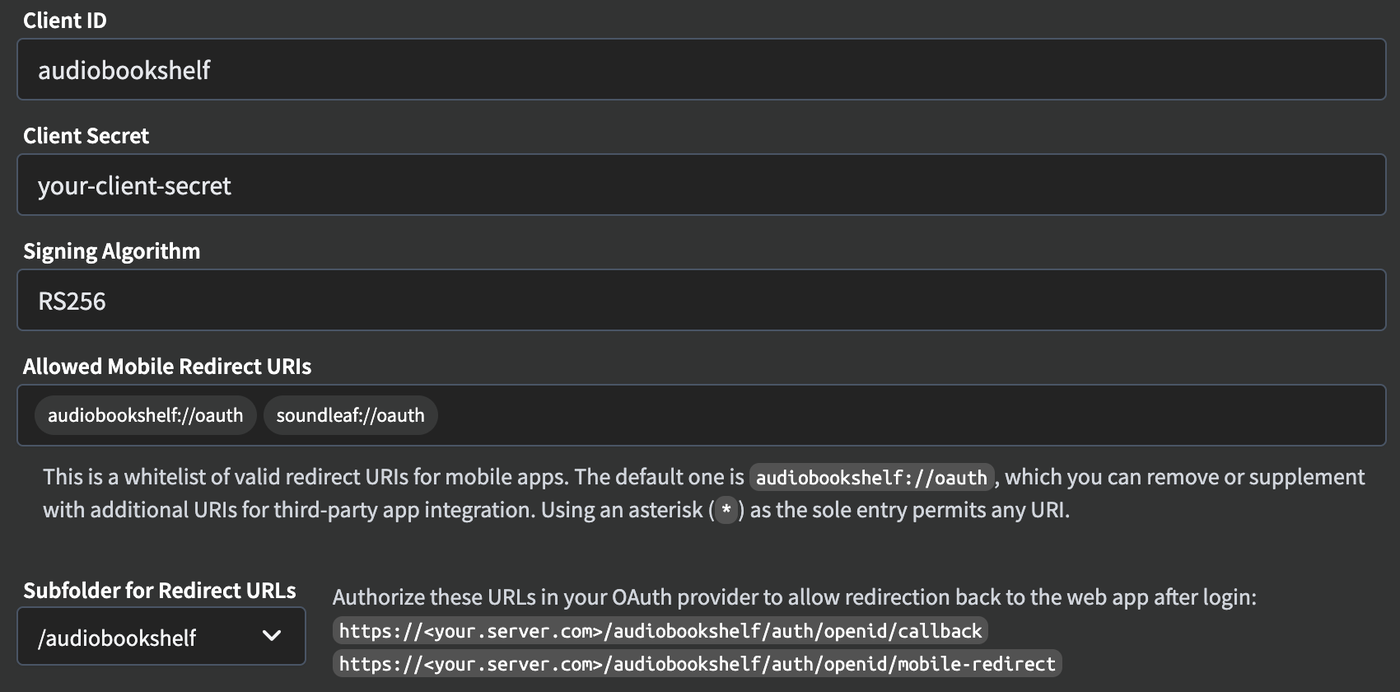
The Client ID and Client Secret in this picture are examples. Use the ones your provider gave you, and keep soundleaf://oauth exactly as shown.
To leave password sign-in on as well, keep Password Authentication ticked on the same page. SoundLeaf shows both options when the server offers both.
What your identity provider needs
Your provider (Authentik, Authelia, Pocket ID, Keycloak or another) must allow two redirect addresses. Audiobookshelf lists them on the same settings page, below Subfolder for Redirect URLs:
https://your.server.com/auth/openid/callbackfor the web pagehttps://your.server.com/auth/openid/mobile-redirectfor phone apps, SoundLeaf included
Use your own address. If Subfolder for Redirect URLs is set to /audiobookshelf, both addresses include it, like https://your.server.com/audiobookshelf/auth/openid/mobile-redirect. The addresses you give your provider must match the ones Audiobookshelf shows.
soundleaf://oauth only goes in Audiobookshelf. Your provider never sees it. The provider sends you back to the server’s mobile-redirect address, and the server hands the sign-in to SoundLeaf.
Use HTTPS, and set X-Forwarded-Proto on your proxy
Audiobookshelf does not refuse plain http, but its settings page shows the redirect addresses with https://, and that is the setup to aim for. If your reverse proxy takes HTTPS from visitors and passes requests on to Audiobookshelf over plain HTTP, Audiobookshelf only knows the visitor used HTTPS if the proxy sends the X-Forwarded-Proto: https header. Without it, the server builds an http:// redirect address that won’t match the one registered with your provider. The reverse proxy guide shows where the header goes.
Pocket ID: fix an unverified email
When Audiobookshelf first links a person to an existing account with Match by email, it refuses the link if the provider says email_verified is false. If Pocket ID sends email_verified: false for a user, that user cannot be linked this way. Accounts that are already linked are not affected. Verify the user’s email in Pocket ID, or set Match existing users by to Match by username instead.
Match existing users by email
If the people signing in already have Audiobookshelf accounts, set Match existing users by to Match by email (or Match by username). With email matching, the email on the Audiobookshelf account must be the same one the provider sends. With username matching, the usernames must match. After the first sign-in, the account stays linked to that provider user.
For new people, turn on Auto Register, which creates an Audiobookshelf account after their first sign-in. With it off and no match, sign-in fails.
The groups claim must be a list
A claim is a field your login provider sends about the user. Group Claim is optional. If you set it (usually groups), the claim must be a list, like ["user"], not a single word. It must contain admin, user or guest (any case). If none of those is in the list, Audiobookshelf refuses the sign-in. If the claim is missing for a user, sign-in also fails.
If Advanced Permission Claim is set and the claim is missing, non-admin users cannot sign in.
What you see in SoundLeaf
- Type your server address. SoundLeaf checks it and shows Connected with the server version.
- A sign-in button appears with the text your admin chose in Audiobookshelf. The default is Login with OpenId. Under it, SoundLeaf reminds you that the server needs
soundleaf://oauthin Allowed Mobile Redirect URIs. - Tap the button. Your provider’s sign-in page opens in a sheet inside SoundLeaf.
- Sign in there. The sheet closes and SoundLeaf opens your library.
If the server has password sign-in turned off, the username and password fields are greyed out and SoundLeaf says: “This server uses a separate sign-in page. Use the button below to sign in there.”
If the admin turned on Auto Launch in Audiobookshelf, SoundLeaf opens the provider page by itself once the address check passes.
If you added custom headers for a proxy (like a Cloudflare service token), SoundLeaf sends them to the sign-in page too. An Authorization header is the exception: it is never sent to the sign-in page.
Signing in again later
SoundLeaf can’t renew an OpenID session with a saved password, because there is none. When the server ends the session, the account shows Sign in again. Tap it and sign in through your provider again. If your provider still remembers you, this can take a single tap.
Adding a second account on the same server opens a fresh provider page, so it doesn’t sign you in as the first person by mistake. See multiple accounts and servers.
OpenID error messages in SoundLeaf
”Your server hasn’t allowed OpenID sign-in for SoundLeaf”
The full message is: “Your server hasn’t allowed OpenID sign-in for SoundLeaf. Ask your server admin to add soundleaf://oauth to Allowed Mobile Redirect URIs in Audiobookshelf’s OpenID Connect settings.”
Cause: the server refused SoundLeaf’s sign-in address.
Fix: follow steps 3 to 6 in the setup steps above. Check for a typo or a trailing space, and restart the server after saving.
”The server did not start the SSO login. Check that OpenID is set up on the server.”
Cause: the server did not send SoundLeaf on to your provider. Common reasons: OpenID is not fully set up, the server was not restarted after a change, the server could not reach the provider, or too many sign-in attempts were made in a short time.
Fix: sign in on the Audiobookshelf web page with OpenID. If that fails too, fix the server first. The Audiobookshelf OpenID login errors page covers the server side. Then restart the server and try again.
”SSO login failed: Unauthorized”
Cause: your provider signed you in, but Audiobookshelf refused the result. Usually the server found no matching user (no match by email or username, and Auto Register off), the email is not verified, or the groups claim is missing or not a list. The same message appears when the server can’t finish the sign-in with your provider, for example a wrong Issuer URL.
Fix: the server log has the real reason. Look for No data in openid callback. If a line starting with [OidcAuth] openid callback error comes just before it, that line names the problem. The server errors page explains each one.
”SSO login failed:” followed by something else
SoundLeaf shows the reason the server or provider gave, after “SSO login failed:”. “Error in callback” means the server hit an error while finishing the sign-in; check the server log. “status 429” means too many sign-in attempts; wait and try once. The default wait is 10 minutes, and your server admin may have changed it.
”The SSO login session was lost (the server may have restarted). Please try again.”
Cause: the server no longer had a record of this sign-in when SoundLeaf came back to finish it. The server keeps sign-ins in memory, so a restart in the middle of a sign-in does this.
Fix: try again. If it keeps happening, check the server log for restarts or crashes.
”The SSO answer did not match this login attempt. Please try again.”
Cause: the reply that came back belongs to a different sign-in attempt, often an older one left open.
Fix: close the sheet and start again from the sign-in button.
”The identity provider did not send a login code. Please try again.”
Cause: the provider sent you back without signing you in. This happens if you cancel or deny access on the provider page, or the provider rejected the request.
Fix: try again. If it repeats, check the provider’s log for that sign-in.
”State parameter mismatch” in the sign-in sheet
This plain text page comes from the server. The server only keeps a phone sign-in open for 10 minutes, and forgets it if it restarts. Close the sheet and start again.
”The server signed in a different user. Sign in with the account shown here.”
Cause: while signing an account in again, you signed in to your provider as someone else.
Fix: sign in as the user shown. To use another person’s account, add it as a new account instead.
Forward auth in front of Audiobookshelf blocks apps
Forward auth means a login page your proxy shows before any request reaches Audiobookshelf. Authelia or Authentik proxy auth, and Cloudflare Access with email login, work this way. A browser can show that page. SoundLeaf talks to the server directly, so it only gets the proxy’s login page back and can’t sign in. On the address check, SoundLeaf usually says: “The address did not return an Audiobookshelf status response. Check the address and any proxy sign-in requirements.”
Two options:
- Use OpenID in Audiobookshelf instead. Take the forward auth rule off the Audiobookshelf address and connect Authelia, Authentik or another provider through Audiobookshelf’s own OpenID settings, as above.
- Use a service token with Cloudflare Access. Cloudflare Access can let SoundLeaf through with a service token sent as headers. See Cloudflare Access setup.
For errors the Audiobookshelf server writes in its log, see Audiobookshelf OpenID login errors and fixes.