
Server guides · Setup
Audiobookshelf users and permissions: share with family, limit what kids see
Give each person their own Audiobookshelf user, then limit what they see by library, by tag or by the Explicit flag. What each account type and permission does.
To share Audiobookshelf with your family, give each person their own user. Then limit what a user sees by library, by tag, or with the Explicit flag on a book. Each user keeps their own listening progress, so nobody loses their place because someone else played the same book.
Checked against Audiobookshelf 2.37.1.
How do I add a user in Audiobookshelf?
Only an admin (or the root user) can add users.
- Open the Audiobookshelf web page and sign in as an admin.
- Open Settings (the gear at the top of the page) and choose Users.
- Press Add User.
- Fill in Username and Password. Email is optional.
- Pick an Account Type: Guest, User or Admin.
- Leave Enable on, set the permissions (below), and press Submit.
A new user needs a password. Only the root user can have an empty one.
To change someone’s password later, open their user and type a new one in Change Password. That also signs them out of the devices they were using, so they sign in again with the new password.
To stop someone using the server without deleting them, turn off Enable. A disabled user can’t sign in.
What are the Audiobookshelf account types?
| Type | What it’s for |
|---|---|
| Root | The first account, made when the server was set up. There is only one. It can’t be deleted, and only root can edit root. |
| Admin | Runs the server: libraries, users and server settings. Can’t edit or delete root. |
| User | A normal listener. Gets only the permissions you turn on. |
| Guest | A more limited listener. A guest can’t change their own password, and their account page has no list of signed-in sessions. |
You can’t make a second root. The editor only offers Guest, User and Admin.
A guest still saves listening progress, the same as a user. The difference is mostly in what they can manage about their own account.
What does each permission do?
The Permissions section of the user editor has these switches.
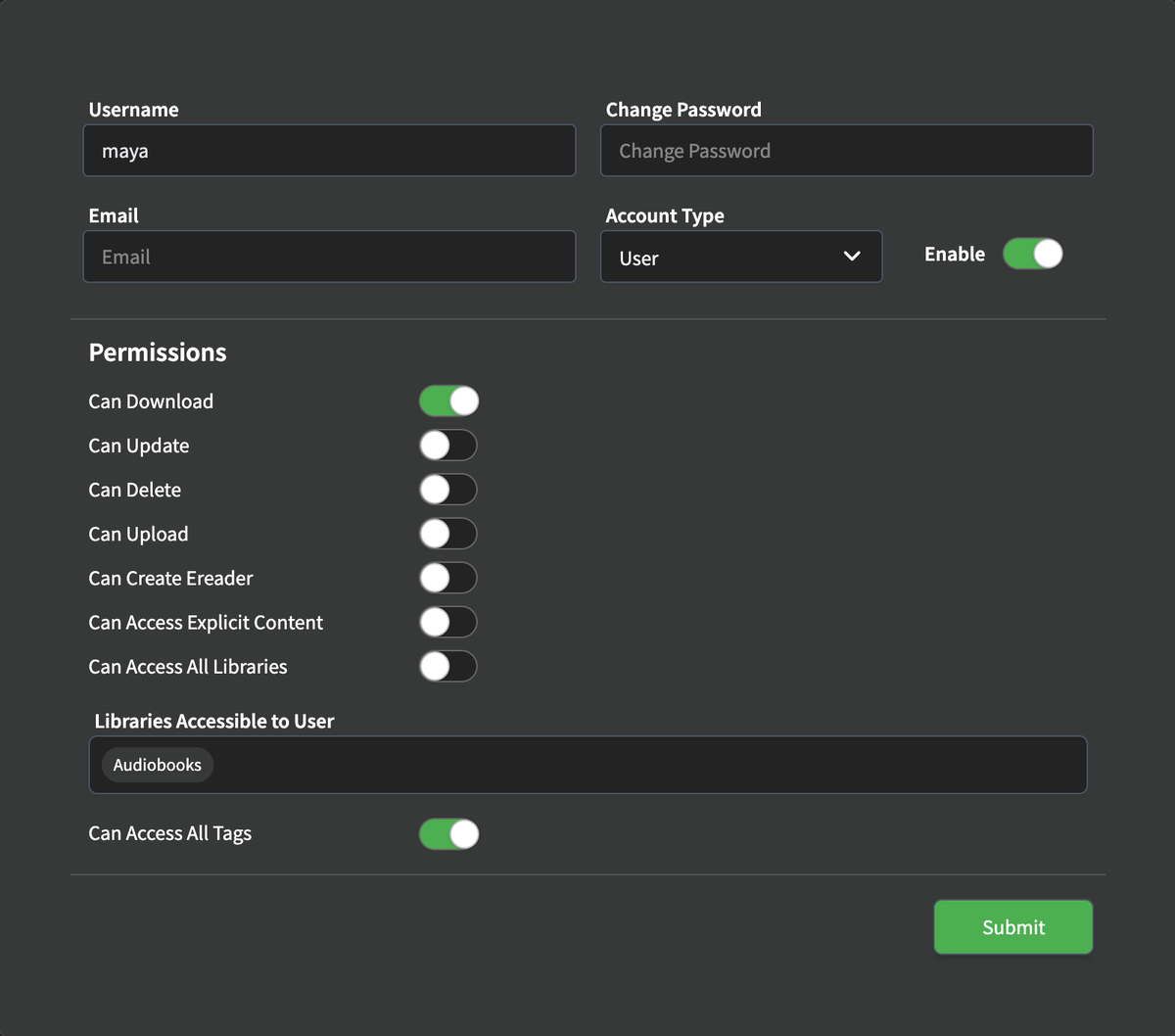
| Permission | What it allows |
|---|---|
| Can Download | Download books and episodes to a device, for listening offline. |
| Can Update | Edit book and podcast details. |
| Can Delete | Delete items from the library. |
| Can Upload | Upload new books or podcasts. |
| Can Create Ereader | Set up their own ereader devices for sending ebooks. |
| Can Access Explicit Content | See items marked Explicit. Off means those items are hidden. |
| Can Access All Libraries | See every library. Off lets you pick which ones. |
| Can Access All Tags | See items whatever their tags. Off lets you limit by tag. |
When you pick an account type, the editor sets these for you:
- Guest: everything off except the two “All” switches. Can Download is off too.
- User: Can Download on, plus the two “All” switches. The rest off.
- Admin: everything on.
You can change any switch after that. For a family member who only listens, User with the defaults is usually right. For a child, see below.
How do I limit a user to some libraries?
Turn off Can Access All Libraries. A box called Libraries Accessible to User appears, with every library already added. Remove the ones this person shouldn’t see.
At least one library has to stay in the box, or the editor says “Must select at least one library”.
This is the simplest way to keep a child’s books apart: put them in their own library and give the child’s user only that one.
How do I limit what a user sees with tags?
Tags are labels you add to a book or podcast. Edit the item, and on Details there is a Tags field. Add the same tag (for example kids) to everything that belongs together.
Then, in the user editor:
- Turn off Can Access All Tags.
- Pick one or more tags in the list.
- Decide on Invert.
Invert changes what the list means:
| Invert | The list is called | What the user sees |
|---|---|---|
| Off | Tags Accessible to User | Only items with at least one of the picked tags. Items with no tags at all are hidden. |
| On | Tags not Accessible to User | Everything except items with a picked tag. Items with no tags stay visible. |
So there are two ways to run a child’s account:
- Allow list: tag every child-friendly book
kids, turn Invert off and pickkids. New books stay hidden until you tag them. - Block list: tag the books they shouldn’t hear
adult, turn Invert on and pickadult. New books show up until you tag them.
The allow list is safer for young kids, because a book you forgot to tag stays hidden.
Tag limits apply to podcasts too, using the tags on the show. They also apply to series lists, so a hidden book doesn’t appear there.
How do I hide explicit books from a user?
Mark the book as explicit, then take away the permission.
- Edit the book (or podcast). On Details, tick Explicit and save.
- In that person’s user, turn off Can Access Explicit Content.
Audiobookshelf then leaves marked items out when this user browses the server, in the web page or in an app. Audiobookshelf doesn’t decide what is explicit for you. Only items with the Explicit box ticked are hidden. Tags are the more dependable limit for kids.
Can two users share listening progress?
No. Progress belongs to the user who listened. There is no setting in Audiobookshelf to share, copy or merge progress between users.
To share one listening position, two people have to use the same user. To keep separate positions, which is what most families want, give each person their own user.
How do I switch between users in SoundLeaf?
SoundLeaf keeps several Audiobookshelf users on one iPhone or iPad and switches between them, each with its own progress and downloads. That is how one shared iPad works for the whole family. See multiple accounts for switching. For what to send each person and how to lock down a child’s iPad, see set up SoundLeaf for your family.
If you haven’t put the server on the internet yet, read how to secure your Audiobookshelf server before you hand out logins.