
Server guides · Troubleshooting
Forgot your Audiobookshelf password? How to reset it (and the default login)
Audiobookshelf has no default password. An admin resets a user's password in Settings > Users. A lost root password means editing the database.
Audiobookshelf has no default username or password. You make the first account, called root, the first time you open the server in a web browser. If you forget a password, an admin can set a new one in Settings > Users. If you forget the root password, you have to edit the server’s database.
There is no “forgot password” email link. Checked against Audiobookshelf v2.37.1 and the official FAQ.
What is the default Audiobookshelf login?
There isn’t one. On a brand new server, the web page shows Initial Server Setup with a Create Root User form. The username box starts filled in with root, and you choose the password.
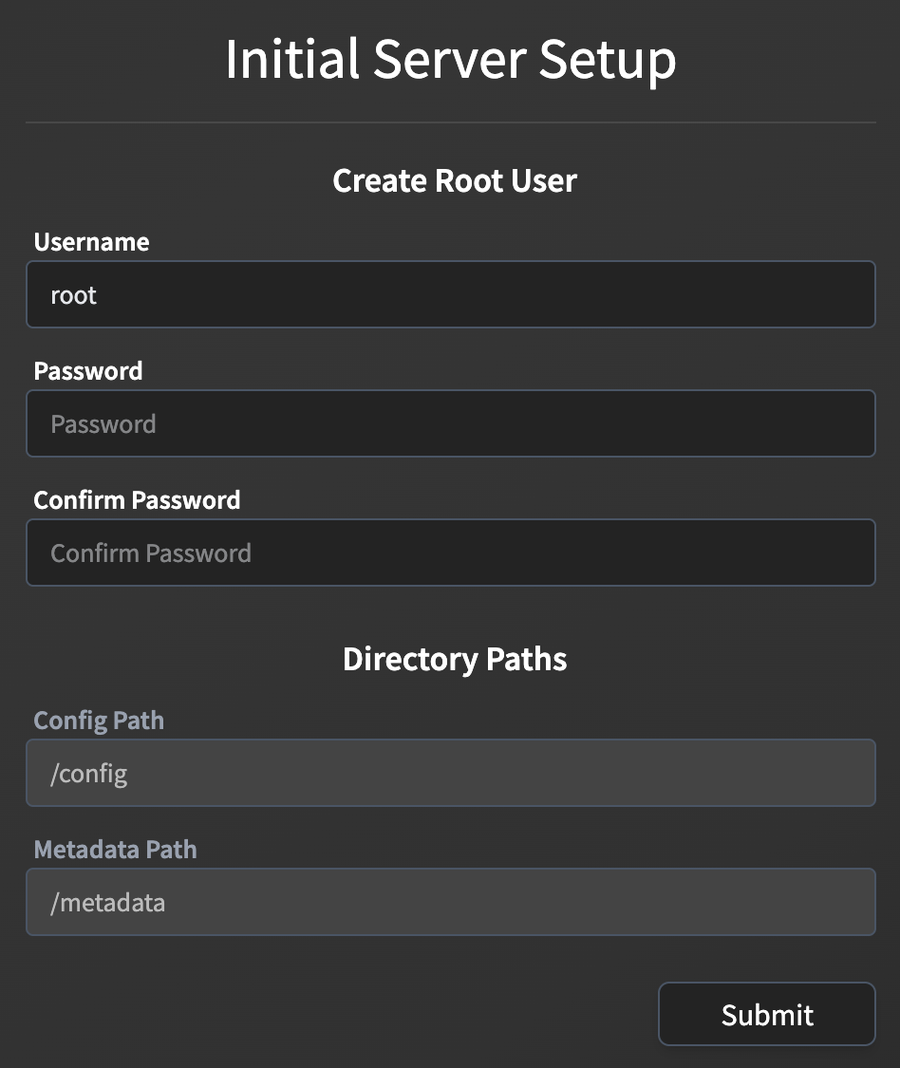
You can leave the password empty. Audiobookshelf asks “Are you sure you want to create the root user with no password?” first. If you did that, sign in with the username you chose (root unless you changed it) and leave the password box empty. Typing any password fails.
If SoundLeaf shows “Finish setting up the server, then try again.”, the first setup isn’t done yet. Open the server address in a web browser, create the root user, then sign in from the app.
Reset another user’s password (admin)
You need to be signed in as root or an admin.
- Open the Audiobookshelf web page and go to Settings > Users.
- Click the pencil icon next to the user.
- Type the new password in Change Password.
- Click Submit.
Changing a password signs that user out on every device (since v2.36.0). Their apps will ask them to sign in again with the new password.
If the user signs in with OpenID (a separate login service such as Authentik or Pocket ID), reset the password in that service instead. Accounts created through OpenID start without an Audiobookshelf password. The OpenID login errors page covers that case.
Change your own password
- Open the Audiobookshelf web page and click your username at the top right.
- Under Change Password, enter your current password, the new one, and the new one again.
- Click Submit.
Guest accounts can’t change their own password. An admin has to do it.
Reset the root password
Only root can change the root password, and an admin can’t do it from Users. If you forgot it, the official fix is to clear the password in the database. Root can then sign in with an empty password and set a new one.
- Stop Audiobookshelf. Don’t edit the database while the server runs.
- Back up the database. It’s
absdatabase.sqlitein your config folder (/configin Docker). - Open
absdatabase.sqlitewith a SQLite editor. The official FAQ suggests DBeaver. - Open the
userstable and find the root user’s row (itstypecolumn saysroot). - Set the
pashcolumn toNULL. Save, and close the database. - Start Audiobookshelf.
- Sign in with the root username and leave the password box empty.
- Click your username at the top right and set a new password under Change Password.
pash stores a value used to check the password, not the password itself. With it empty, root can sign in without one. Root is the only account that works this way. Set a new password straight away, especially if the server is reachable from the internet.
Signing in to SoundLeaf after a reset
SoundLeaf saves your password on the device so it can sign you back in when the server’s session runs out. After a password change it can’t do that, so the account shows Sign in again.
- Open Settings > Servers.
- Tap Accounts under the right server.
- Pick the account and tap Sign in again.
- Type the new password.
Your saved content stays on the device.
SoundLeaf signs in with a username and password, or with OpenID. It does not support API key login. If you keep being asked to sign in for no reason, see why Audiobookshelf keeps logging you out. To give family members their own accounts, see Audiobookshelf users and permissions.