
SoundLeaf 2.7 for Audiobookshelf: Next Chapter Sleep Timers, Widgets, and Themes
SoundLeaf 2.7 for Audiobookshelf adds next chapter sleep timers, goal and listening widgets, podcast sorting, and separate light and dark themes.
What’s new in SoundLeaf 2.7
SoundLeaf 2.7 is on the App Store. It adds a sleep timer for “one more chapter”, Home Screen widgets for your goals, and separate themes for light and dark mode. Podcasts get better sorting and a way to download only the episodes you haven’t finished.
Sleep after the next chapter
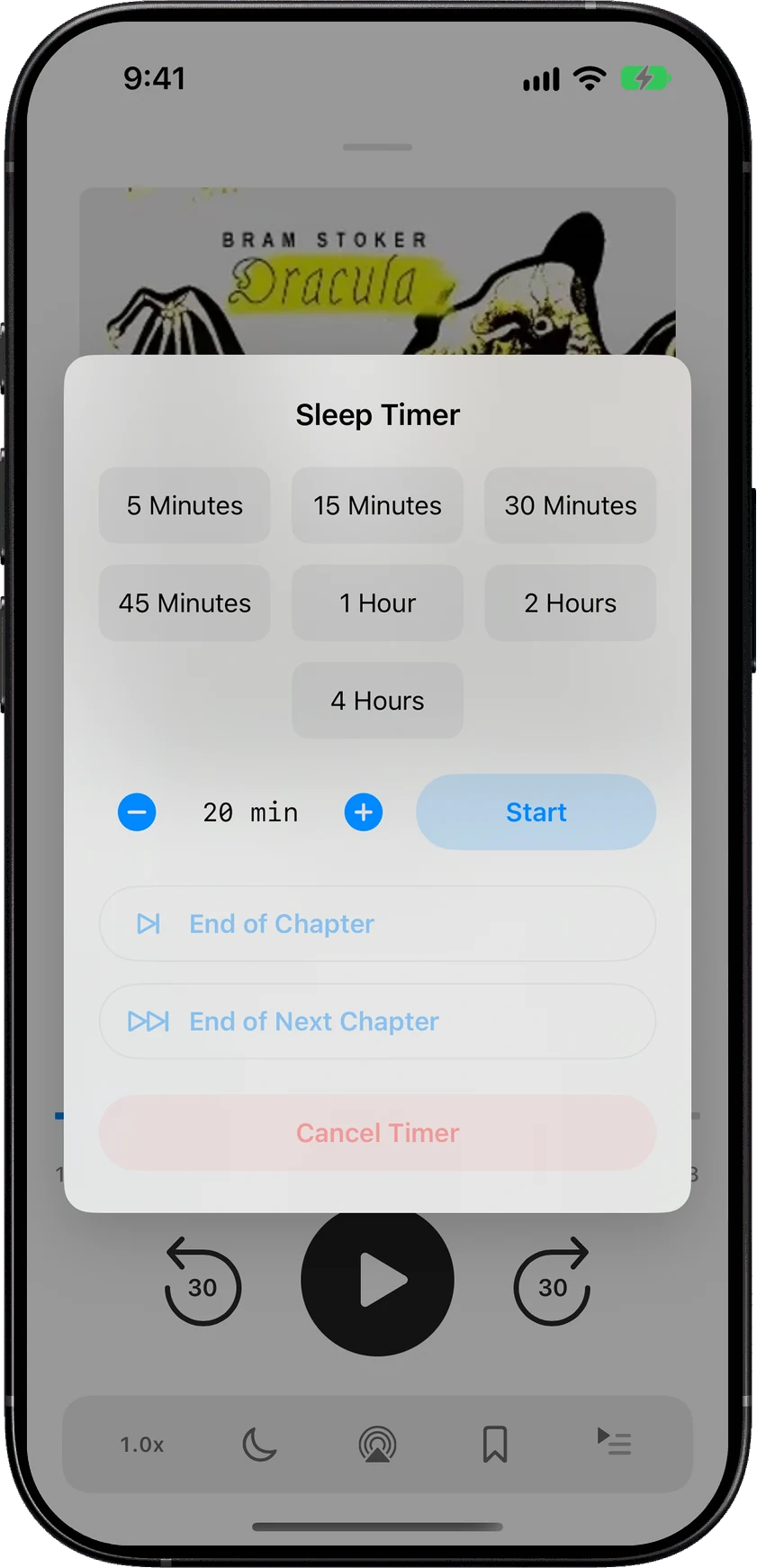
The old End of Chapter timer is great until the current chapter ends two minutes after you start it. 2.7 adds End of Next Chapter, so you get the rest of this chapter and one more.
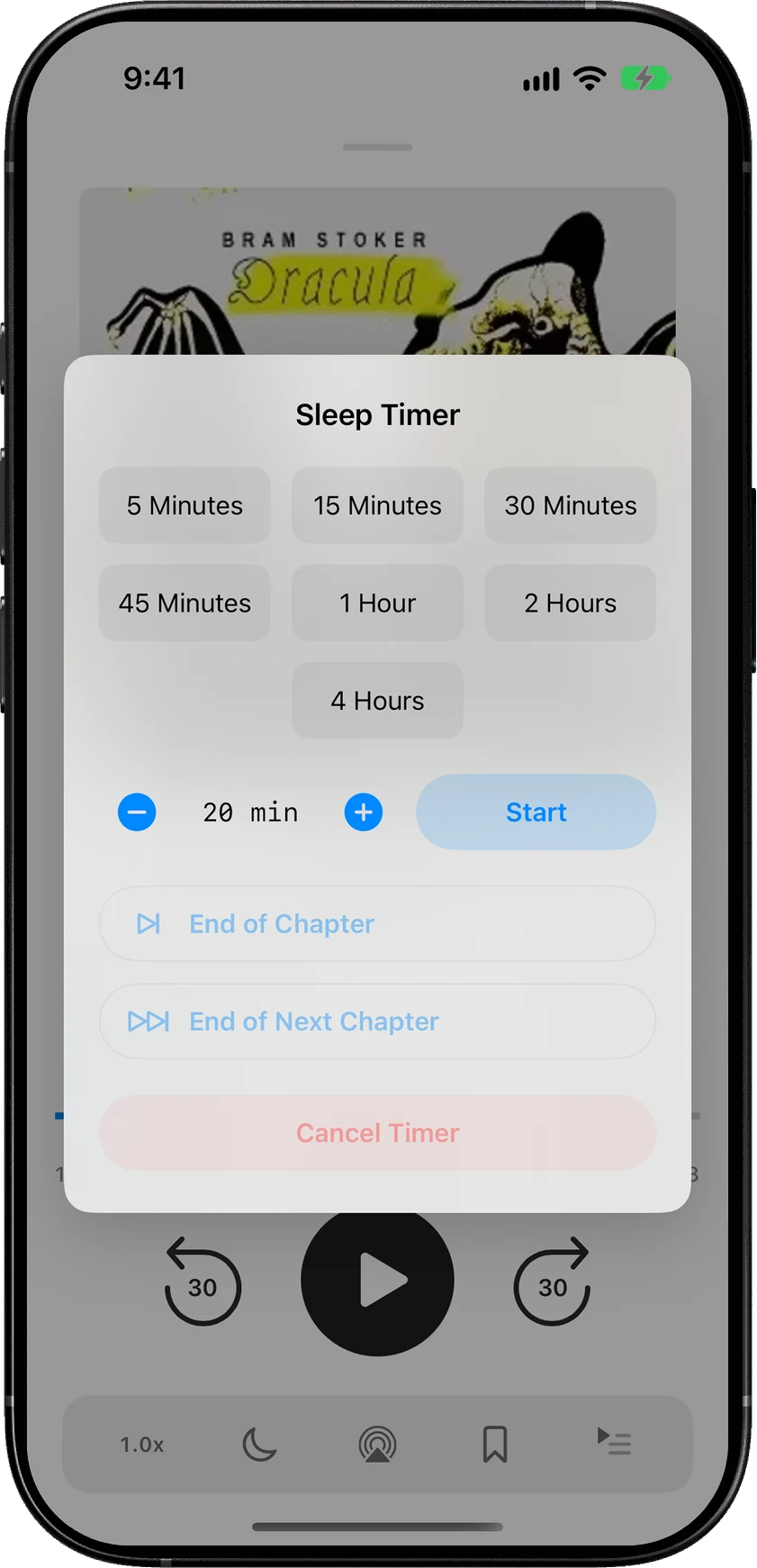
Podcasts get the same idea. End of Next Episode plays the rest of this episode and the next one in Up Next. If you change Up Next after setting it, the timer follows the change.
When an option can’t be used, it stays in the menu with the reason underneath, like “This is the last chapter.” or “Nothing is queued after this episode.” Both players now share the same sleep timer and speed controls. The sleep timer guide has all the options.
Home Screen widgets for goals and listening
Two new widgets:
- Goal (small) - your listening goal, or your yearly book goal
- Your Listening (medium) - listening time, books finished and episodes finished for this month or this year
Touch and hold a widget and choose Edit Widget to switch what it shows. Tapping one opens SoundLeaf. The widgets guide has the full list.
Light and dark themes
You can now pick one theme for light mode and another for dark mode. Go to Settings > Appearance > Theme and turn on Match iPhone appearance. Then choose a theme under Light mode and another under Dark mode.
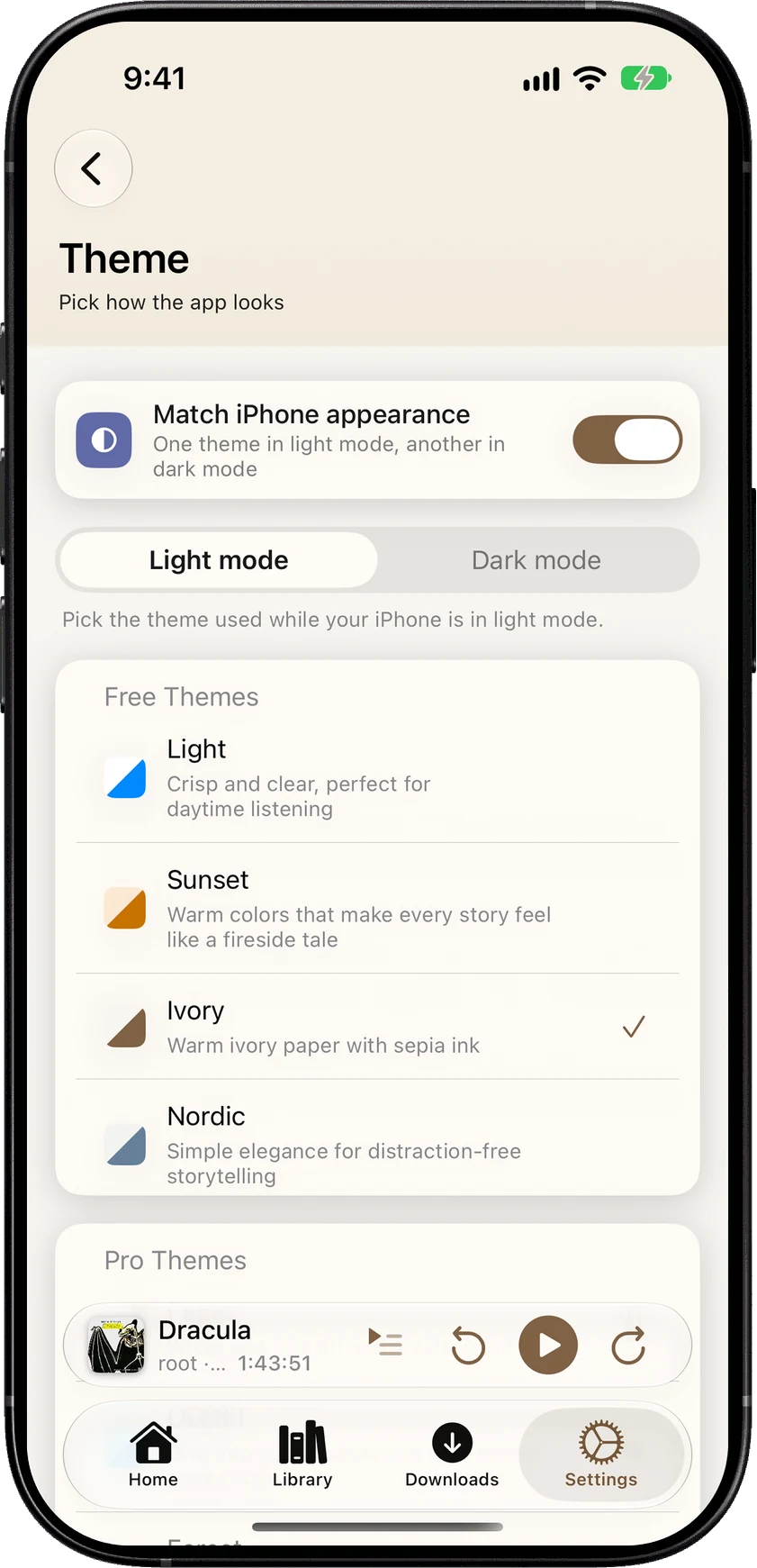
There are two new themes as well. Ivory is free, warm paper with sepia ink. Paper is part of Pro.
Sort, order and download podcast episodes
- Recently Listened - a new sort for books, podcast shows and episodes. Episodes can also be sorted by date added, duration and title.
- Download Unfinished - in a podcast’s … menu, next to Download All Episodes. It skips the episodes you’ve already finished.
- Order Episodes - reorder Up Next or a podcast playlist Oldest First, Newest First or Group by Podcast. In Up Next it’s the button in the header; in a playlist it’s in the … menu.
- Finished episodes stay out of Up Next - including the last one in the queue
Downloads from every account
If you have more than one account, the Downloads tab now shows downloads from all of them. They’re grouped by library, with the account and server under each heading. Books and podcasts still have their own downloads.
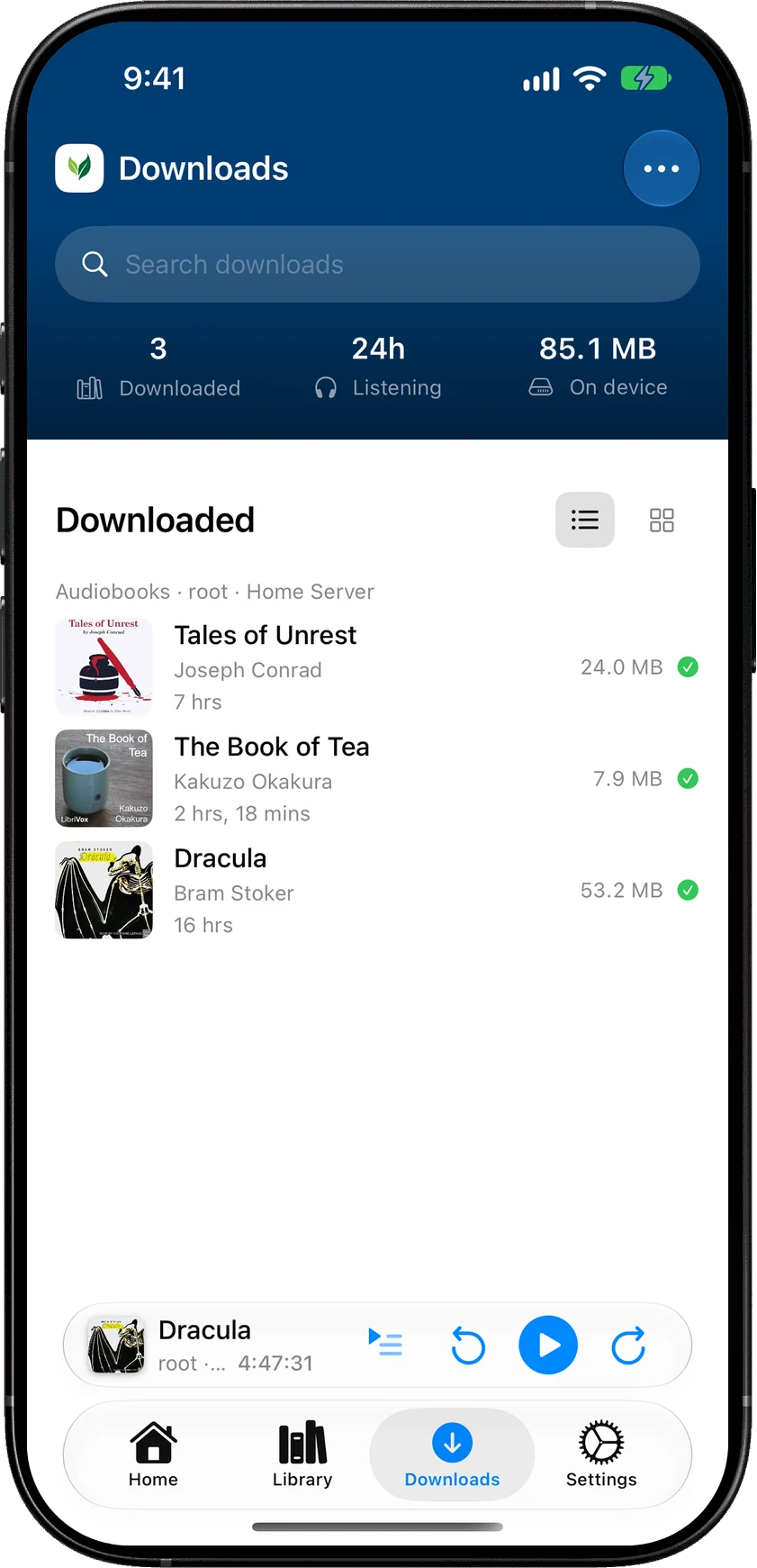
Switching libraries also keeps you on the tab you were on, when the other library has it. Each library can have its own icon: Settings > Library > Library Icon, or Change Icon… in the library switcher.
Guided setup
New installs get a short setup after signing in. It walks through the look (theme, font and app icon), how you listen (skip buttons, auto rewind, Smart Downloads), and a listening goal. Your library’s Home screens get ready in the background while you go through it.
Smaller changes
- Arrow keys turn pages - on iPad or Mac with a keyboard, the left and right arrow keys turn ebook pages in paged mode
- More room for ebook text - smoother scrolling, and showing or hiding the reader controls keeps your page where it is
- Finished books from chosen accounts - your yearly book goal can count finished books from the accounts you pick. Listening time always counts all of them.
OpenID sign-in
If you sign in with OpenID, add soundleaf://oauth to Allowed Mobile Redirect URIs in Audiobookshelf. SoundLeaf uses its own address for that step now. The OpenID guide walks through it.
Fixes
- Read Along - when you accept a reading position from another device, Read Along keeps it instead of jumping back to your old audio position
- Podcast downloads - clearing the cache no longer loses saved podcast downloads after a relaunch
- New phone - saved sign-in details can move over when you set up a new device
Get the update
2.7 is on the App Store now. New builds show up on TestFlight first.
If a next chapter timer stops in the wrong place, a bug report with the book and the chapter you were in helps.
Hemant