
Coming in SoundLeaf 2.8 for Audiobookshelf: SharePlay, Podcast Groups, and Custom Home
A preview of SoundLeaf 2.8 for Audiobookshelf: listen together over FaceTime with SharePlay, podcast groups, a Home you can rearrange, and two-page ebooks.
Coming in SoundLeaf 2.8
SoundLeaf 2.8 lets you listen to a book or podcast together with someone over FaceTime, using SharePlay. It also adds podcast favourites and groups, a Home screen you can rearrange, and two-page ebooks on iPad and Mac.
This is a preview. 2.8 isn’t on the App Store yet, and the screenshots come from the 2.8 build. Things may still change before it ships.
Listen together with SharePlay
Listening to the same book with someone who isn’t in the room used to mean counting “3, 2, 1, play” over a call. SharePlay does that part for you.
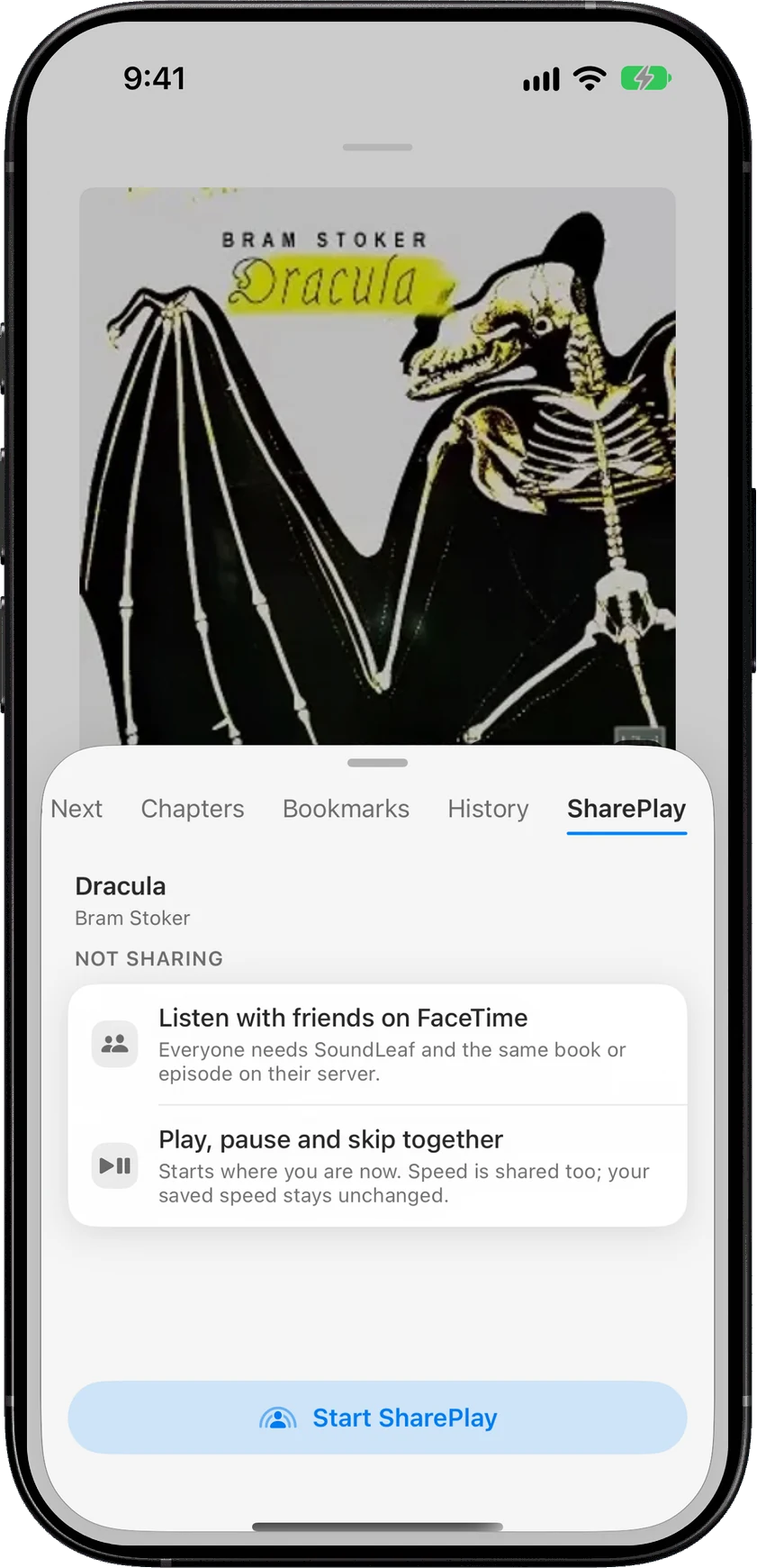
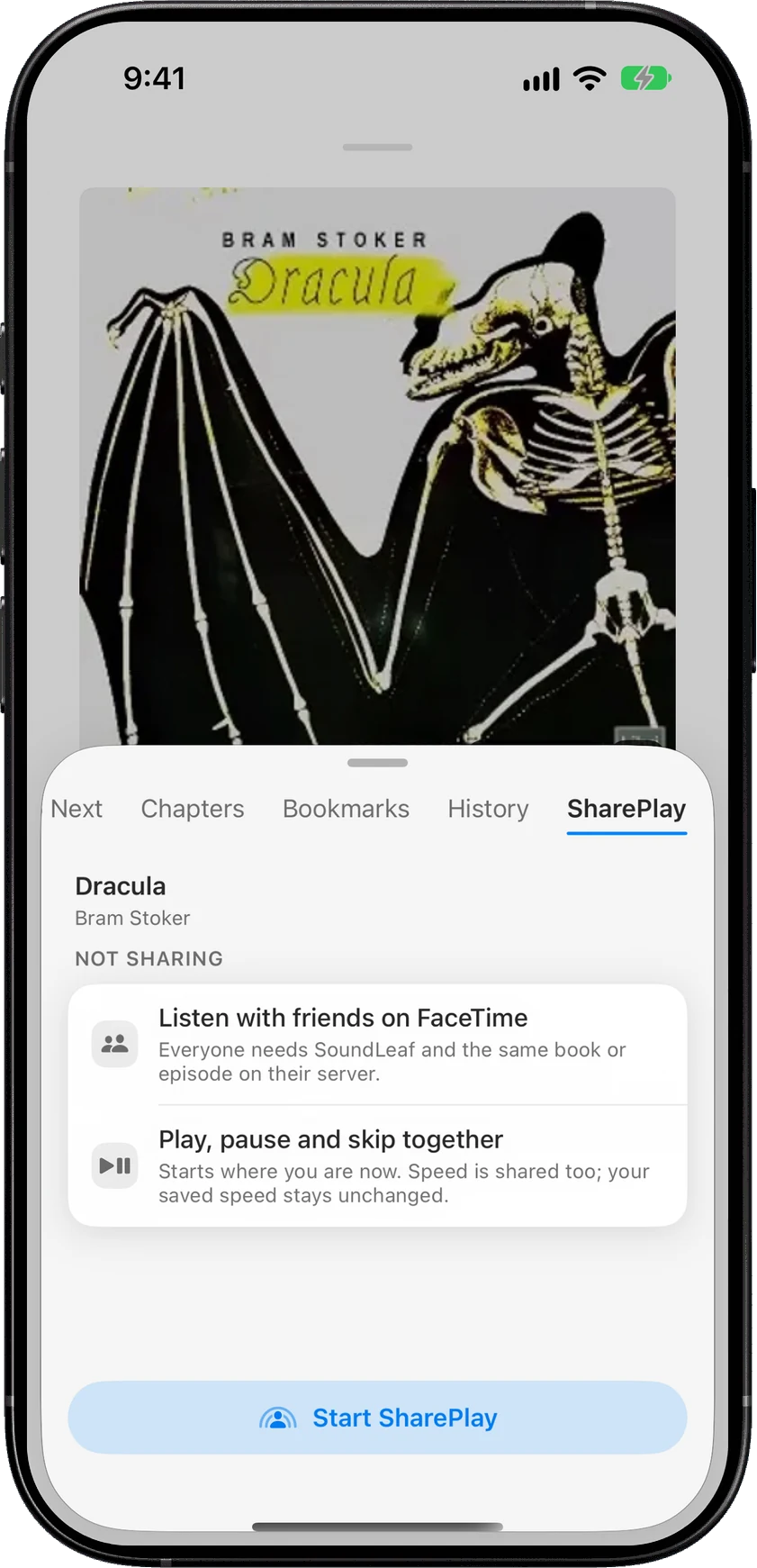
There are two ways to start:
- Press play during a FaceTime call. iOS asks whether to share it with the call or just play it for you.
- From the player. Open Up Next in the player, go to the SharePlay page and tap Start SharePlay.
Play, pause, skipping and speed are shared, so everyone hears the same moment. A speed change applies to everyone, and your own saved speed stays the same.
Each person plays the book from their own Audiobookshelf library. SoundLeaf doesn’t send audio to anyone. So everyone needs SoundLeaf and the same book or episode on their server, the same recording with the same audio files. If someone doesn’t have a match, SoundLeaf tells them: “Couldn’t find a matching copy in your library. Add the same book or episode to your server, then join again.”
The SharePlay guide has the details, including what counts as the same book.
Podcast favourites and groups
If you follow many shows, the podcast list gets long. 2.8 lets you sort them into groups.
Press and hold a show and choose Add to Favorites, or use Groups > New Group… to start a group. New Group… is also in the … menu on the Podcasts page. A row of tabs then shows up under All podcasts. It starts with All, then Favorites once you’ve favourited a show, then one tab for each group.
To rename or delete a group, press and hold its tab.
Groups are saved on your device, for each account and library. They don’t change anything on your Audiobookshelf server.
Rearrange Home
Home has many shelves, and not everyone wants all of them in the same order.
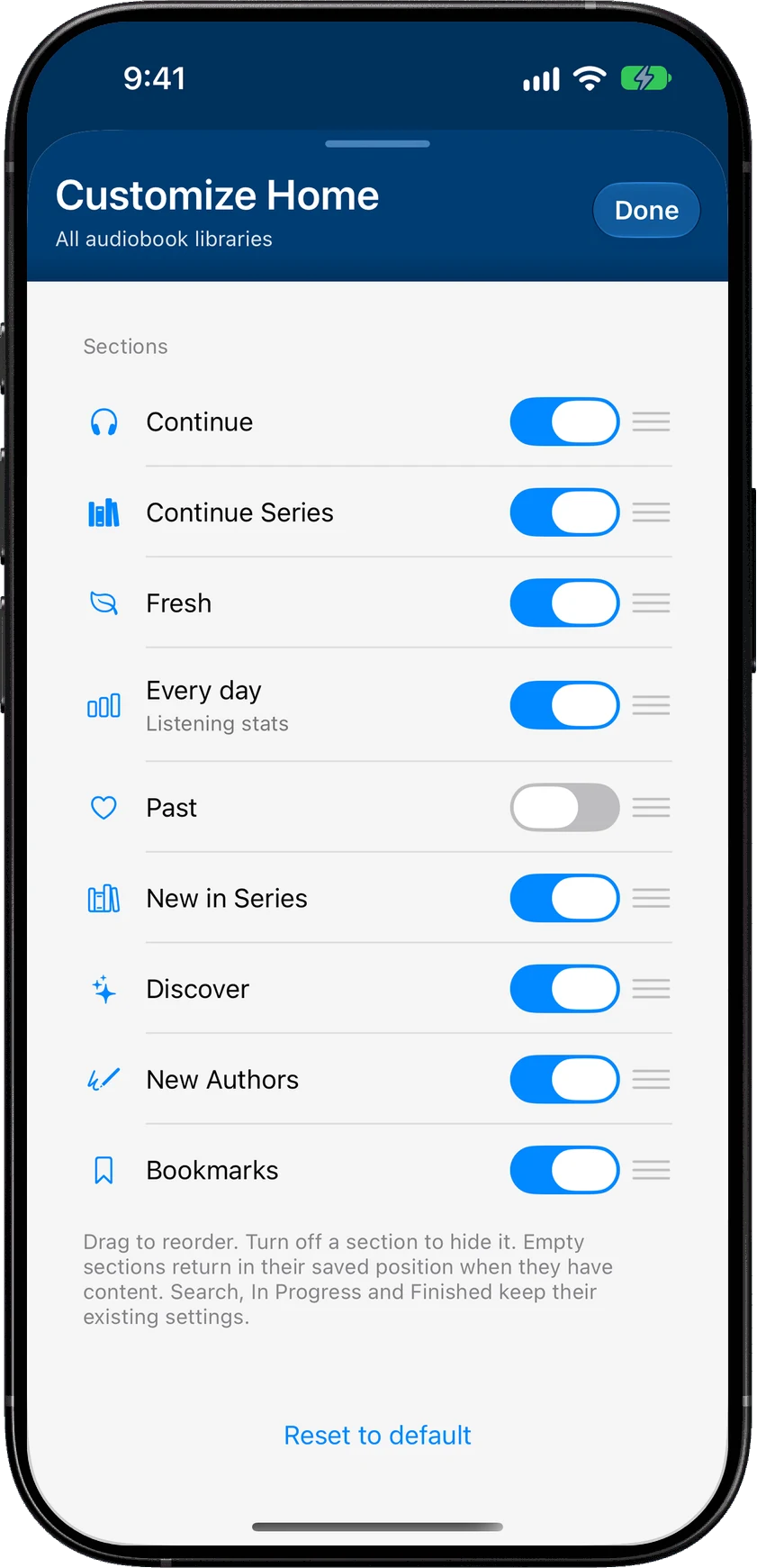
Scroll to the bottom of Home and tap Customize Home, or go to Settings > Appearance > Home > Customize Home. Drag sections into the order you want, and turn off the ones you don’t use. Reset to default puts everything back.
The layout applies to every audiobook library on that device.
Two pages on iPad and Mac
The ebook reader can now show two pages side by side, like an open book. In the reader, go to Appearance > Page layout and pick Automatic, One Page or Two Pages. Automatic shows two pages in landscape when the text fits.
This setting is on iPad and Mac. On iPhone the reader stays one page. Page layout only works with horizontal scrolling, so if it’s greyed out, set Scroll to Horizontal first. Page turns are a swipe, the way you’d expect on an iPad.
Lock Screen widgets
Two small round widgets for the Lock Screen: Book Cover, and Cover & Progress, which adds a progress ring and the percentage. The wider Now Playing widget shows the cover too.
To add one, touch and hold your Lock Screen, tap Customize, then Add Widgets and pick SoundLeaf. The widgets guide lists them all.
Cover zoom, file details and podcast episodes
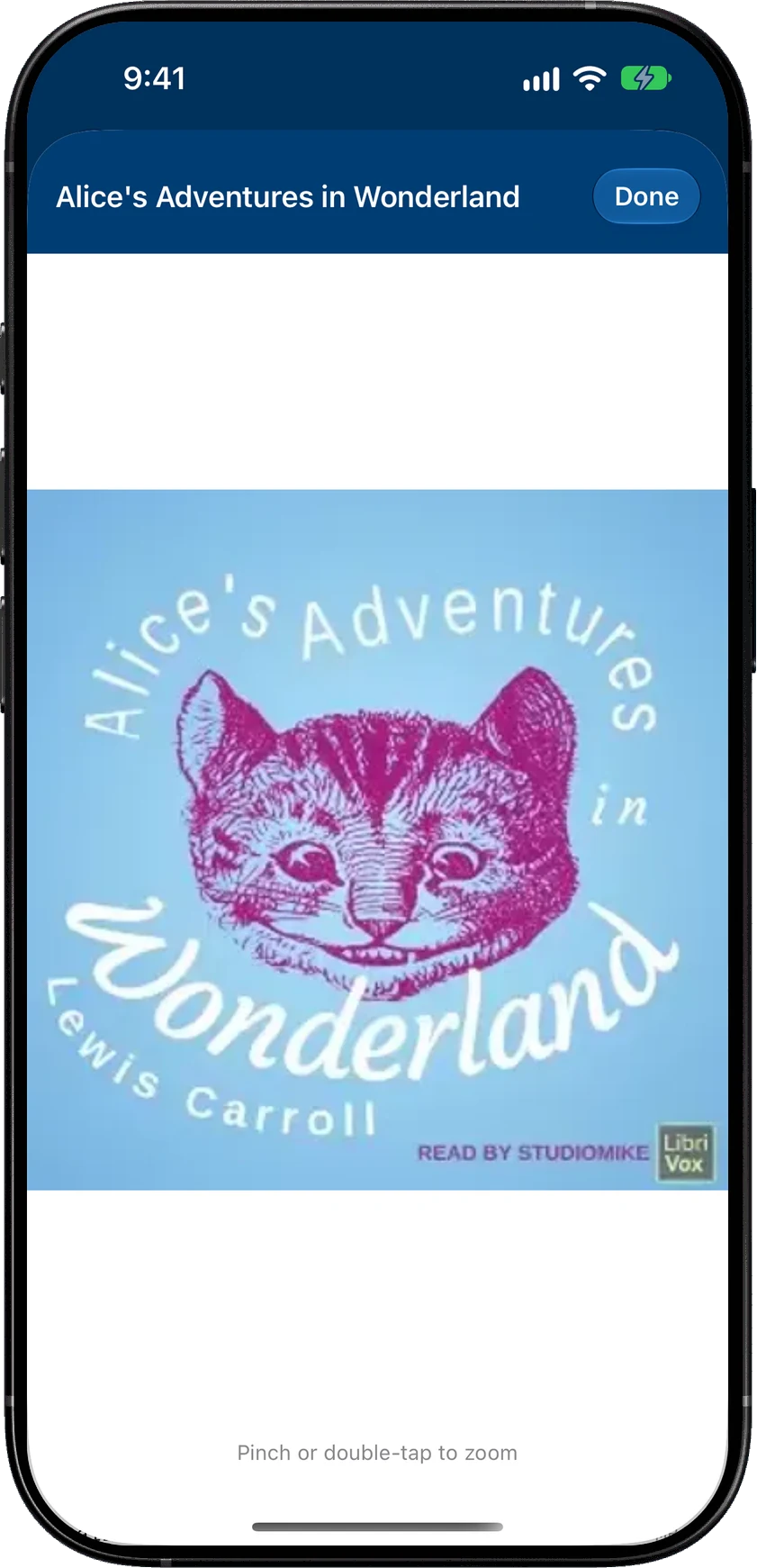
- Zoom into covers - touch and hold a big cover and choose Open cover image. Pinch or double-tap to zoom.
- Sample rate in Files - the Files tab on a book or episode now shows the sample rate (how many times per second the sound was recorded, like 44.1 kHz) when it’s available
- Picking episodes when you add a podcast - Select latest 10 and Select latest 100 save you some tapping
- Episode filters stick - the filter you pick on a podcast’s page (Unplayed, In Progress and so on) is remembered for that show
- Supporter without a subscription - in Settings > Premium, Support with a one-time payment gives you Supporter for good. Once you have it, that row becomes Leave a tip. Tips don’t unlock anything extra. They just say thanks. If you already pay monthly or yearly, that subscription keeps renewing until you cancel it yourself.
Fixes
- Earbuds - earbuds that only send “play” can now pause as well, and a quick double press no longer undoes a pause
- Author photos - they stay visible when you open an author, including offline
- Crashes - fixed crashes some testers hit while the library was syncing
- Widgets - finished book totals count correctly
How to try SoundLeaf 2.8
2.8 isn’t on the App Store yet. The App Store has 2.7, and new builds show up on TestFlight first.
If you try SharePlay, the bug reports that help most say whether everyone was on the same server, what each person’s copy of the book was, and what message showed up.
Hemant