
Coming in SoundLeaf 2.5: Calibre Ebooks, Playlists, and a Book Queue
A preview of SoundLeaf 2.5: EPUBs from Calibre for reading and Read Along, Audiobookshelf playlists, a queue for books, long-press menus, and Read Along in more languages.
Coming in SoundLeaf 2.5
SoundLeaf 2.5 connects to Calibre, so an audiobook can use an EPUB from your Calibre library. It also adds playlists, a queue for books, and a long-press menu on every book and episode.
This is a preview. Everything below is already in the development build, and the screenshots come from it. Things may still change before 2.5 reaches the App Store.
Ebooks from Calibre
Plenty of people keep their audiobooks in Audiobookshelf and their ebooks in Calibre. Until now, Read Along only worked when the EPUB sat in the same Audiobookshelf folder as the audio. If yours lived in Calibre, you had to copy it over.
2.5 connects to Calibre directly. Go to Settings > Integrations > Calibre and choose your server type: Calibre Content Server, Calibre-Web or Calibre-Web Automated. Then enter the address you use in your browser.
To pair a book, open its Ebook options from the book’s … menu, or press and hold the Read button. Tap Choose Calibre ebook, search by title or author, and pick the EPUB. SoundLeaf downloads it, so you can read it offline, and Read Along works with it the same way it does with an Audiobookshelf ebook.
- Free - the Calibre connection isn’t part of Pro
- One connection per account - each saved Audiobookshelf account keeps its own Calibre server and its own ebook choices
- Reading position stays on your phone - SoundLeaf doesn’t send it back to Calibre
Playlists
Playlists now have a place in SoundLeaf. They’re your Audiobookshelf playlists, so the ones you make in the web app show up here, and the ones you make here show up there.
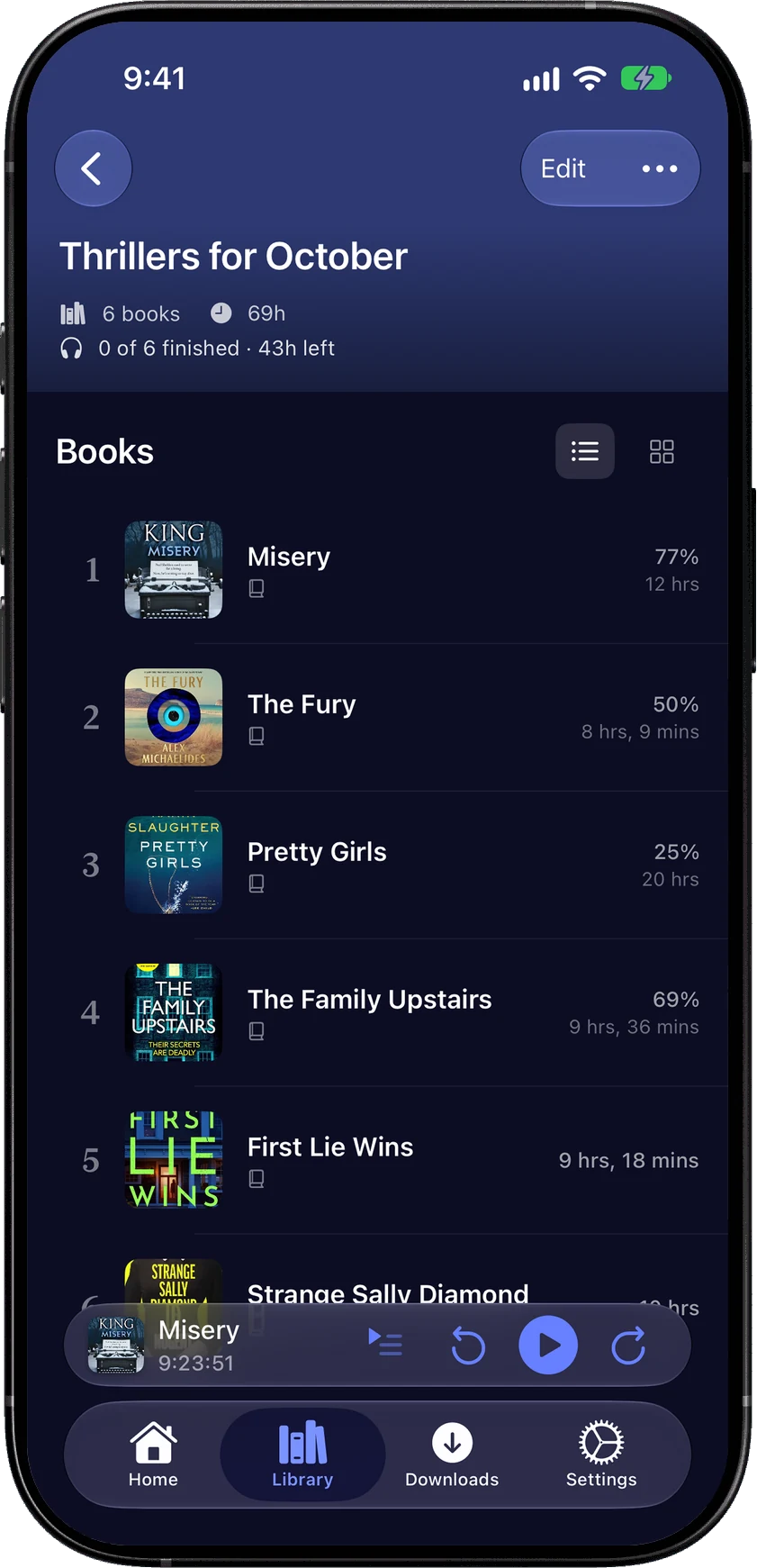
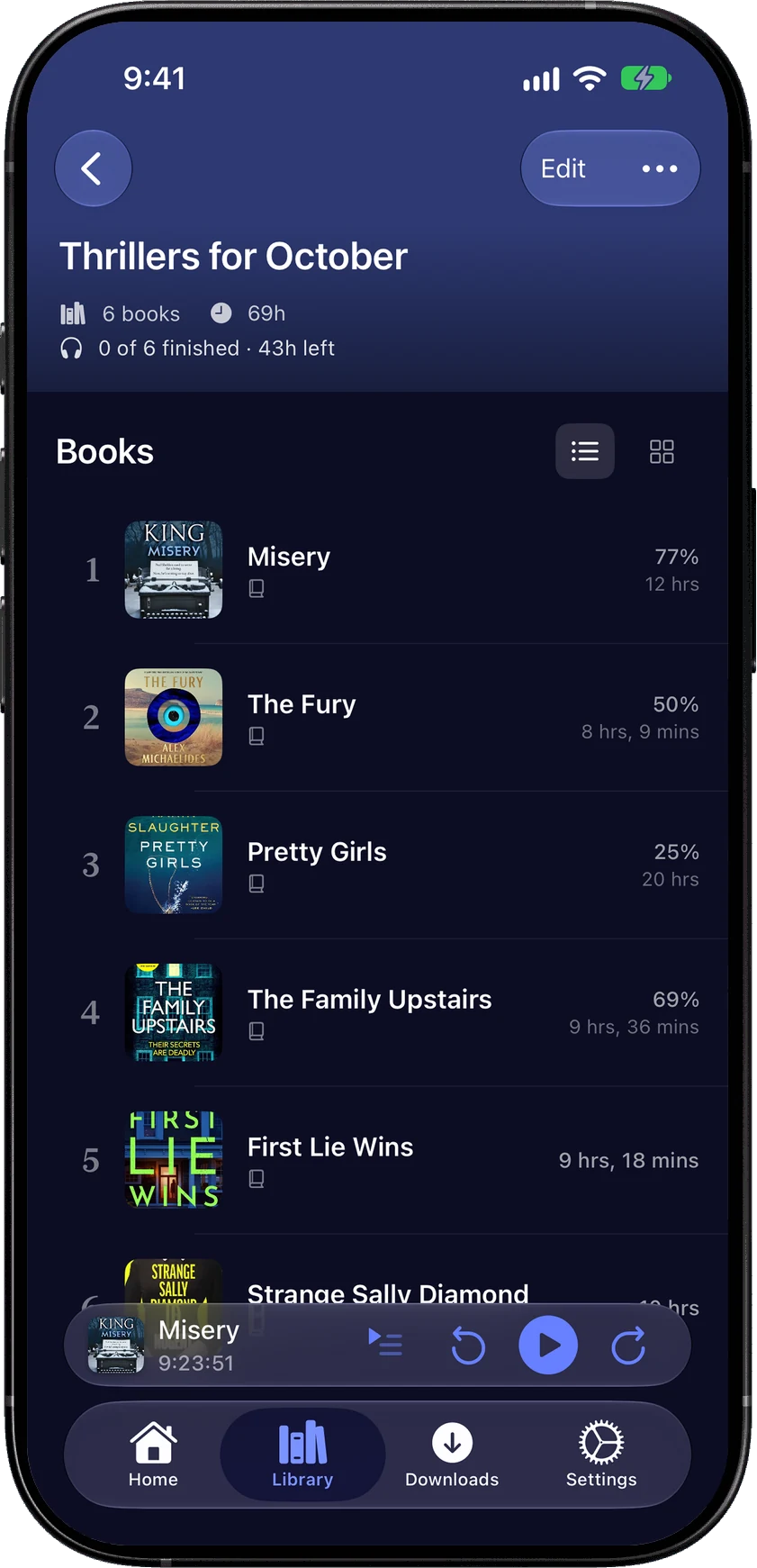
Find them under Playlists in the Library tab. To add something, press and hold a book or episode and choose Add to Playlist. A series page can add the whole series in one go.
Tap Edit to drag items into a different order. The … menu has Play Now and Add to book queue. A playlist holds books or podcast episodes, because Audiobookshelf keeps playlists per library.
A queue for books
Podcasts have had Up Next for a while. Books get their own queue in 2.5.
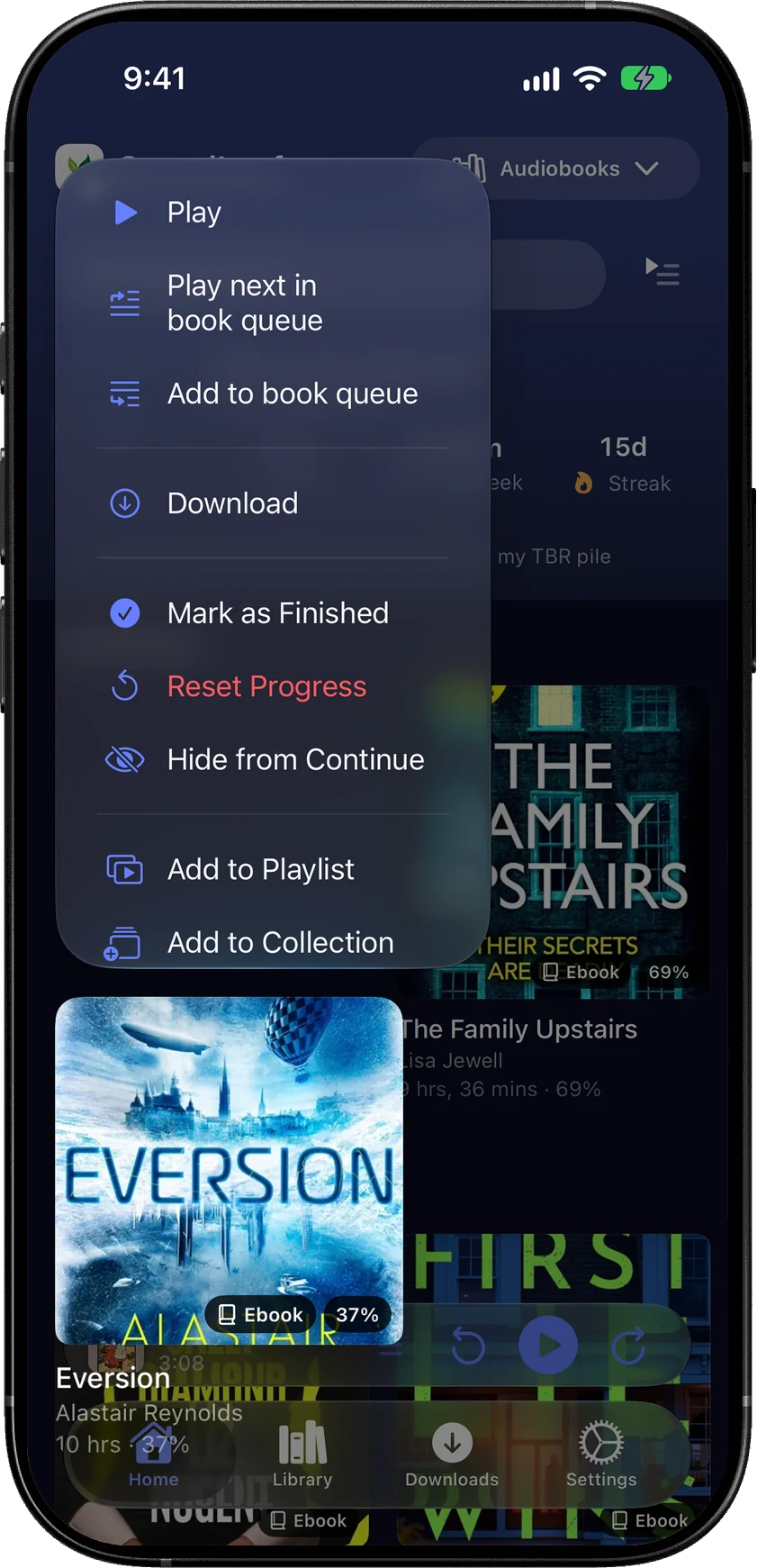
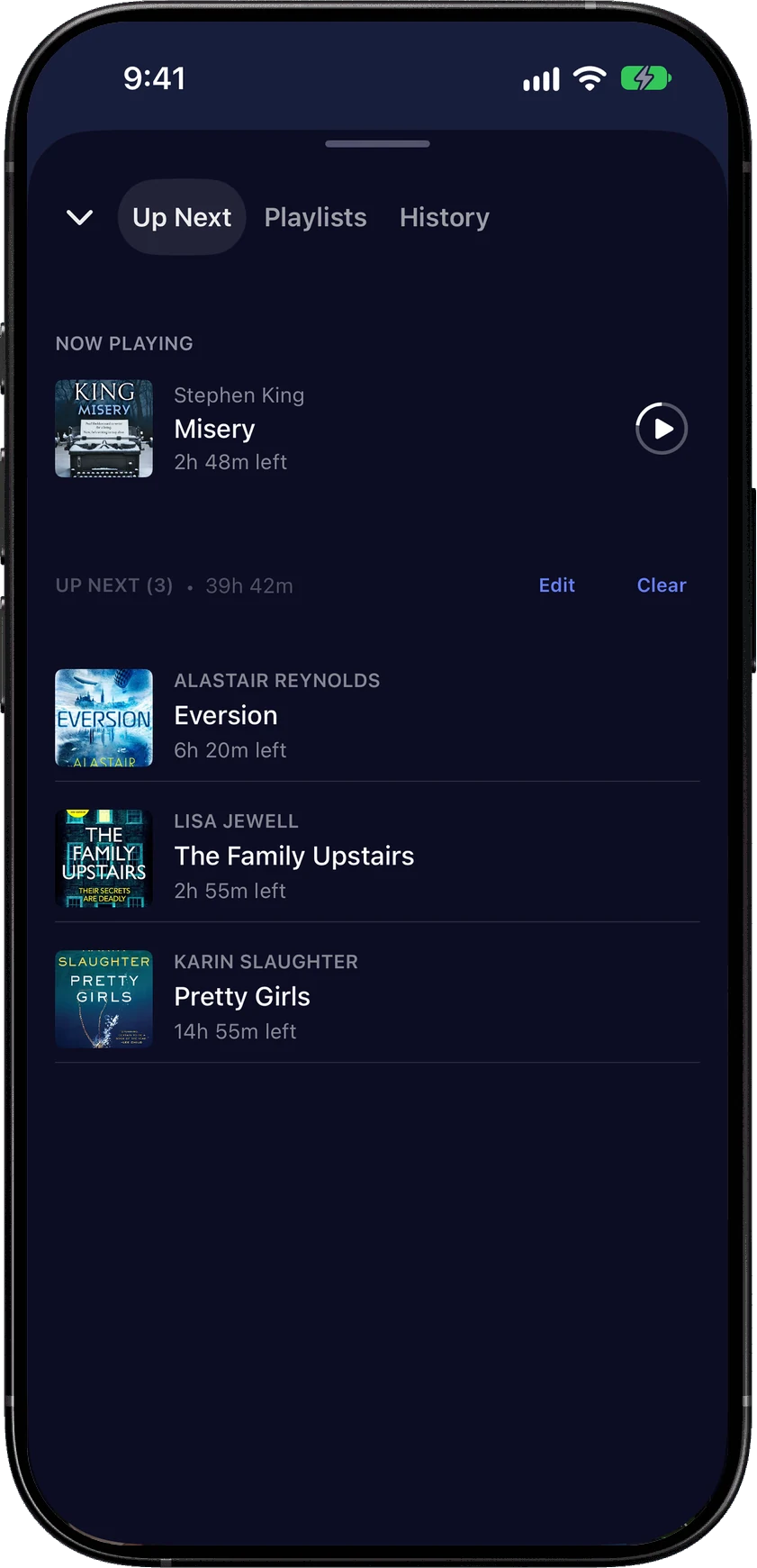
Press and hold any book and choose Play next in book queue or Add to book queue. Up Next now opens from the mini player too. The sheet has three pages: Up Next, Playlists and History.
- Continue with the next in series - when the queue runs out, SoundLeaf plays the next unfinished book in the same series. It’s off to start with; turn it on in Settings > Playback.
- Download queued books - downloads books as soon as you queue them. It’s in Settings > Downloads, and it waits for Wi-Fi unless you’ve allowed mobile data.
- CarPlay - the Now Playing screen has an Up Next button
The book queue and the podcast queue are separate, so queuing a book won’t push your podcasts around.
Long-press menus and selecting several items
Books and episodes share one long-press menu now: play, queue, download, mark as finished, reset progress, and add to a playlist or collection. It’s the same on Home, in the Library, on series pages, in Downloads and on podcast pages.
To act on several items at once, choose Select from the … menu in the Library, in Downloads or on a podcast page. Pick your items, then download them, mark them finished or add them to a playlist together.
Hide from Continue
The Continue shelf gets crowded with books you started and walked away from. Hide from Continue takes a book off the shelf and keeps your place in it. Reset Progress clears it completely, and asks first.
Finished books leave Continue straight away now.
Read Along in more languages
Read Along used to assume English. In 2.5 it reads the book’s language from Audiobookshelf or the ebook and uses that to match the narration.
If the language is wrong, change it in the book’s Read Along tab under Narration language. Which languages you get depends on your iPhone, because the speech recognition runs on the device. Languages your phone can’t do are listed but greyed out.
Changes from the web app show up right away
If you mark a book finished or edit a playlist in the Audiobookshelf web app, SoundLeaf picks it up while it’s open. You don’t have to pull to refresh. Changes you make while offline sync when you’re back online.
Listening history
A new listening session starts after a break of 15 minutes or more, so History reads more like how you actually listened. Tap a saved session to play from that point and open the full player.
Fixes
- Widgets - the play and pause buttons on Home Screen widgets work properly
- Library switching - switching libraries from the tab bar menu works properly
- Read Along scrolling - no more jitter while the page follows the narrator
- Apple Watch - the watch can download books from servers that use http:// addresses
- Book progress - progress shows correctly when the saved chapter setting isn’t available for a book
Trying 2.5
2.5 is still upcoming. The TestFlight build has most of this already, and the App Store has 2.4.
If you try Calibre, a useful bug report says which server type you use, whether it’s behind a reverse proxy, and what happened when you tapped Connect.
Hemant