
SoundLeaf 2.4: Listening Goals, NFC Tags, and Play from This Page
SoundLeaf 2.4 is on the App Store: personal Home stats, daily and weekly listening goals, NFC and QR playback actions, starting audio from an ebook passage, and a monthly Supporter option.
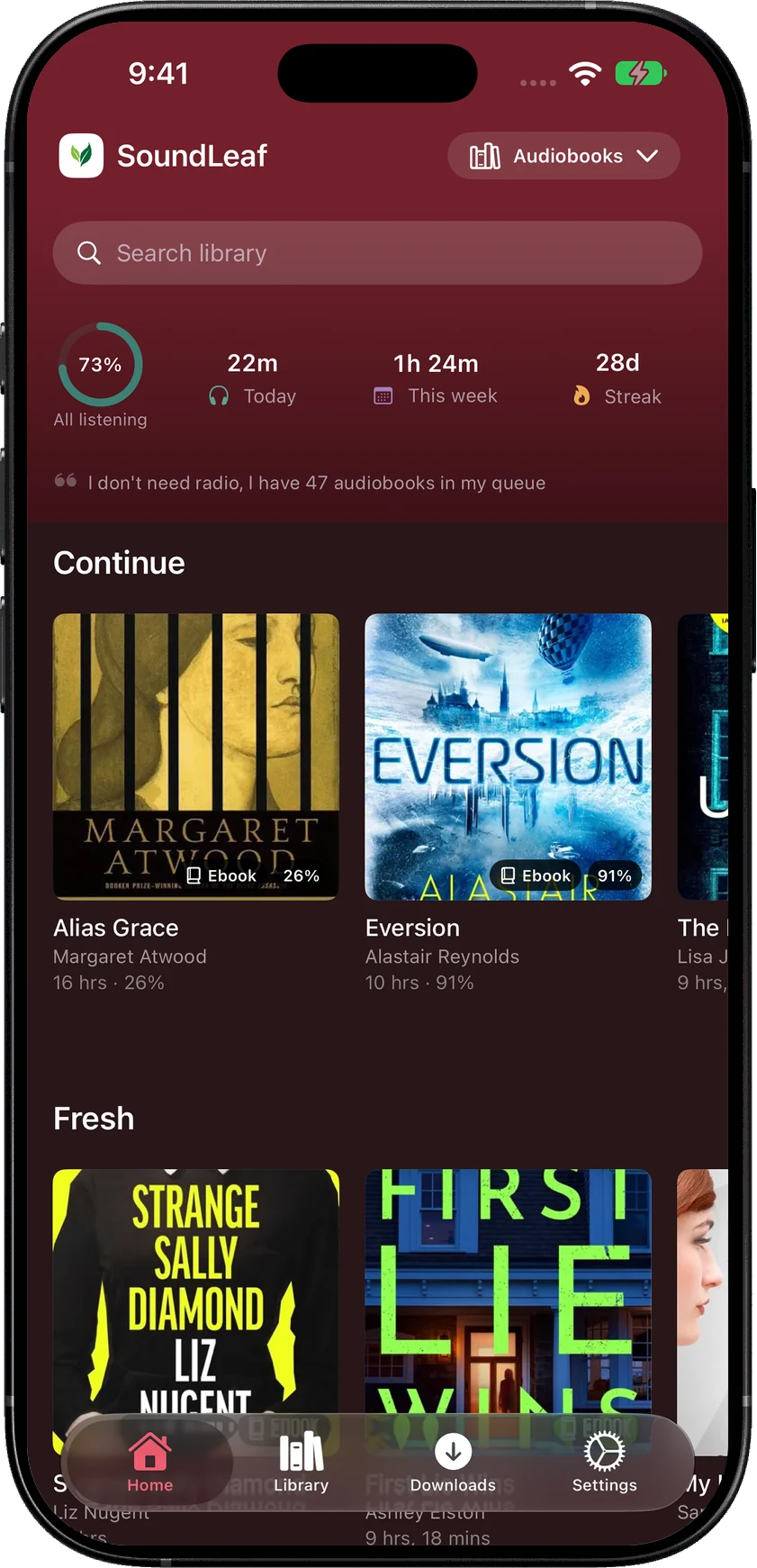
SoundLeaf 2.4 is out
SoundLeaf 2.4 is live on the App Store. It brings listening time, streaks and goal progress onto Home, with a choice of how much space they take up. It also lets you start the audiobook from the page you’re reading and make NFC tags or QR codes for playback actions.
I’ve also made Smart Downloads and the Midnight theme free, and added a monthly Supporter option.
Listening stats on Home
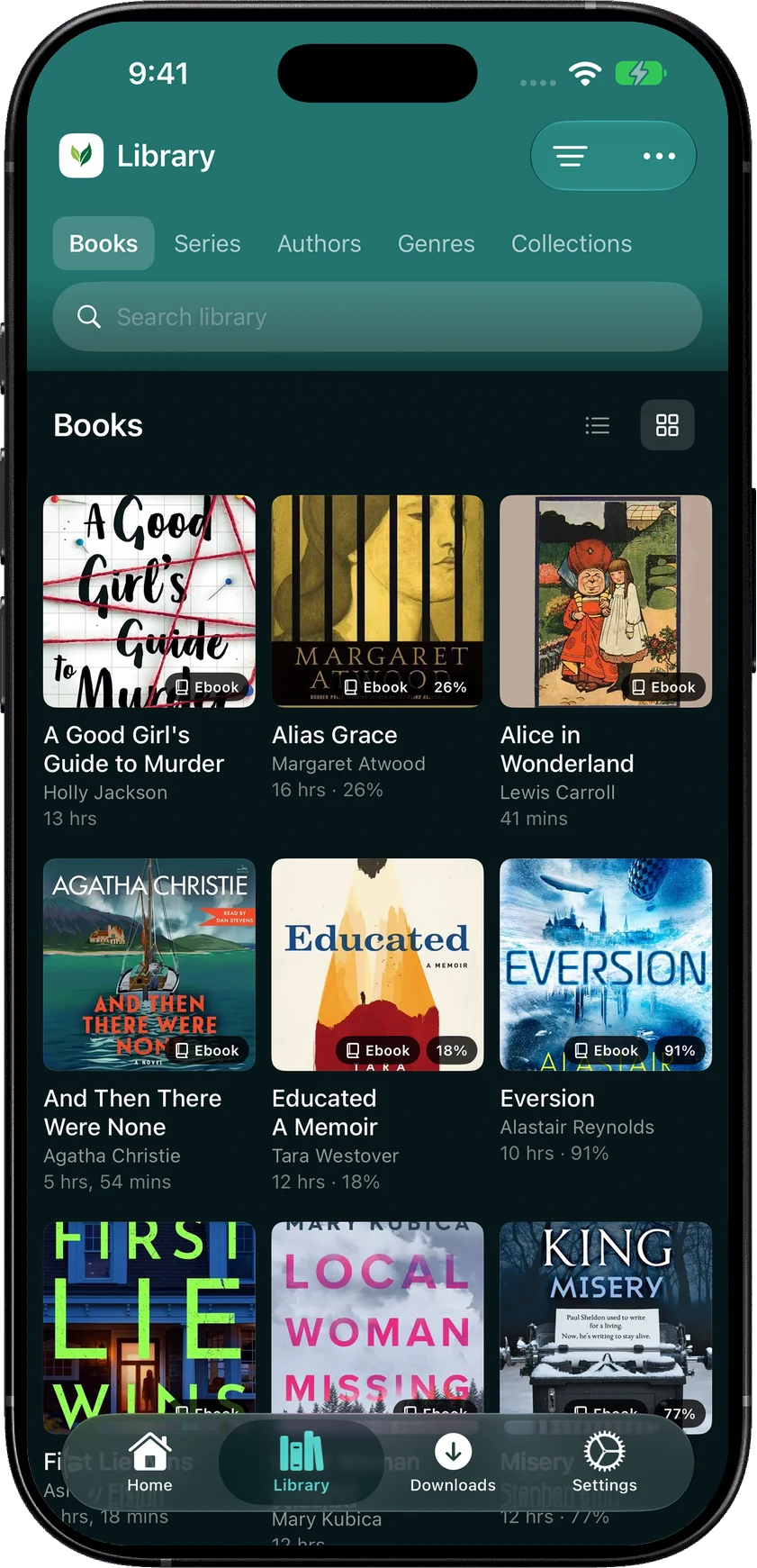
Home can show your listening time and goal progress alongside the books and podcasts you’re actually using. There are five styles: Library stats, Numbers, Activity, Compact ring and Focus ring. Keep the original library totals, choose a small row of numbers, or give the goal more room.
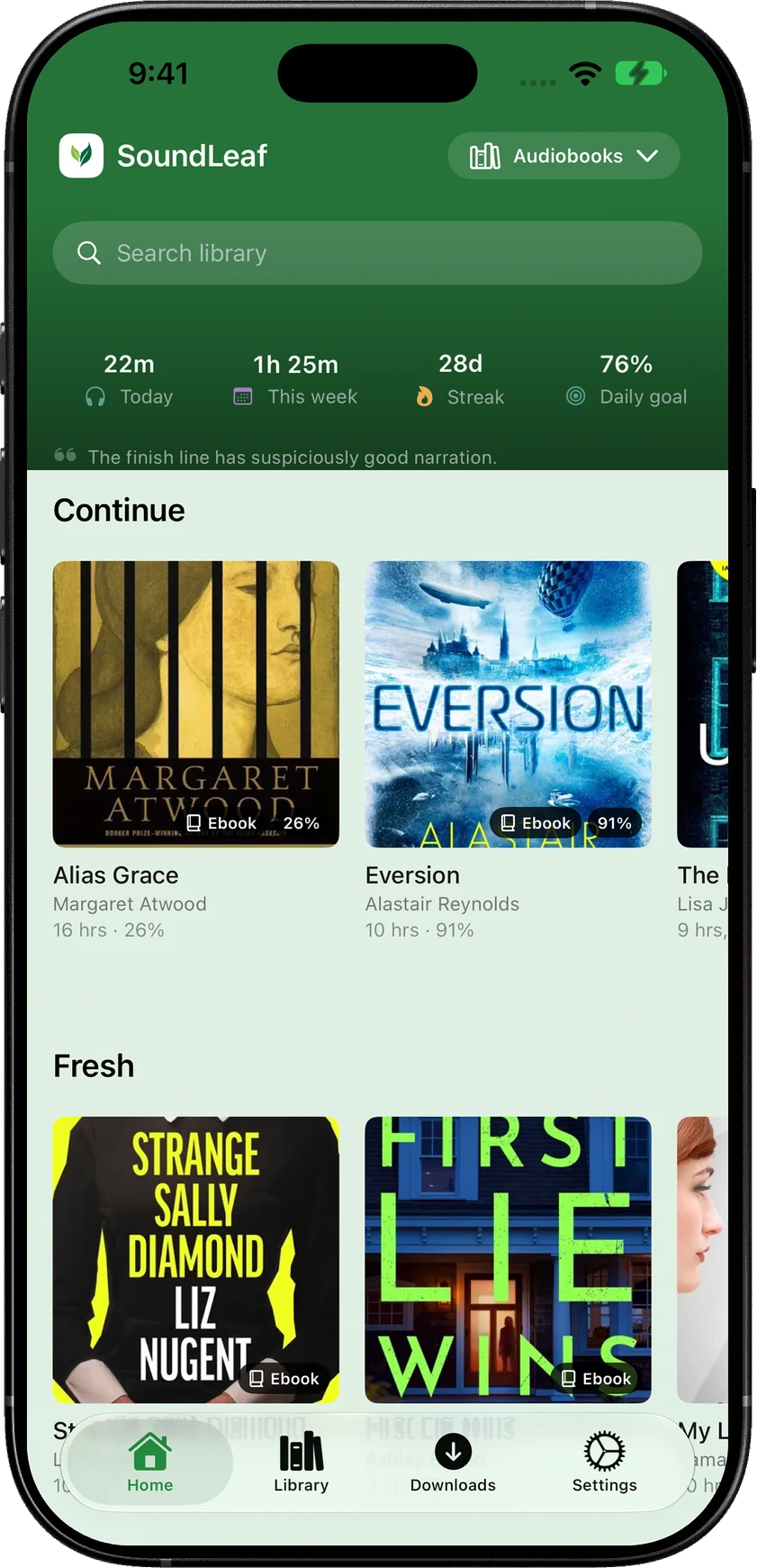
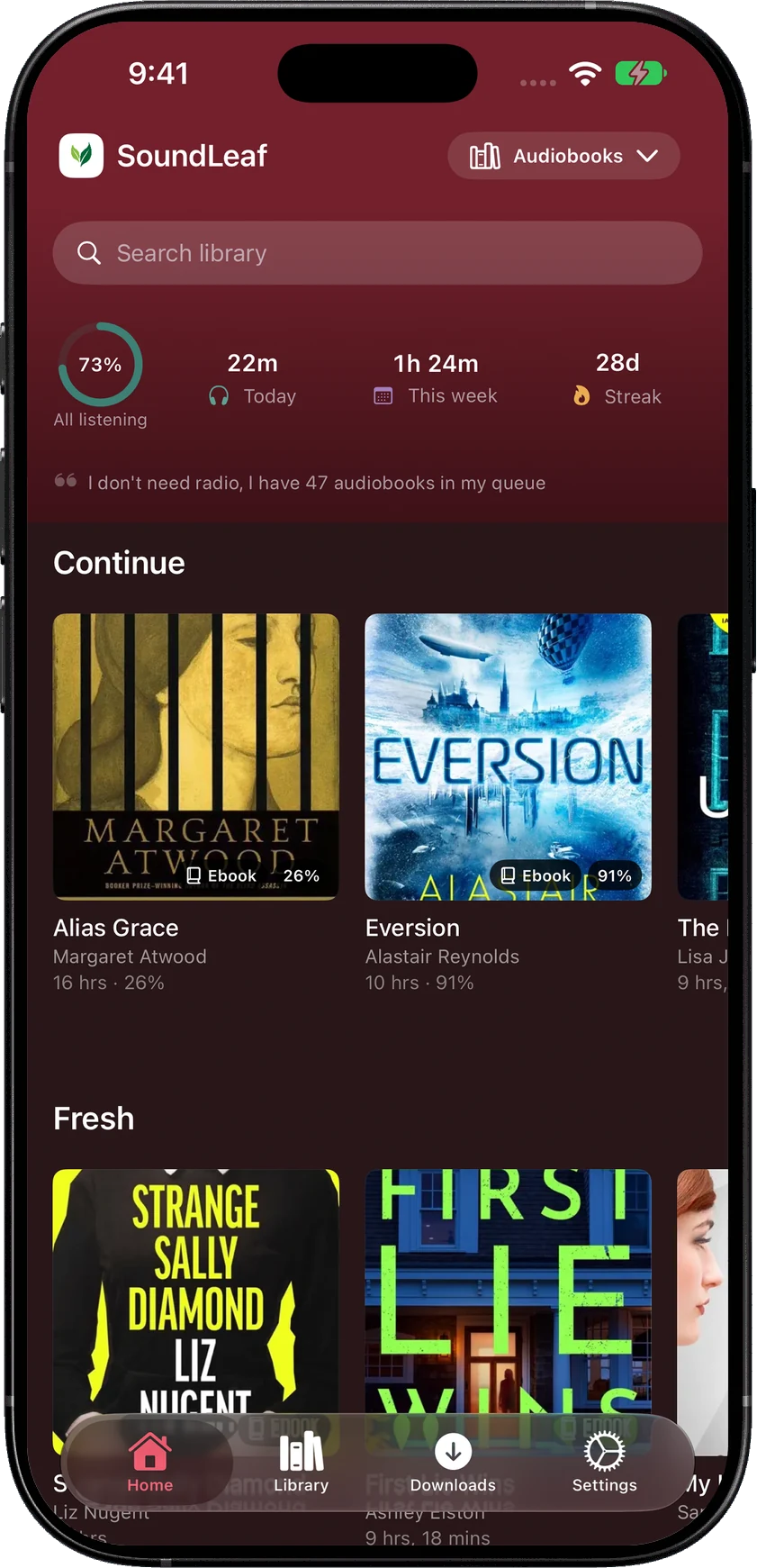
Choose the style in Settings > Appearance, or press and hold the Home stats row. The choice belongs to that library, so a podcast library can use a compact display while books get a larger goal ring.
Daily and weekly goals live under Settings > Appearance > Listening Stats, or press and hold the Home stats row and choose Edit listening goal. Pick a target that suits your listening, or leave goals off. Books and podcasts count together for the selected account. Saved accounts don’t get combined into one total.
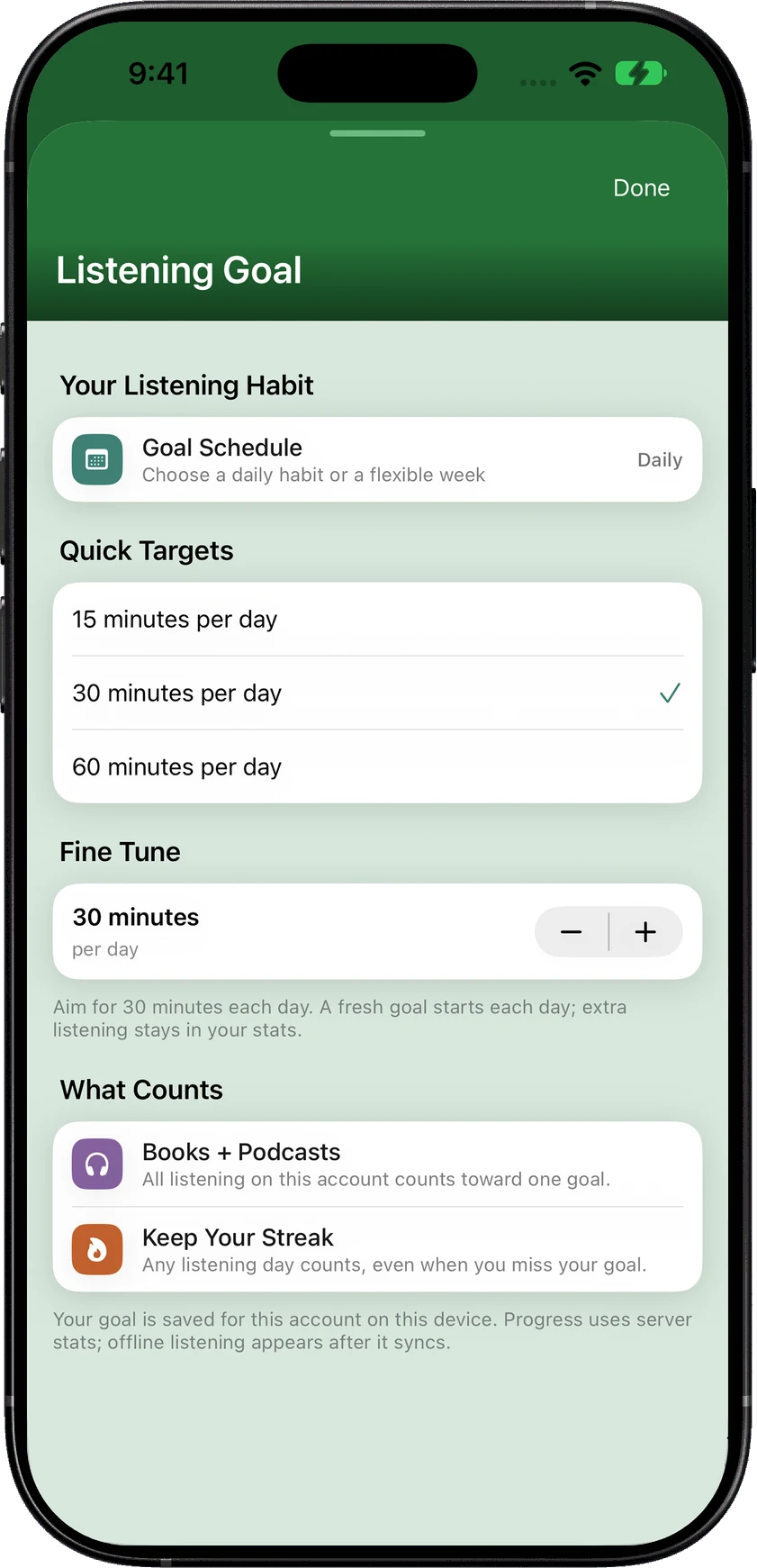
These figures come from listening recorded on your Audiobookshelf server. Offline listening appears after it syncs.
Book and podcast quotes also get some variety, with encouragement that reflects progress toward the goal. The controls to keep the quieter library-stats display are still there.
Play from this page
Read Along already moves the text with the audio. In 2.4, you can go the other way: open the reader menu and choose Play from this page, or select a passage of at least three words and play from there.
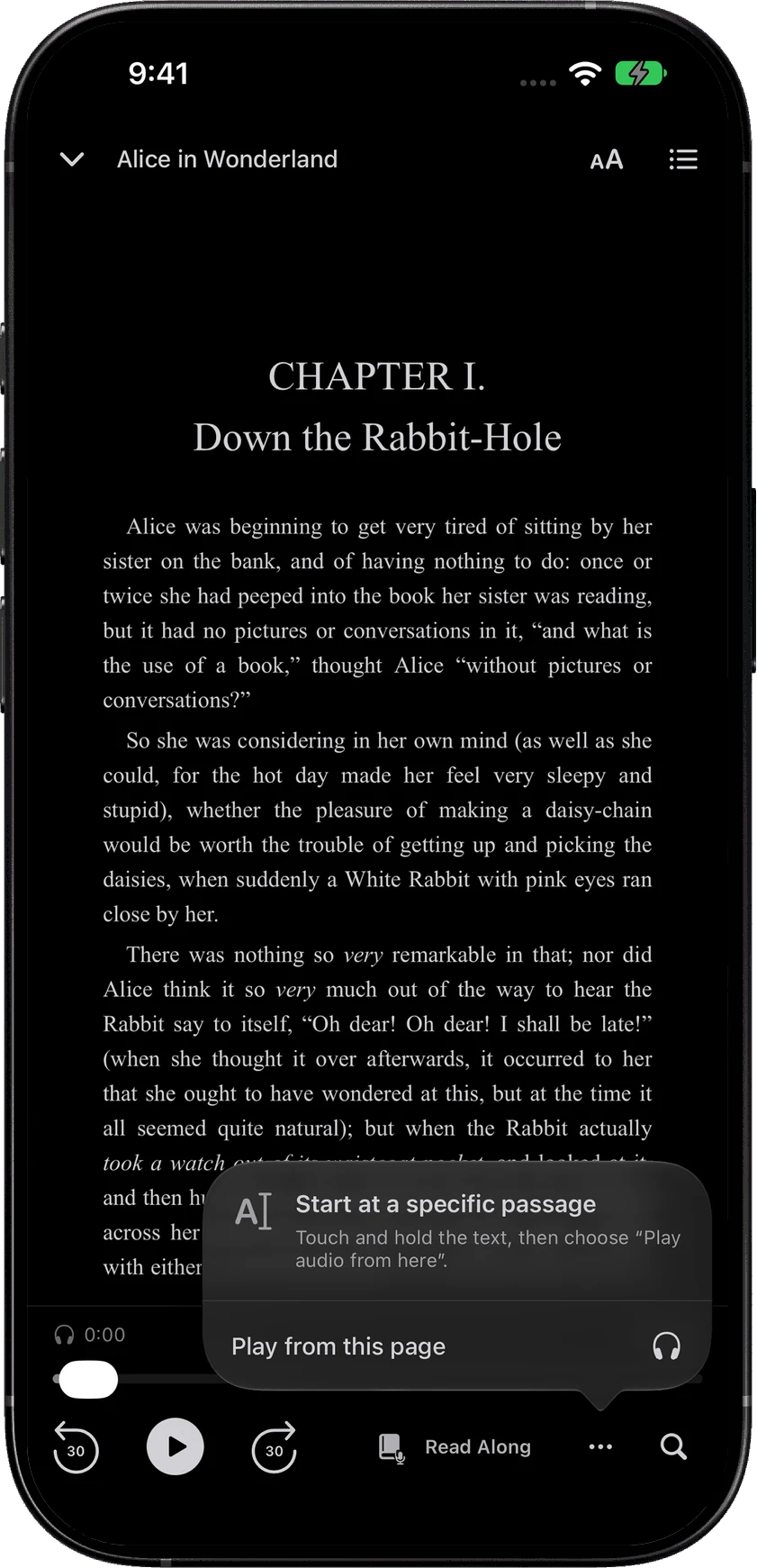
This is for the point where you’ve read ahead and want to put the phone away and listen. You shouldn’t need to scrub through a long chapter trying to recognise a sentence you’ve just read.
The book needs both audio and an EPUB, downloaded to your phone. Matching a passage to narration can take time and can miss, particularly when editions differ or the same phrase occurs in several places. Audio Position Matching has Low, Medium and High strictness choices, and saved audio transcripts can be reused for later searches.
Downloaded ebooks also save their page indexes, making it faster to move around a book when you reopen it.
NFC tags and QR codes
NFC & QR is available in Settings, book menus and podcast show settings. Choose an action, then write a tag on a supported iPhone or generate a QR code to share. QR generation is also available on iPad.
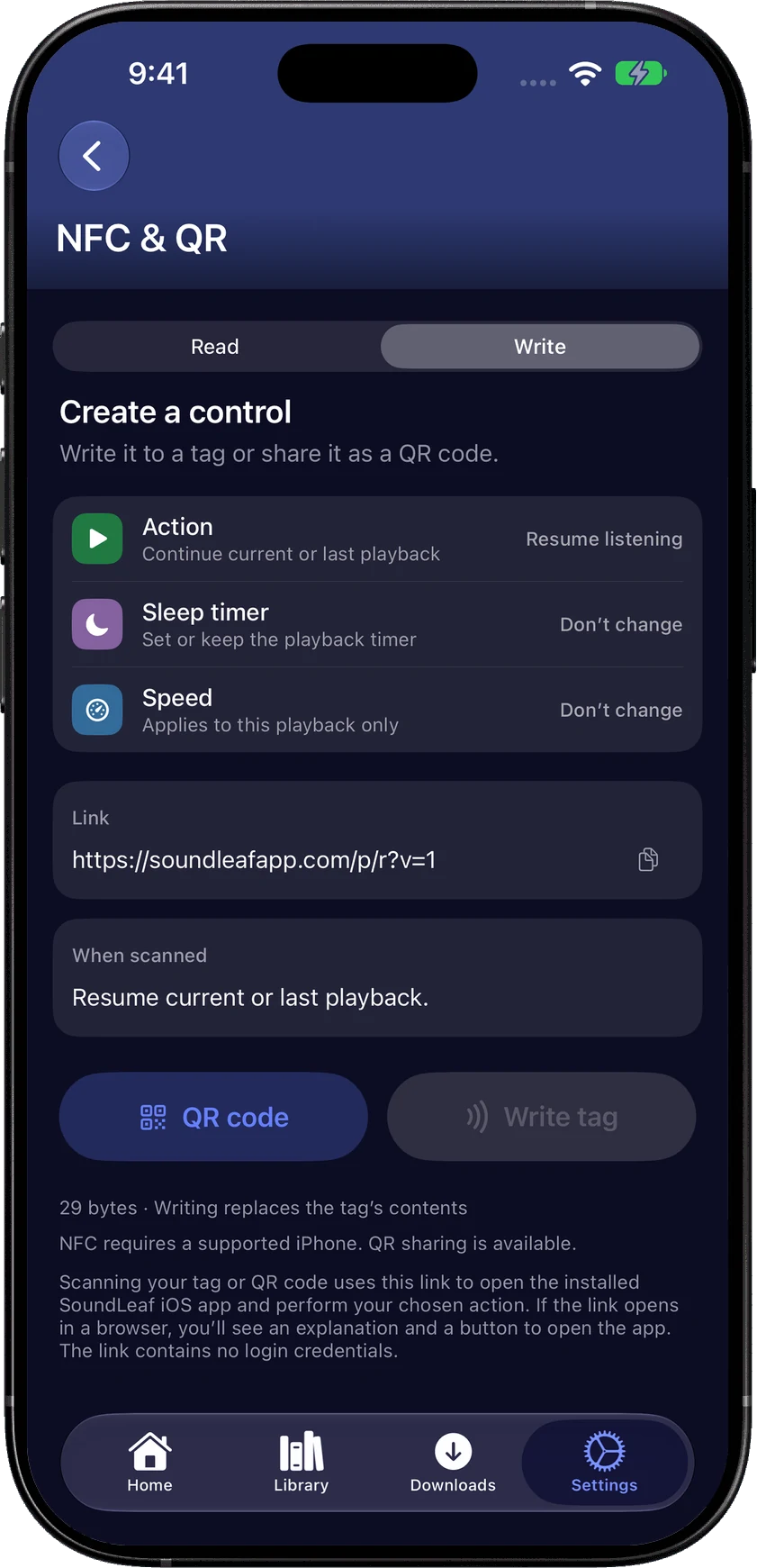
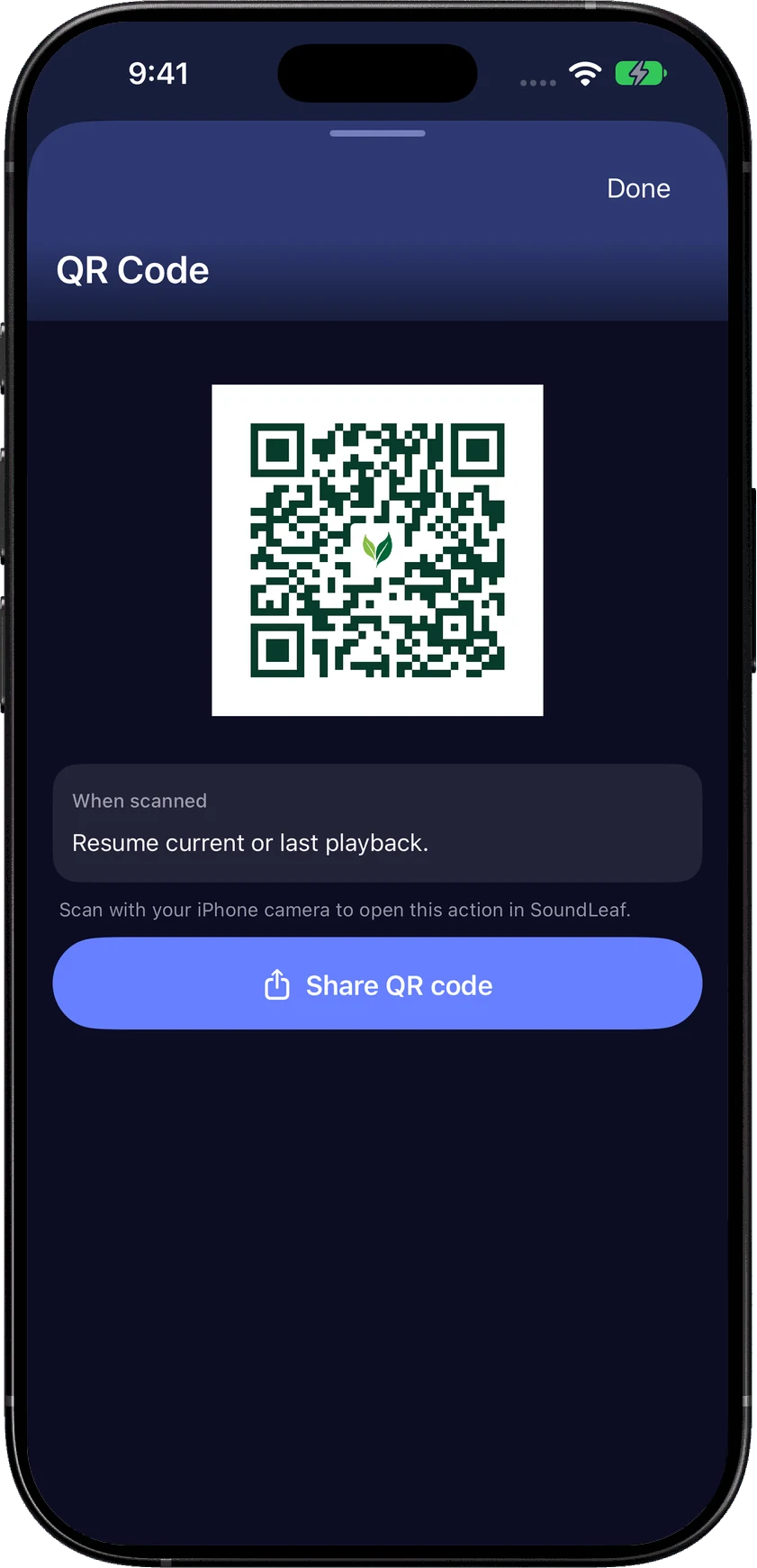
A bedside tag could resume playback. A QR card could open a particular book. A podcast tag can start the latest episode, the latest unfinished one, a random episode, or a random unplayed episode. Random Unplayed skips both started and finished episodes; if there aren’t any left, it leaves playback alone and tells you.
Playback controls include pause, bookmarks, speed and sleep timer actions. When several saved accounts could handle a link, SoundLeaf can ask which account to use.
The code carries an action, not a copy of the audiobook or a server login. Someone scanning it still needs SoundLeaf and access to the relevant library. Reading a tag inside the NFC screen shows what it will do; Try this action is the separate step that runs it.
Remove finished downloads
SoundLeaf 2.4 adds an option to remove downloaded audiobooks once you finish them, similar to the cleanup available for podcast episodes. If the book came with a downloaded ebook, that goes too.
It’s off by default. Turn it on with Remove played downloads in Settings > Downloads.
Go back to your previous position
If you jump a long way by accident, a Go back banner returns you to your previous listening position. It stays available for 30 seconds of playback and waits while you’re paused.
Faster playback speeds
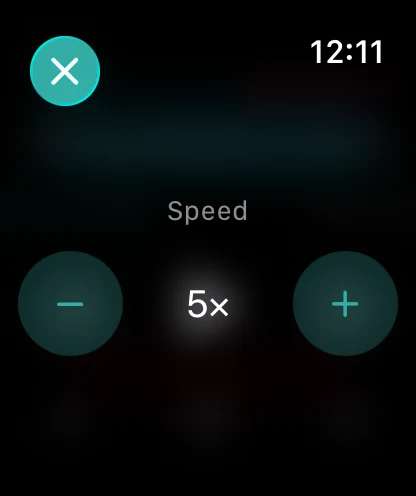
Speeds now extend to 3.5×, 4× and 5× for books and podcasts on the phone and Watch. Remaining time adjusts to the speed you chose; elapsed time still refers to your position in the book.
Smart Downloads and Midnight are free
Smart Downloads used to need Pro. I moved it out, so it’s free for everyone now, same as manual downloads. Listen to a book for a few minutes and SoundLeaf downloads it for you.
Midnight, the theme SoundLeaf starts in, is free now as well.
Monthly Supporter
If you want to support the app, Supporter now has a monthly option next to yearly, and the yearly price went down. Both get you the same things: a badge, the supporter app icons and themes, and your name on the Hall of Supporters if you want it there.
App Store ratings
SoundLeaf may now ask for an App Store rating, but not often. Only after you’ve used it for at least a week and listened for six hours in the last two weeks, and at most once every four months. If you’d rather do it yourself, there’s a Rate SoundLeaf row in Settings.
Fixes
- Progress sync - A late sync response no longer overwrites newer progress, and an older listening session no longer undoes a newer finished mark.
- Ebook reader - Saving your ebook page no longer brings back an older audio position.
- Resuming - If a resume fails, for example when the server can’t be reached, playback starts from your position instead of the start of the book.
- Listening stats - Listening time is counted on the correct day.
- Apple Watch - A position from your watch is no longer overwritten.
- Sleep timer - When the timer ends and rewinds a little, that position is saved, so you continue from there.
Get the update
2.4 is on the App Store now. TestFlight is where the next builds show up first.
If you’re trying passage playback, the bug reports that help me most include the book, the audio and ebook editions, and whether the match failed or landed in the wrong place. For NFC, include the iPhone model and whether you scanned inside SoundLeaf or from outside the app.
Hemant