
SoundLeaf 2.1 for Audiobookshelf: Apple Watch, an Ebook Reader, and Gapless Playback
An Apple Watch app for Audiobookshelf, a free epub reader that can jump to the page your narrator is on, gapless multi-file playback, rebuilt offline downloads, and a library that works with the server switched off.

SoundLeaf 2.1 for Audiobookshelf
This is the biggest release since 1.0, and it took most of the summer.
Three things are new enough to lead with. There’s an Apple Watch app, so you can leave the phone at home and still listen. There’s an ebook reader that’s free for everyone, and it can find the page your narrator is currently reading out loud. And multi-file books play straight through now, which sounds like a small thing until you’ve had a book skip half a chapter every time it crossed a file.
Everything else is below. There’s a lot of it.
The Apple Watch app
I still carry an iPod Classic. Some of that is nostalgia, but mostly it’s that the thing has no feed, no notifications, and no opinion about what I should play next. You load it at home, you unplug it, it plays what’s on it. That’s the whole relationship.
(The Apple earbud remote never worked properly under Rockbox, so last month I spent a while reverse engineering the chip that reads it. It’s an undocumented eight-register part that falls asleep after five seconds. The buttons work now.)
That’s the contract I wanted on the watch. Load it, leave, listen.
Here’s what that looks like. You send a book or a podcast episode to the watch from the item screen on your phone. The watch downloads it over its own Wi-Fi connection. Then you go out, phone left on the kitchen counter, and listen. Playback speed, chapter list, volume on the Digital Crown, and the skip buttons on your headphones all work. When you get back and the phone is around again, what you listened to makes its way to your Audiobookshelf server on its own.
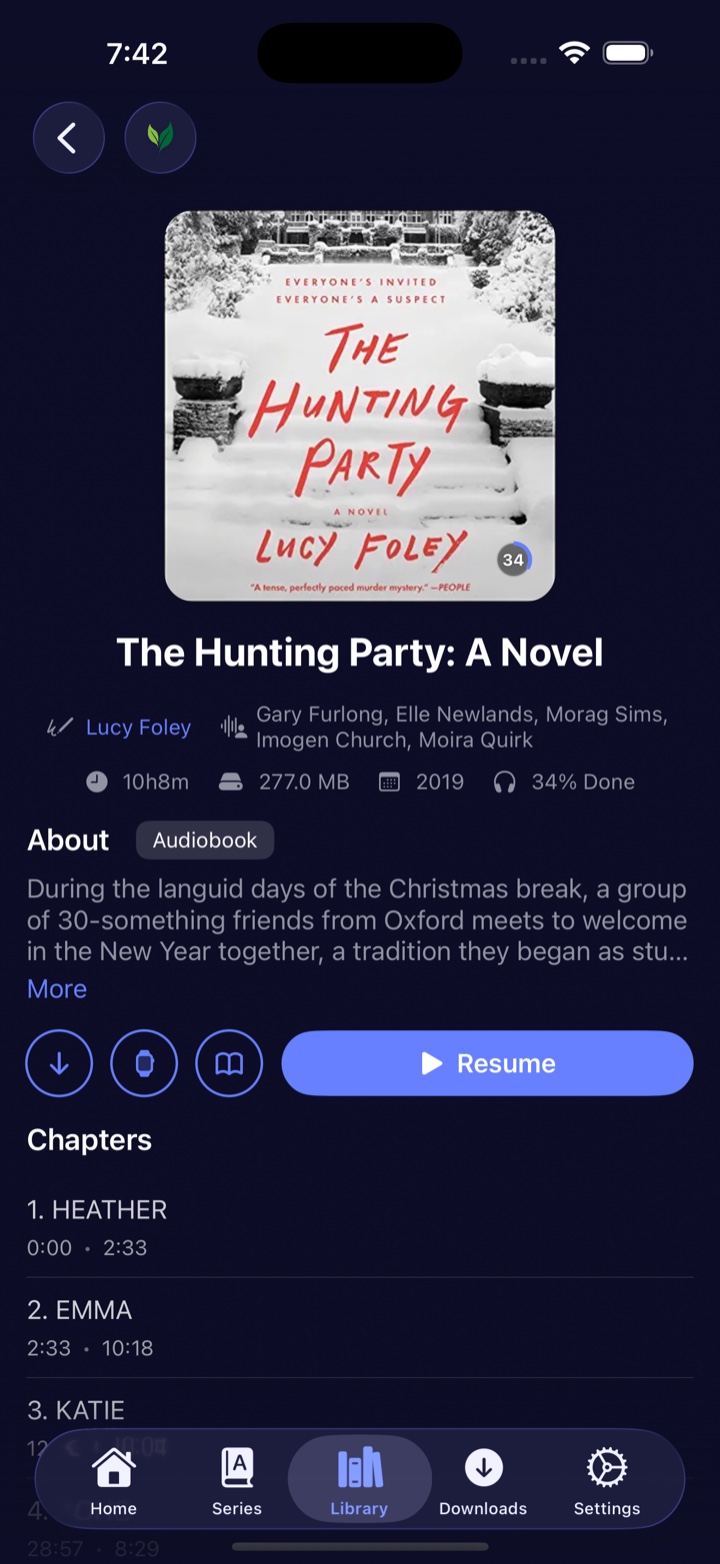
Once it’s over there, the watch is a real player rather than a remote. Your shelf, the transport controls, speed, and the full chapter list.
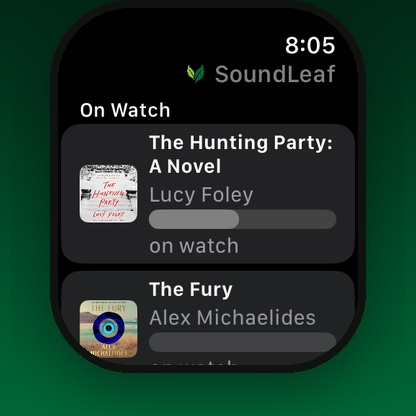
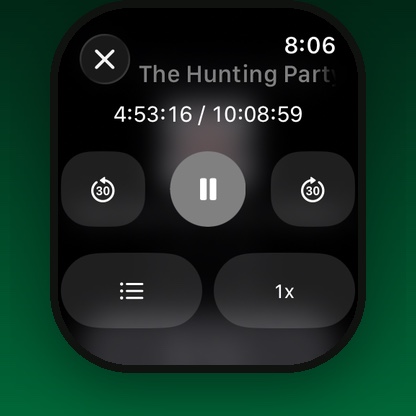
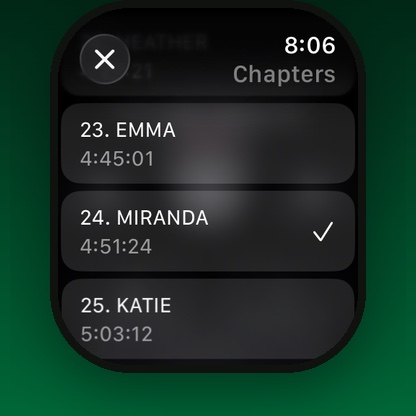
The night before a long walk I send two books over and go to bed. In the morning the phone stays on the counter.
On my own watch I keep Recently Played and Recently Added switched off, so the only thing on the screen is what is genuinely on the device. A list of books I can’t play from halfway up a hill is worse than no list at all. Both rows have an Off setting under Settings > Watch for exactly this, and On Watch always shows everything you’ve sent, in full.
There are also complications for the watch face, and a remote screen for the times when the phone is the one doing the playing and you just want to pause without digging it out of your pocket.
Why the watch needs your phone
The watch holds no credentials at all. Not your password, not a token, nothing. Your phone is the only thing that talks to your Audiobookshelf server with your identity attached. When the watch wants to play something, it asks the phone to open a play session, and the phone hands back a URL the watch can fetch on its own.
A lost watch is therefore not a lost server login. The tradeoff is that anything requiring your account has to wait for the phone. Sending a new book to the watch needs both apps awake at the same time. Progress from a phone-free run sits on the watch until the phone is reachable, then syncs.
Managing the watch from your phone
Here’s the thing that made me build this screen. On most watch apps, deciding what goes onto the watch happens on the watch. Spotify does it. Nearly all of them do it. You scroll a two-inch screen with one finger, trying to remember which book you were after, and if your library runs a few hundred deep the one you want is somewhere past your thumb.
Then the good part. You get out on the trail, press play on something you were fairly sure was downloaded, and the watch quietly goes looking for your phone. Which is at home, on the counter, where you left it. So it tries to hand playback to a device that isn’t there, fails in a way nobody wrote a message for, and you stand in a field wondering what you did wrong.
So none of the deciding happens on the watch. Settings > Watch on the phone is where all of it lives: what is actually on the watch right now and what each book costs in megabytes, what’s queued to go over and how long it has been waiting, what the watch is playing, where its audio is coming out, its battery, and how much space is left.
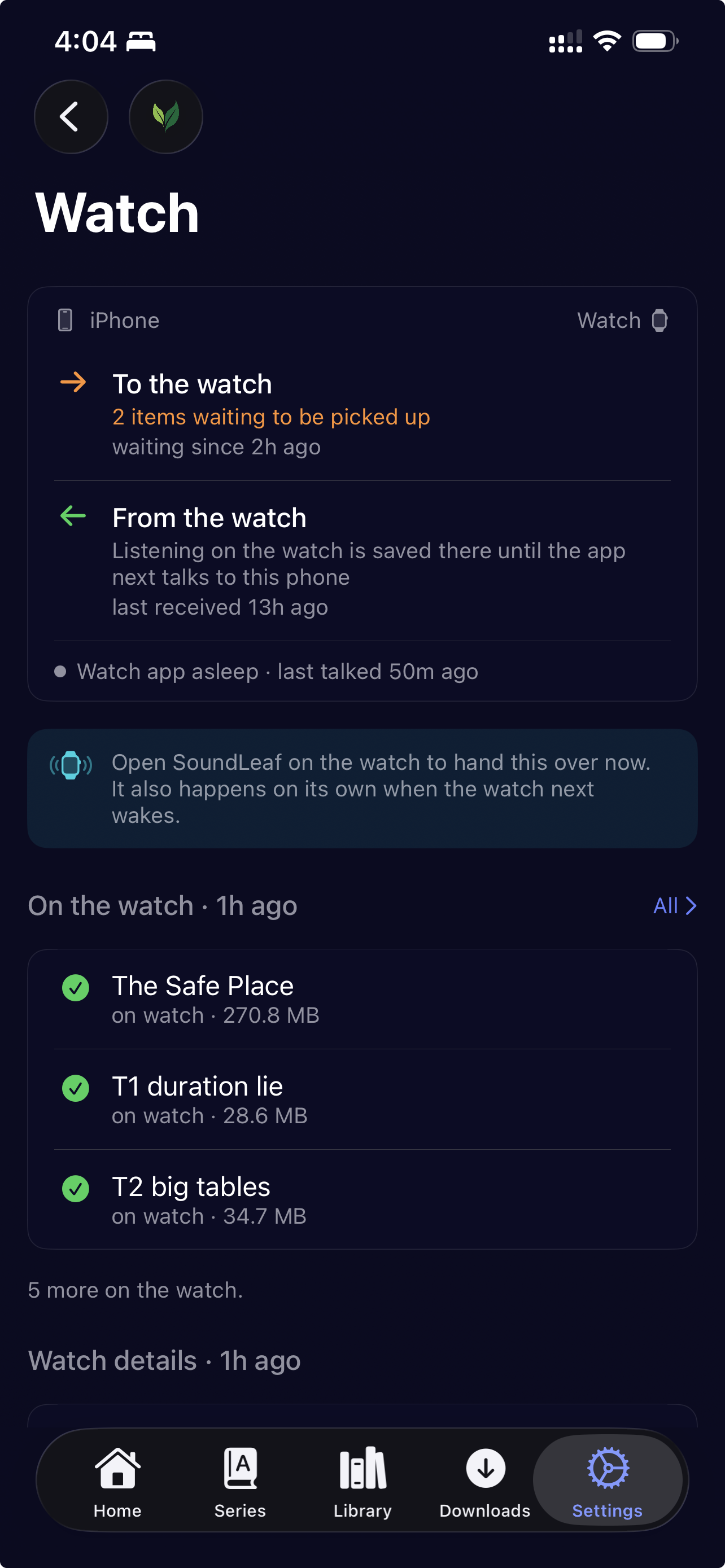
That screen is also where the app stops being polite about what it knows. Something stuck in the queue for three hours says “waiting since 3h ago”, not “sent just now”. A closed watch app says “watch app asleep” with a grey dot, because that is the normal resting state of every watch app and not a fault. Orange is kept for things that are actually wrong.
Which is the other reason On Watch is the only row I leave switched on. Everything in it is genuinely on the device. Press play in a field with no signal and it plays, because nothing on that screen needs anything you left at home.
The ebook reader
SoundLeaf now reads epubs, and it costs nothing. It sits outside Pro entirely.
If a book in your Audiobookshelf library has an epub alongside the audio, a Read button shows up on the item screen and in the player. Open it and you get a proper reader: your choice of font, text size, line spacing, page margins, and theme. After the first open it works offline, because the epub is already on your device.
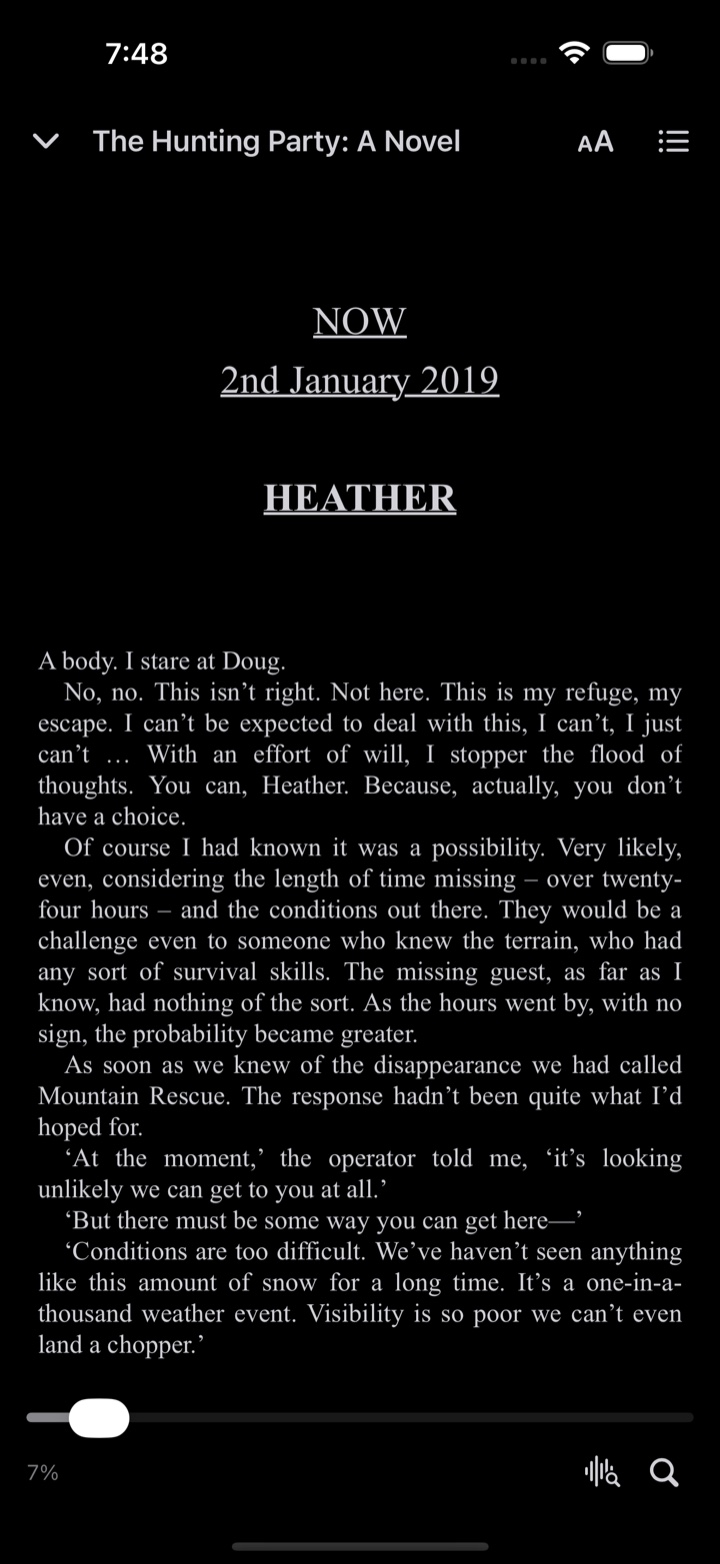
Your position syncs both ways with the Audiobookshelf web reader. Read a few pages on your laptop at lunch, pick up the phone on the train, and you’re on the right page. Same in reverse.
You can search inside the open book too. Results show the chapter name and how far into it each hit sits, and there’s a button to get you back to where you were reading.
The epub rides along when you download the audio, so a downloaded book usually brings its text with it. Books you downloaded before 2.1 existed, or books where the epub landed on your server later, get picked up on a later pass rather than being stuck without one forever. They also count toward the numbers on the Storage screen, which they didn’t at first.
Go to Position
This is my favourite thing in the release, and the one that took the longest.
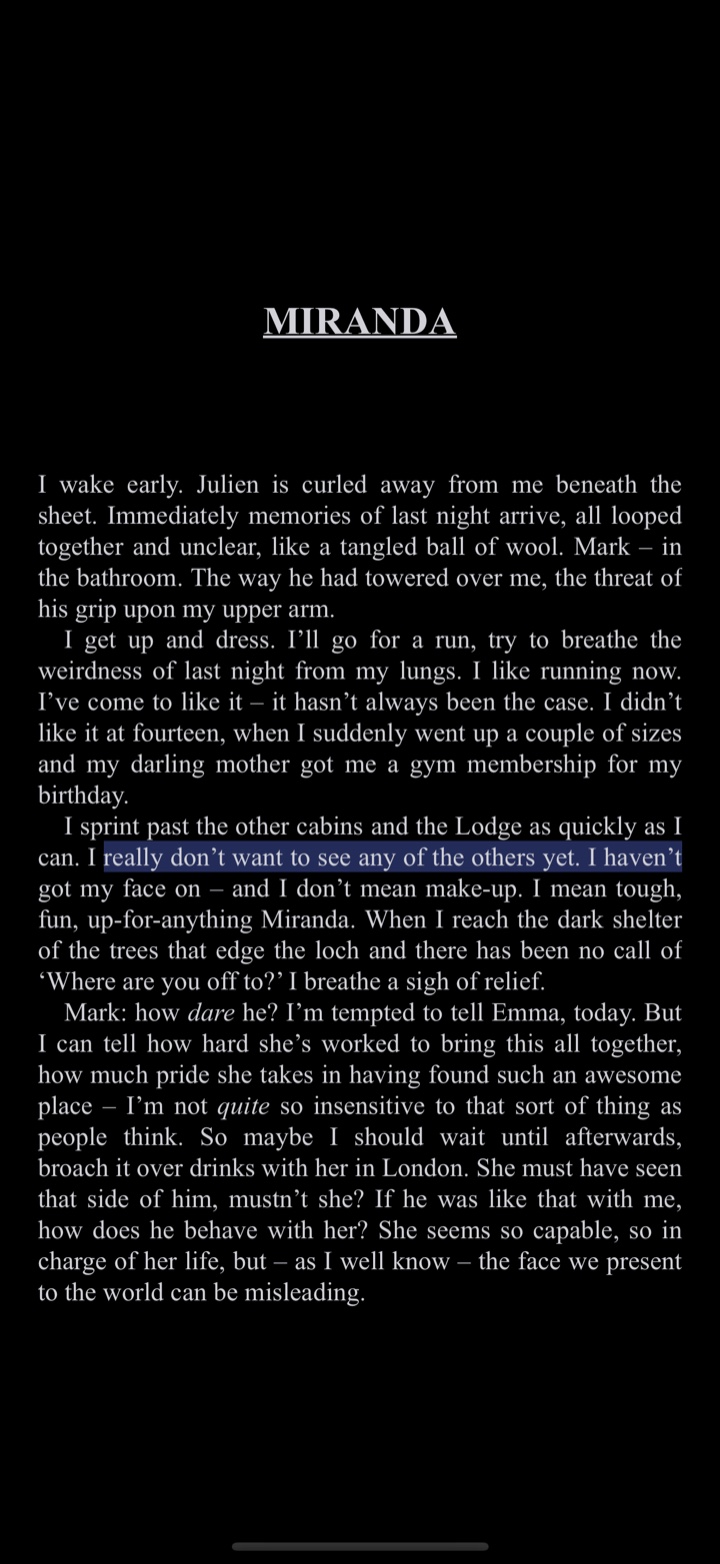
You’re listening to a book. You want to read for a bit instead, maybe because you’re on a train and the tunnel keeps killing your headphones. Open the reader, tap Go to Position, and it opens the page the narrator is currently on.
How it works
No server does any of this. It all happens on your phone.
- It takes about ten seconds of audio from where you’re listening.
- It turns that speech into words, on device.
- It searches the epub for those words, scoring every candidate window of text in the book.
- It scrolls to the best match and shifts slightly forward, so you land where the voice is now rather than where the clip started.
Each of those steps is a place where it can go slightly wrong.
When matching fails
You will hit this eventually, so here it is up front.
The matching step is the weak link. If a book uses similar phrasing in a few places, and plenty of books do, the highest-scoring window is not always the right one. Ten seconds of audio is roughly thirty words, which is usually enough to be unique in a novel but not always.
There was also a much dumber bug, and it’s a good example of the kind of thing self-hosted audio throws at you. To grab ten seconds of audio out of the middle of a file without downloading the whole file, you work out roughly which bytes to ask for: total bytes divided by total seconds gives you a byte rate, and you multiply. That works fine until the mp3 has a cover image embedded in it.
One book I tested had about 650 KB of ID3 tag and cover art at the front of every single file. The actual audio was 48 kbps, which is 6000 bytes per second, but dividing total bytes by total seconds reported 6455. So every byte offset came out too small, every clip was cut from earlier audio than asked for, and the match was consistently wrong in a way that looked random. Fixed by finding the real start of the audio instead of trusting the average.
If Go to Position misses for you, the reader search is right there and it will not miss.
Gapless playback for multi-file books
If your audiobooks are one big m4b, you never saw this. If they’re a folder of mp3s, one per chapter or one per disc, you saw it constantly.
At every file boundary the playhead could jump forward, which looked exactly like a chapter being skipped. And a book would sometimes stop one file early and call itself finished, so the last chapter simply never played. Both are fixed. Multi-file books now play from the first file to the actual end, at any speed, without the seam.
While I was in there, the end-of-chapter sleep timer got the same look. It now pauses at the chapter change reliably, instead of occasionally sailing past it.
Offline downloads
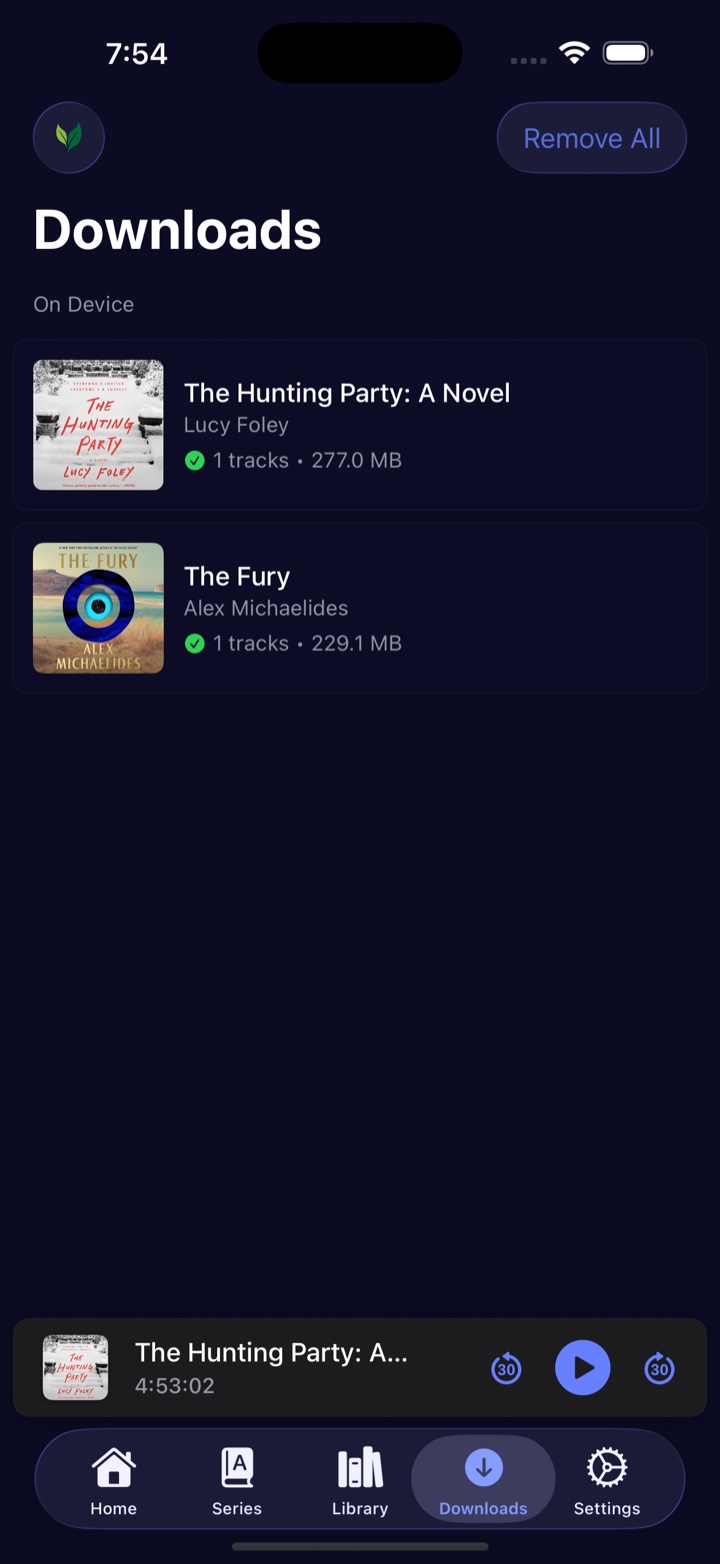
Downloads were rebuilt around one rule. Every file a book needs is written down before anything transfers, and the book only counts as downloaded once every item on that list is on disk. Not a running tally, a checklist you can check.
That rule pulled three other things straight with it:
- Close the app mid-download and it carries on. iOS hands finished transfers back to the app when it relaunches, and those now land where they belong.
- A relaunch resumes instead of restarting. Partial files survive, so a big book doesn’t go back to zero.
- Two files with the same name stay separate. Audiobookshelf names a download after the file’s own basename, so
01.mp3in two different disc folders needs handling, and gets it.
A book that says Downloaded now plays with your server switched off. That was always the promise.
Podcast downloads work the same way. A failed response never counts as a finished episode, two overlapping passes never start two transfers for the same one, and a stopped download retries inside the running app.
An offline-first library
SoundLeaf used to fill its local library by asking your server about each item in turn. On a 240-book library that’s 240 round trips, and on a self-hosted server sitting behind a VPN or a Cloudflare tunnel, each of those round trips costs real time.
The new sync engine gets the same data in about ten requests. It reads the library list in pages, then asks for the detail of many items in a single batch request, then pulls all your progress in one go.
The bigger change is that the whole app now runs off what it already has. Open SoundLeaf on a plane, with the server unreachable, and you get your library, your covers, your progress, your bookmarks. Not a spinner and an error.
Rewriting it also settled a paging bug that could end a sync early, and stopped pull to refresh doing the same work twice.
Auto rewind and voice boost
Neither of these is a headline feature. Both change the day-to-day.
Auto rewind takes you back a little when you press play after a pause, and further back after a long break, so you’re not dropped into the middle of a sentence you’ve lost the thread of. The defaults sit on the official Audiobookshelf app’s own curve: 10 seconds after a short pause, 20 seconds after a break longer than 5 minutes. Theirs is a fixed five-step curve and these are its two middle steps, which is where nearly every real pause lands. Unlike the official app, the numbers are yours to change, including what counts as a long break. That’s been an open request on their side since 2022.
One rule isn’t adjustable: a pause under ten seconds never rewinds. Otherwise a quick pause-and-play tap walks your position backwards a bit at a time, which is maddening.
Voice boost is one switch for narration that’s too quiet or too muddy. Works on streamed and downloaded audio, books and podcasts. It stays applied across file boundaries, which took some doing, and it takes effect immediately rather than at the start of the next file.
Home screen widgets, sleep timer and Siri
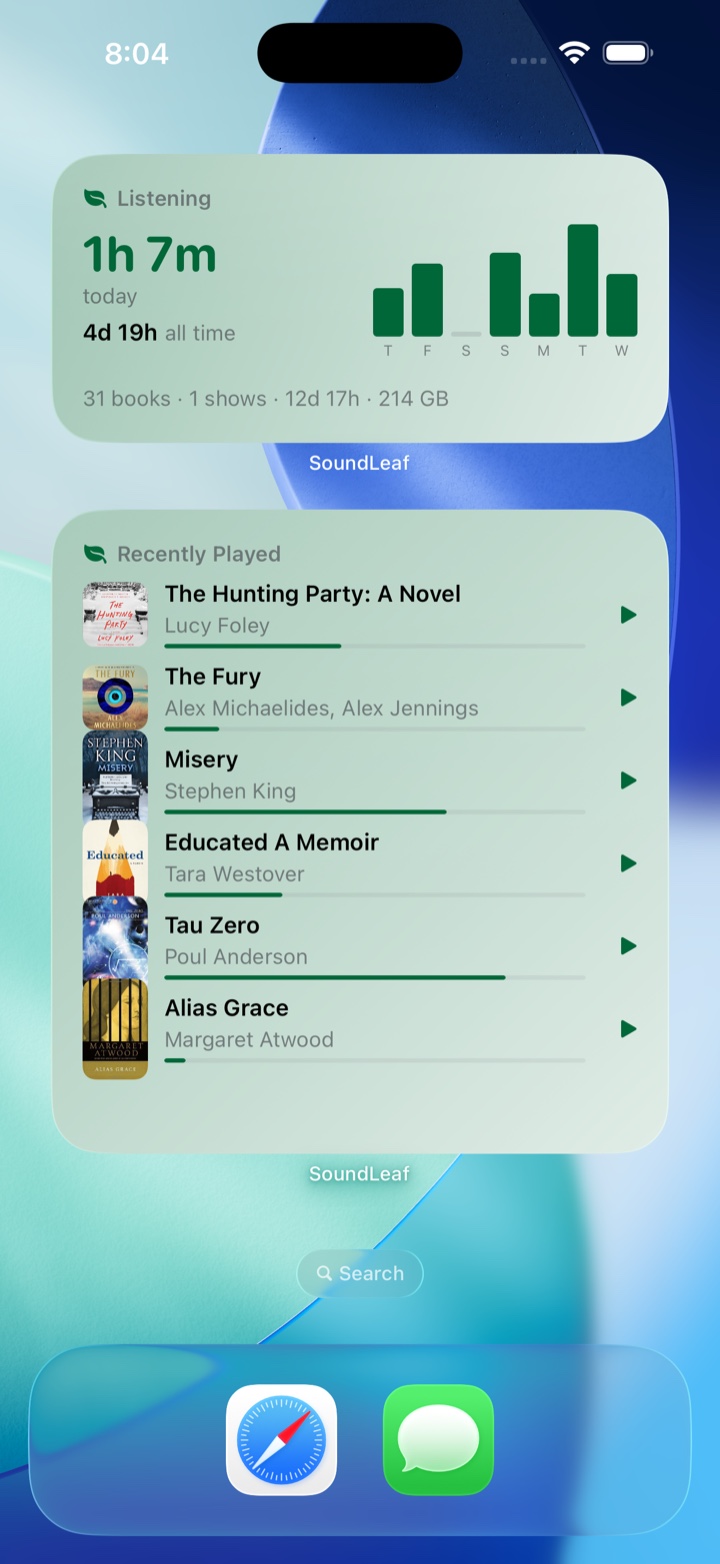
Five widgets ship. Three are the ones you’ll actually put on a home screen:
- Now Playing with a play/pause button that works from the home screen, without opening the app.
- Recently Played, a short list to get you back in.
- Listening, a card with today’s listening time, your current streak, the week, and your library totals. Big numbers read as days, months and years instead of a five-digit hour count.
The other two are Library and By Library, which show what’s on your server, per library.
The sleep timer counts down on the lock screen as a Live Activity, and in the Dynamic Island. Handy for exactly the situation the sleep timer exists for, where you’re not going to unlock the phone to check.
Siri Shortcuts cover “Resume my book in SoundLeaf”, “Pause SoundLeaf”, and “Play a book in SoundLeaf”, which then asks you which one. They all run in the background without throwing the app in your face, and if something fails Siri tells you rather than going quiet. You can wire any of them to the Action Button.
Sign in with OpenID
Both this and the next one are aimed squarely at people running their own server.
If your Audiobookshelf server has SSO configured, the login screen offers it and you go through your own identity provider. Authelia, Authentik, Keycloak, whatever you run. There’s nothing to configure on the server side: SoundLeaf uses the redirect address that’s already in every server’s default allow list, so your admin settings don’t need touching. The sign-in sheet is not a private browsing window, deliberately, which means your identity provider often remembers you and the login is silent.
Home and away server addresses
Set one server address for your home Wi-Fi and a list of addresses for everywhere else. SoundLeaf checks which one answers and switches by itself. So the local address gets used on your own network, at local network speed, and the tunnel or VPN address takes over when you leave, and you never think about it again. This is modelled on how Immich handles the same problem, which is the best version of it I’ve used.
Generated covers and app icons
A book with no artwork on the server used to render as a grey rectangle with a warning triangle. Fine for one book. A shelf of them is unreadable, because every one of them looks exactly the same and you have to read the titles underneath to tell them apart.
Now SoundLeaf draws a cover from the book’s own title and author. Same book, same cover, every time, so it becomes something you recognise at a glance. Podcasts and episodes get the same treatment.
Fixing that turned up a small bug in the author list. The coloured circle behind an author’s initials was keyed to a hash that iOS re-seeds on every launch, so an author’s colour changed every time you opened the app. Now it’s stable.
There are also 17 app icons to pick from, three free and the rest with Pro.
CarPlay bookmarks
Save a bookmark from the car with one tap. Tap it again within fifteen seconds and it takes the bookmark back.
Cars have got worse at this. Every year there are more menus and more things you are expected to read while moving. A bookmark button should be the opposite of that: eyes up, one tap, done.
The fifteen seconds is the part I actually spent time on, and it is fifteen seconds of the book rather than of the clock. Any shorter and the glyph empties while you are still driving, so it reads as “that didn’t save” and you press it again. Any longer and it is still filled in when you want a second one, and now the button looks stuck. Fifteen seconds either side of the moment you saved is about half a minute of listening, which is one glance’s worth of certainty.
It reaches both ways on purpose. Skip back moves thirty seconds by default, so a window that only ran forwards would go dark the moment you skipped back and light up again on the way through, which reads as a second bookmark. Both ways, it just stays on.
Other changes in 2.1
- Scrolling stays smooth while a book plays. The library and Authors lists used to hitch during playback. Measured, fixed, and pinned with tests so it stays that way.
- Covers are cached properly, so grids stay smooth and downloaded books keep their artwork offline.
- Podcast progress rows. In Progress and Finished rows on the Podcasts tab, and you decide which rows appear where.
- The Series tab can be turned off, the same way Authors already could.
- Playback and Downloads settings merged into one screen, with a proper segmented control for text size.
- Themes and text size reach every screen straight away. Some screens used to keep their old colours until you touched them.
- Real error messages, everywhere. With a retry button that actually retries, instead of “The operation couldn’t be completed”.
Fixes
The ones most likely to have bitten you:
- Listening sessions sync reliably to the server. If your streak has ever looked wrong, this is the one.
- Fixed a crash on launch after a library update was interrupted.
- Your progress is no longer overwritten with a stale copy when you stop playback or switch libraries.
- Bookmark renames and deletes made with no signal stick, instead of reverting on the next sync.
Known limitations
None of this is a secret. Better you read it here than find it on a Tuesday morning.
- Go to Position can land a page or two off, mostly in books with repetitive phrasing. Reader search is the reliable fallback.
- Sending a book to the watch needs both apps awake. The transfer queue shows how long something has been waiting, and it will go through, but it isn’t instant if the watch app is asleep.
- “Watch app asleep” is normal. Grey dot, not orange. Nothing is broken.
- Go to Position needs the epub. No epub in your library item, no jump.
- Smart downloads, the premium themes and most of the app icons need Pro. Offline downloads used to be on this list; they’re free for everyone now. Nothing else on this page needs Pro.
What shipped in 2.0
2.0 shipped in April and never got a post here, so if you updated straight past it, here’s what you got without being told.
Podcasts. Full support for Audiobookshelf podcast libraries: browse, play, download. A playback queue you can drag to reorder, with auto-advance to the next episode. Filters for Unplayed, In Progress, Played and Downloaded. Per-podcast settings covering auto-download, keep last N episodes, Wi-Fi only, auto-delete after played, sort order, and a playback speed for that podcast specifically. And since Audiobookshelf subscribes to plain RSS URLs, feeds that have been through an ad remover play like any other podcast.
Podcasts in CarPlay, sitting alongside your audiobooks.
The Supporter tier. A yearly option for people who want to back the work. It includes everything in Pro, plus a spot on the Hall of Supporters. SoundLeaf is one person, and this is what keeps it independent and free of anything that tracks you.
Library switcher icons, so multiple libraries are distinguishable at a glance.
Going further back, 1.5 and 1.6 fixed series ordering and the login loop, and 1.4 brought CarPlay and Cloudflare Access headers.
Frequently asked questions
Do I need Audiobookshelf to use SoundLeaf? Yes. SoundLeaf is a client for your own Audiobookshelf server. There’s no SoundLeaf cloud, no account with me, and nothing of yours passes through anything I run. If you don’t have a server yet, the server setup guides will get you one.
Does the Apple Watch app work without my iPhone? Yes, for anything you’ve sent to the watch in advance. The watch downloads it over Wi-Fi and plays it standalone. Sending a new book and syncing progress back to your server both need the phone, since the watch deliberately holds no credentials.
Is the ebook reader free? Yes, for everyone. Reading, searching inside a book, Go to Position, and two-way position sync with the Audiobookshelf web reader are all free.
What still needs Pro? Smart downloads, the premium themes, and most of the app icons. That’s the whole list. Offline downloads were on it until now; they’re free for everyone.
Does SoundLeaf support OIDC or SSO? Yes, as of 2.1. If your server has OpenID configured, the option shows up on the login screen on its own. No server-side changes needed.
Will my listening sync back to Audiobookshelf? Yes. Sessions from the phone and the watch both land on your server. If you listened offline, they go up when you’re back online. The session sync bug that was breaking streaks is fixed in this release.
Does it work over Tailscale or a Cloudflare tunnel? Yes. See the Tailscale guide and the Cloudflare Access guide. With 2.1 you can also set a local address for home and a tunnel address for everywhere else, and let the app pick.
What iOS version do I need? iOS 17.6 or later. Works on iPhone and iPad.
Get the update
2.1 is out now on the App Store.
If something’s broken, open an issue on GitHub. Every fix in the list above started as someone taking the time to report it, usually with more detail than I’d have thought to ask for.
If you want the next one early, TestFlight is here.
That’s 2.1. Go put a book on your watch.
Hemant