# Ebook Reader
> Read the epubs in your Audiobookshelf library, search inside a book, and jump to the page your narrator is on
Source: https://soundleafapp.com/docs/ebook-reader/
---
Plenty of Audiobookshelf libraries hold the epub next to the audio. SoundLeaf reads it, and reading costs nothing: this sits outside Pro entirely.
## Opening a Book
If a library item has an epub alongside its audio, a **Read** button appears on the item screen and in the player. Tap it and the reader opens.
Audiobookshelf serves the epub from the same library item, so nothing needs setting up on the server as long as the file is there. In Audiobookshelf a book can carry both an audio file and an ebook file in the same folder, and that's what SoundLeaf looks for.
## Reading Settings
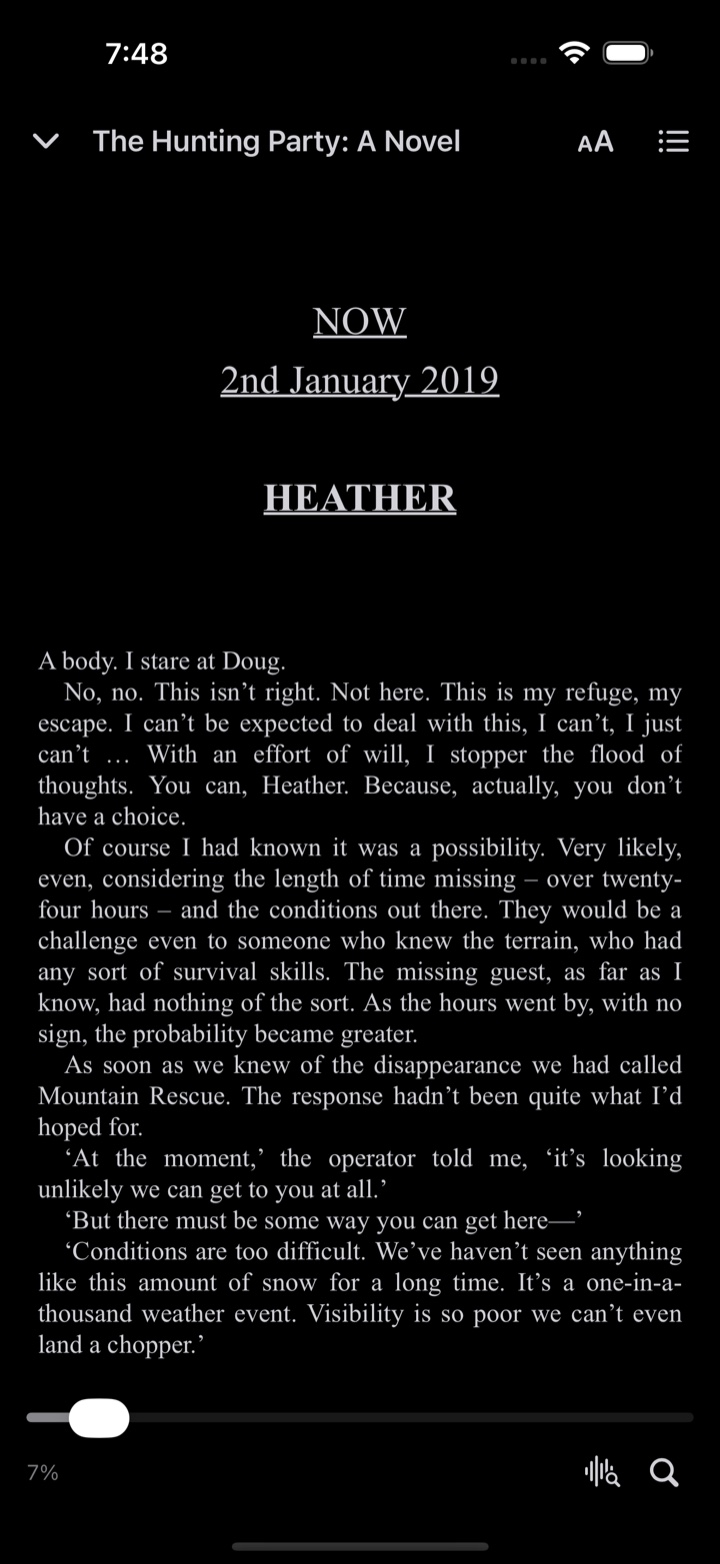
Tap the screen to bring up the reader controls. Font, text size, line spacing, page margins and theme are all yours to set.
These are the reader's own settings, separate from the app-wide theme, so you can read on a dark page while the rest of the app stays light.
The reader. Text size and the chapter list are top right, Go to Position and search bottom right.
## Offline
After the first open, the reader works with no connection. The epub is on your device.
When you download a book's audio, its epub comes along with it. A downloaded book with no epub yet is checked again at launch, so a book you downloaded before the reader existed, or one whose epub reached your server later, picks it up on its own. Epubs count toward the numbers on the Storage screen.
## Your Position Syncs Both Ways
Your place in the book syncs with the Audiobookshelf web reader in both directions. Read on your laptop at lunch, pick up your phone on the train, and you're on the right page. The reverse works the same way.
This is separate from your audio progress. A book can have you at chapter 12 in the audio and page 40 in the text, and neither one disturbs the other.
## Search Inside a Book
Tap search in the reader to search the open book. Results show:
- The **chapter name** each hit is in
- **How far into that chapter** it sits
There's a button to get you back to where you were reading, so a search never loses your place.
## Go to Position
While a book is playing, tap **Go to Position** in the reader and it opens the page the narrator is currently reading out loud.
### How It Works
Your phone does the recognition itself. No audio is uploaded and no transcription service is involved. If the track isn't downloaded, SoundLeaf pulls just that slice of it from your own server.
1. SoundLeaf takes about ten seconds of audio from your listening position
2. It turns that speech into words, on device
3. It searches the epub for those words, scoring every candidate stretch of text
4. It scrolls to the best match, shifted slightly forward so you land where the voice is now
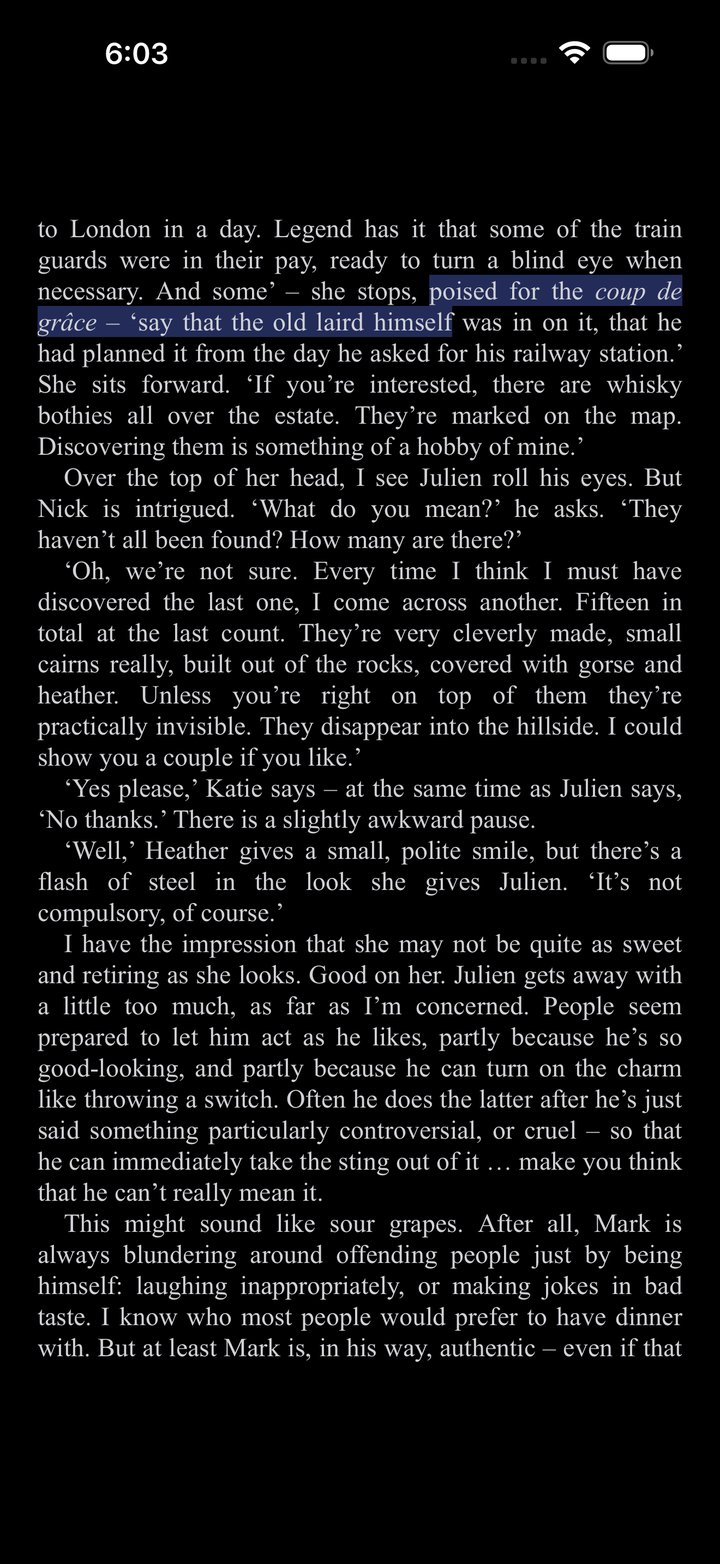
The line it landed on is highlighted, so you can see where it thinks the narrator is.
### When It Misses
It can land a page or two off. The matching step is the weak part, and books that reuse a turn of phrase are the hard case: a short clip of narration does not always point at one place in the text and nowhere else.
If it misses, use reader search. Search a distinctive phrase you just heard and it will take you straight there.
### Requirements
- The library item needs an epub. No epub, no jump.
- A book needs to be playing, or recently played, so there's audio to sample.
## Troubleshooting
### No Read button on a book I know has an epub
Check the item in the Audiobookshelf web UI and confirm the epub is attached to that library item. If the epub arrived on your server after you downloaded the book, reopen SoundLeaf: the missing epub is fetched at launch, not the moment the server gains it.
### The reader opens but the position is wrong
Audio progress and reading position are tracked separately. Use Go to Position or reader search to line them up.
### Position isn't syncing with the web reader
Reading position syncs through your Audiobookshelf server, so the app needs to have reached the server at least once since you read. Open the app with a connection and it catches up.