# SoundLeaf 2.6 for Audiobookshelf: Ebook Images, BookOrbit, and App Fonts
> SoundLeaf 2.6 for Audiobookshelf shows the maps and pictures in your ebook, connects to BookOrbit, keeps your ebook place as you listen, and adds app fonts.
Source: https://soundleafapp.com/blog/soundleaf-v26-ebook-images-bookorbit-app-fonts/
Published: 2026-09-30
---
## What's new in SoundLeaf 2.6
SoundLeaf 2.6 is on the App Store. The big one: if your audiobook has a matching EPUB, you can now look at the maps and illustrations from that ebook while you listen. 2.6 also connects to BookOrbit, keeps your ebook place up to date as you listen, and lets you change the app's font.
## Maps and illustrations from your ebook
Fantasy books love a map, and an audiobook can't show you one. So SoundLeaf now pulls the images out of the EPUB for you.
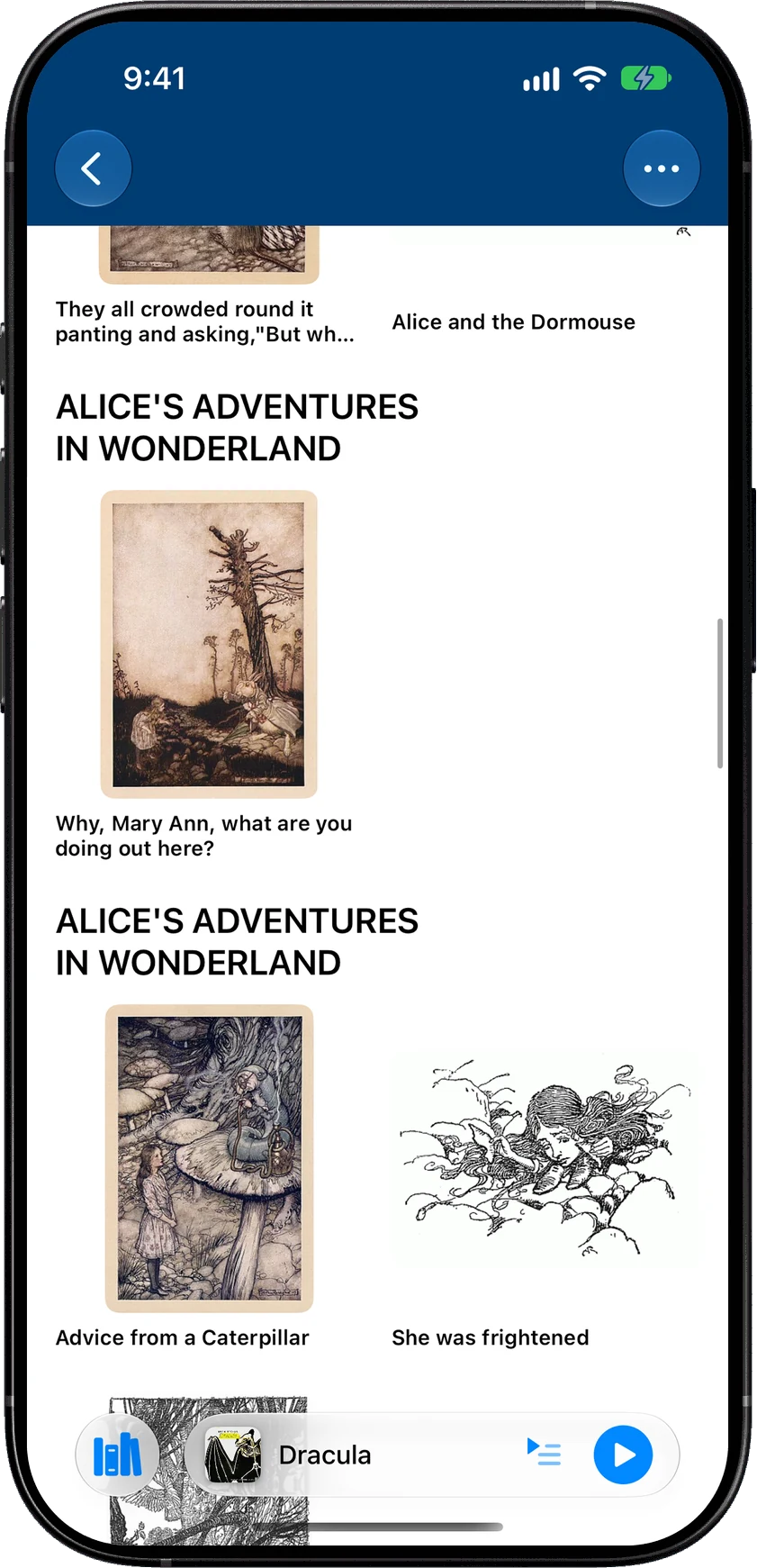
Open a book that has an ebook and tap the **Images** tab. You get the ebook's images, grouped by chapter. Small or narrow images are hidden at first; turn off **Hide small or narrow images** in the **...** menu to see them too.
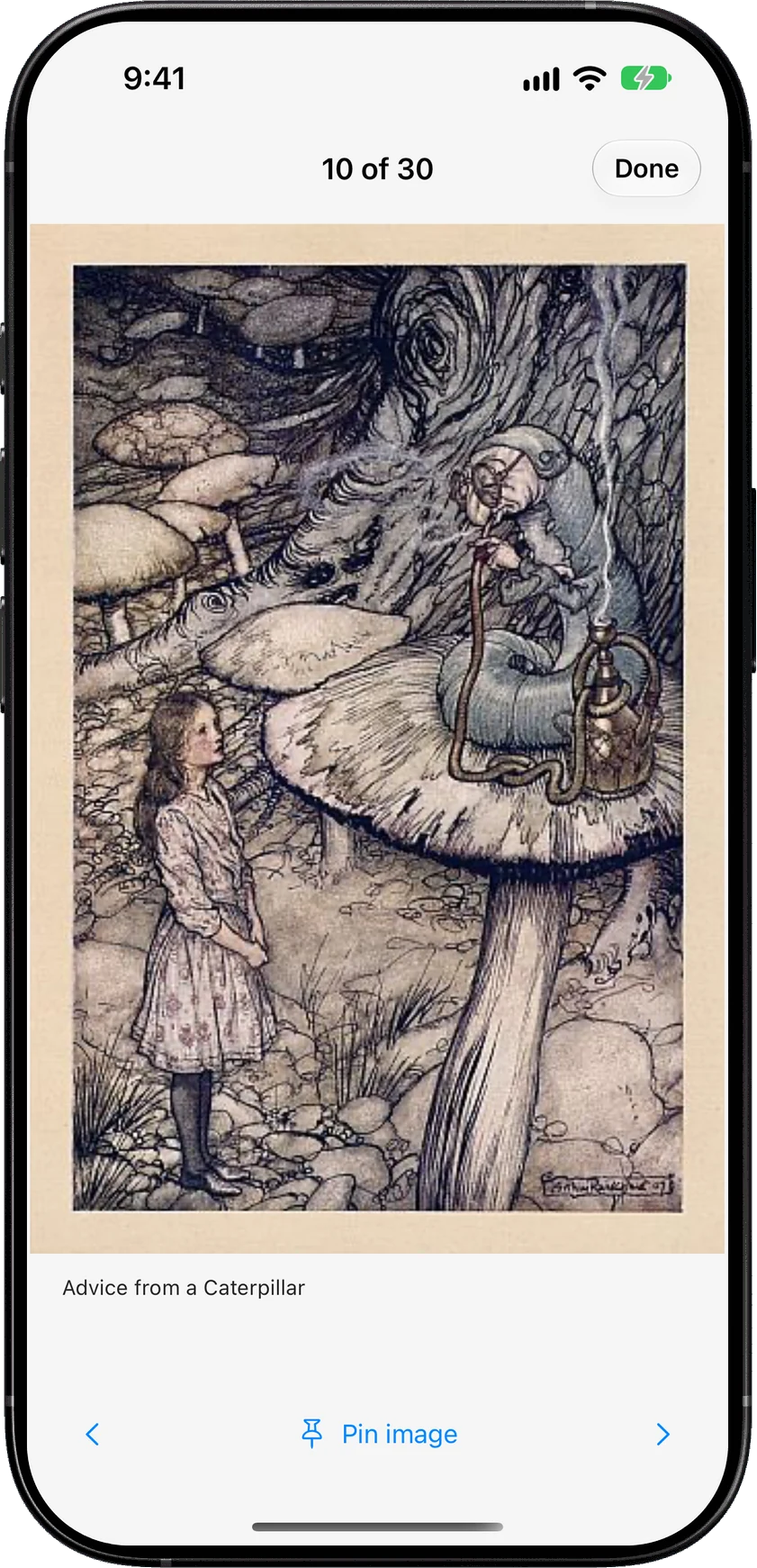
The Images tab, and one picture opened full screen.
- **Browse by chapter** - pick a chapter from the filter, or look through all of them
- **Zoom in** - tap an image to open it full screen, then pinch to zoom
- **Pin favourites** - tap **Pin image** and it shows up on the **Pinned** page, so the map is one tap away next time
- **In the player** - the player has an **Images** button too, so you don't have to leave what you're listening to
If Read Along has matched the book, the image closest to where you are listening shows at the top, under **Near your place**. There's also a setting in the **...** menu, **Replace player cover with nearby images**, that swaps the cover in the player for that image. It's off unless you turn it on, and it's set for each book.
The ebook has to contain the images. Plenty of EPUBs have no pictures at all, and some have only a cover.
## BookOrbit ebooks
2.5 added Calibre. 2.6 adds BookOrbit, so you can pick an ebook from there too.
Go to **Settings** > **Integrations** > **BookOrbit** and sign in with your BookOrbit username and password. Then pick an EPUB from BookOrbit for any audiobook. SoundLeaf downloads it, so you can read it offline, and Read Along works with it the same way it does with an Audiobookshelf ebook.
- **Calibre can stay connected** - you don't have to choose one or the other
- **Your place syncs with BookOrbit** - if you read further on another device, SoundLeaf asks which place to keep. **Continue from there** jumps ahead, **Stay here** keeps your spot.
- **Sign-in** - SoundLeaf signs in to BookOrbit with a username and password. Accounts that only sign in through a separate login service (OpenID) can't connect yet.
There's more on setting these up in [Calibre and KOReader](https://soundleafapp.com/docs/calibre-and-koreader/).
## Keep your ebook place while you listen
If you listen for a while and then open the ebook, it used to have no idea how far you'd got.
Turn on **Sync ebook position while listening** in **Settings** > **Reading & listening**. You can also turn it on for one book in that book's Read Along settings. SoundLeaf then works out where you are in the ebook as you listen, even with the reader closed or the phone locked, and saves that place to your server.
It needs the audiobook and the matching ebook downloaded, and somewhere to save your place, set up under **Settings** > **Integrations**. It can use more battery, which is why it's a setting and not always on.
## Read Along is faster
Read Along matches the narration to the ebook text on your phone. In 2.6 that matching is faster and does less work in the background, which saves battery.
A September App Store review said Read Along drained the battery during background listening. It was right, and this is the change that answers it.
Two smaller reader changes came along with it:
- **Audio bookmarks from the reader** - the reader's **...** menu has **Add audio bookmark**, which saves the audio time you're at. **Audio bookmarks** lists them.
- **Auto page colour** - under **Appearance** > **Page** in the reader, **Auto** follows your phone's light and dark mode. You choose which page colour each mode uses.
The [ebook reader guide](https://soundleafapp.com/docs/ebook-reader/) covers the rest of the reader.
## Seven app fonts
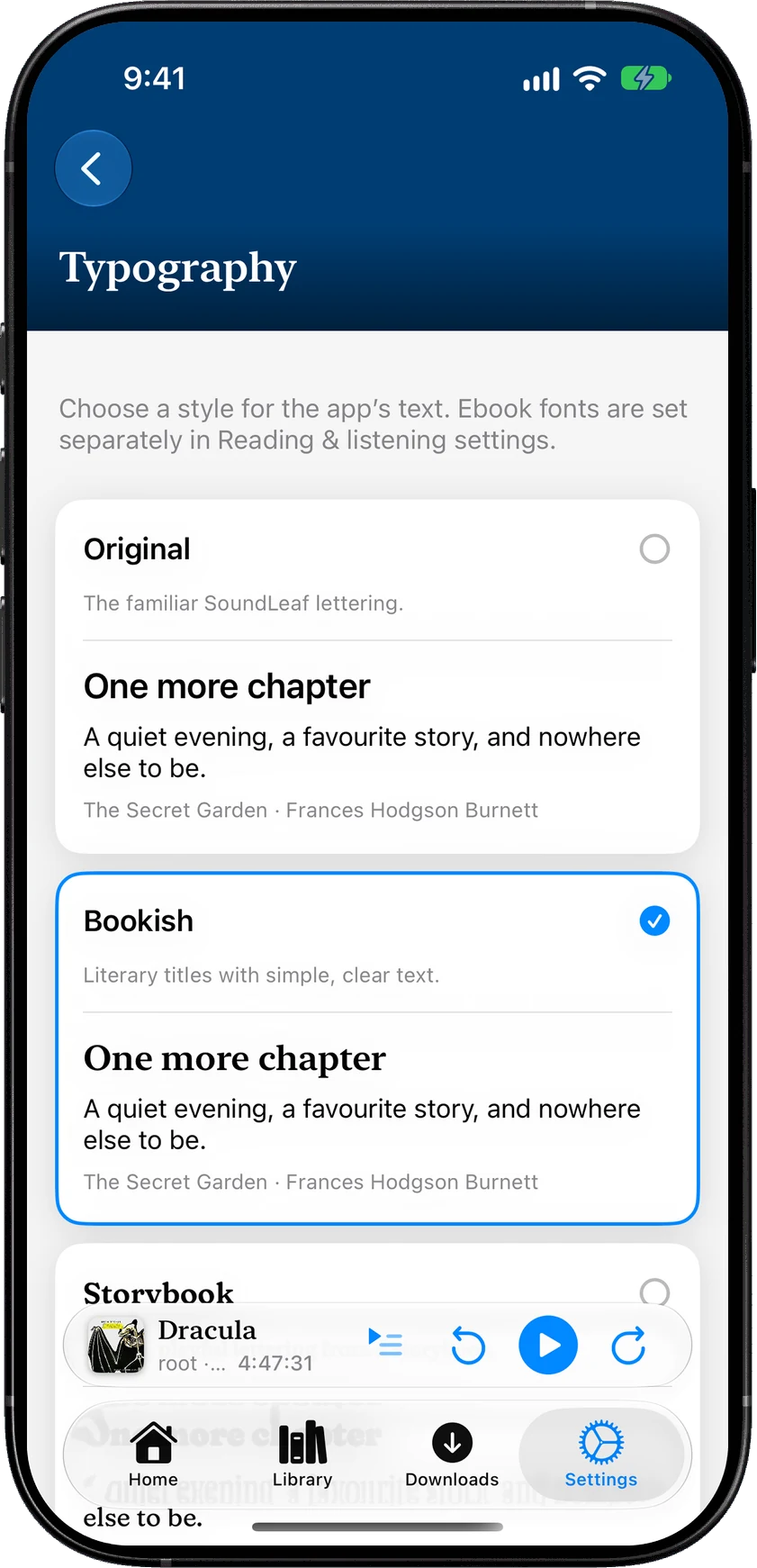
**Settings** > **Appearance** > **Typography** changes the lettering across the whole app. There are seven styles: Original, Bookish, Storybook, Notebook, Typewriter, Cozy and Clear.
Each style shows a sample before you pick it. The ebook font is a separate setting.
Ebook fonts are still set on their own, in **Settings** > **Reading & listening**.
## Apple Watch
The watch player picked up three things:
- **Speed syncs** - each book and podcast keeps its own speed, and the most recent change on the phone or the watch wins
- **Bookmarks** - add a bookmark from the watch player. It waits on the watch until your phone gets it.
- **Choose the buttons** - the buttons on either side of the volume control can be Speed, Chapters or Bookmark. Set them in **Settings** > **Apple Watch** > **Left button** and **Right button**.
## Tips
There's a new **Tips** screen for features that are easy to miss. Open it from the **Tips** button at the top of Settings, or from **Settings** > **About** > **Tips**. What's New lives there too.
## Fixes
- **Bookmarks** - bookmark sync is more reliable
- **Downloads** - Wi-Fi only downloads behave properly
- **Book selection** - selecting books and the download preview are clearer
## Get the update
2.6 is on the [App Store](https://apps.apple.com/app/soundleaf/id6738635634) now. New builds show up on [TestFlight](https://testflight.apple.com/join/fwu2bdjX) first.
If ebook images look wrong, a [bug report](https://github.com/SoundLeaf/SoundLeafApp) with the book's title and where the EPUB came from (Audiobookshelf, Calibre or BookOrbit) helps me find it.
Hemant